
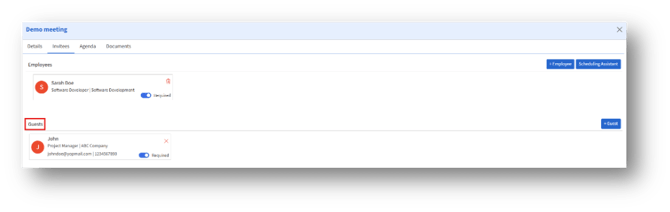
a. The guest appears under the Guests list in the Invitees tab.
b. You can mark them as Required or remove them anytime.
c. Guests will receive meeting notifications via the email provided.
- Agenda Tab
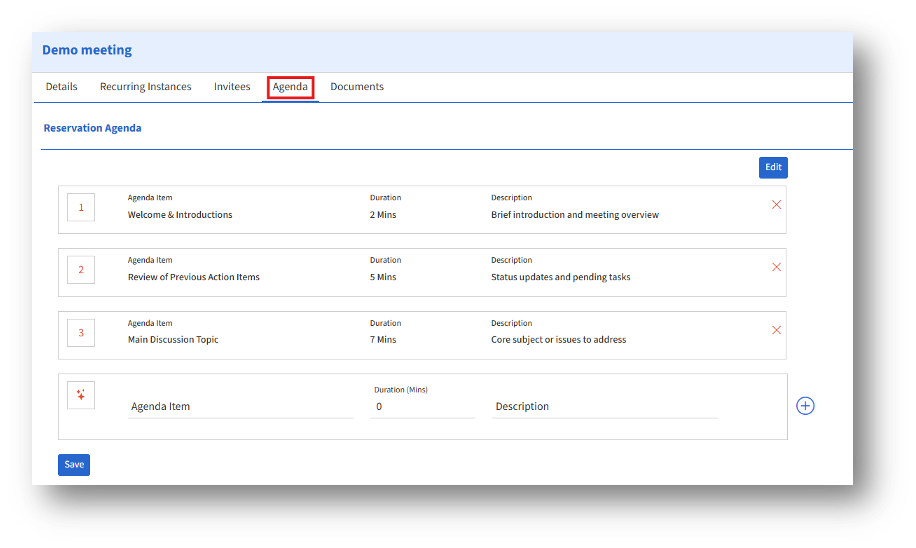
Create and manage structured meeting agendas:
1. Add agenda items with title, duration, and description.
2. Reorder or remove agenda items using the Edit option.
3. Click Save to apply your changes after making modifications.
2. Documents Tab
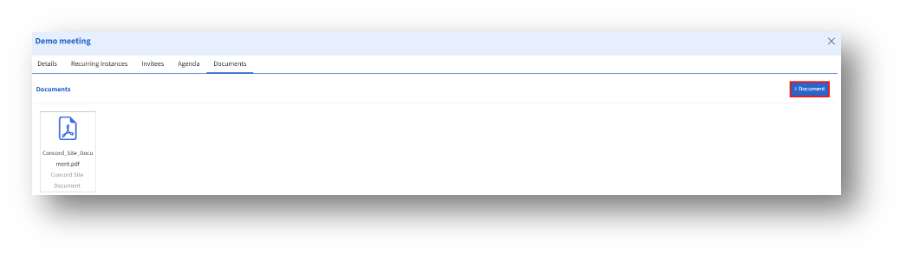
Upload or review documents attached to the reservation:
A. View existing documents associated with the meeting.
B. Upload additional documents using the +Document button.
Upload Document
The Upload Document option allows organizers to attach relevant files—such as agendas, reference materials, presentations, or site documents—to a room reservation. These documents are accessible to all invitees and the organizers.
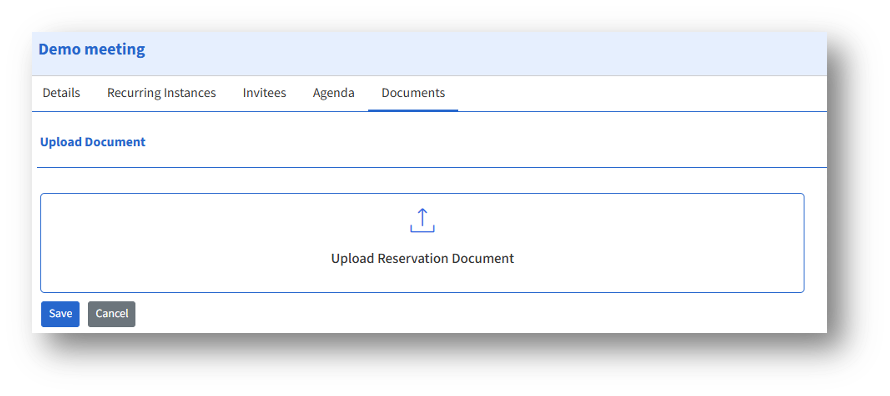
Steps to Upload a Document
- Navigate to the Documents tab in the Reservation Details page.
- Click the + Document button to open the Upload Document screen.
- In the Upload Reservation Document panel:
- Click inside the upload box or drag and drop a file into the area.
- After selecting the file, review the upload.
- Click Save to attach the document to the reservation.
7. If you change your mind, click Cancel to exit without uploading.
After Uploading
a. The document will appear in the Documents tab as a listed file.
b. Invitees can click and view the attached document.