
The Stack Plan shows the distribution of seats across departments within a floor. It helps in understanding how space is utilized, which departments occupy how many seats, and where vacancies exist.
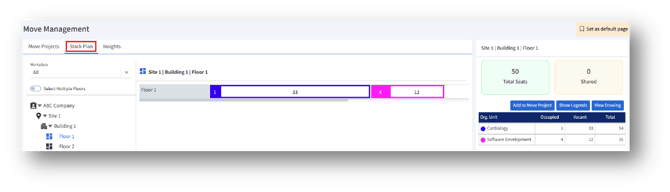
Left Panel (Navigation – Workplace Hierarchy)
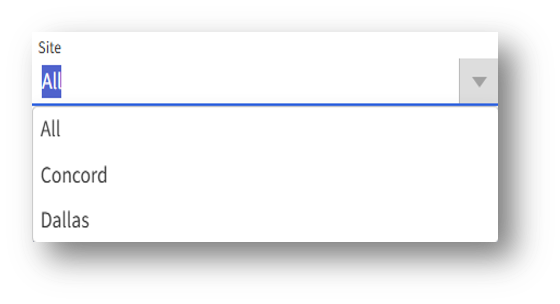
a. Workplace/Site Filter: A dropdown at the top, which allows users to filter data for specific workplaces/sites.
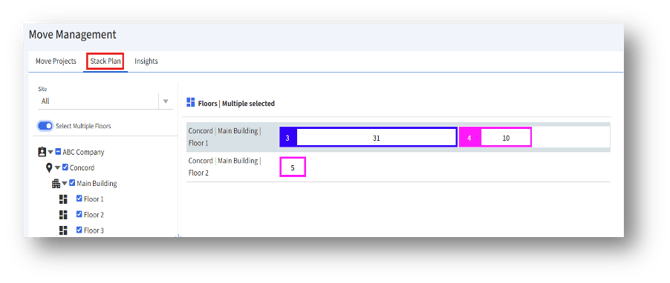
b. Select Multiple Floors: A toggle switch to allow viewing/selection of multiple floors at once.
Center (Stack Plan Visualization)
Visual Stack Layout:
a. Shows a horizontal bar divided into coloured segments, representing different organizational units on the selected floor.
b. It also displays the number of occupied and vacant seats.
c. Depending on the selected location, the stack layout differs:
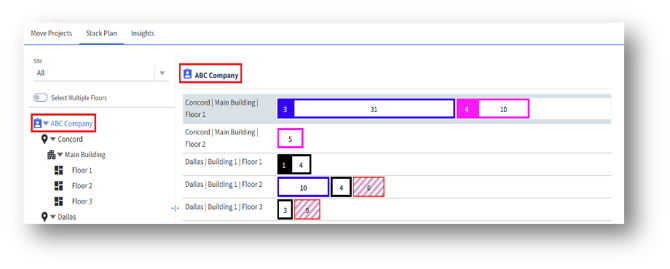
- When a customer’s name is selected, the stack layout presents seating arrangements across Sites, Buildings, and Floors.
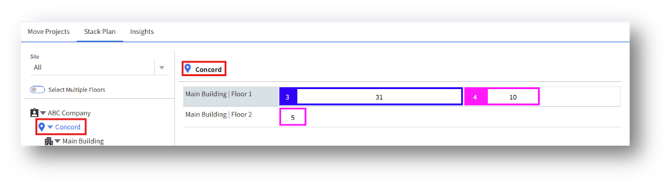
3. When a Building is selected, the stack layout presents seating arrangements across the Floors.
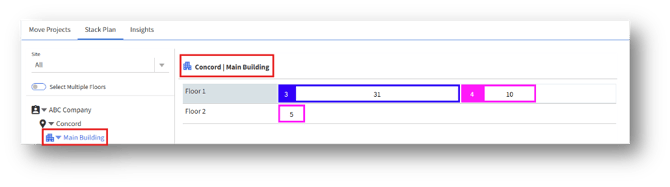
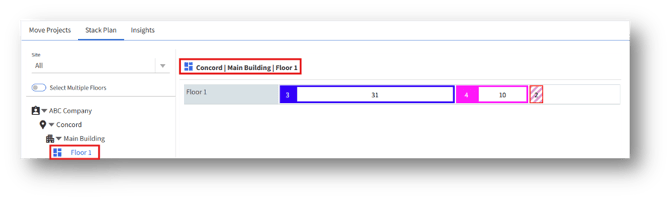
4. When a Floor is selected, the stack layout presents seating arrangements across the particular floor.
Right Panel (Summary & Actions)
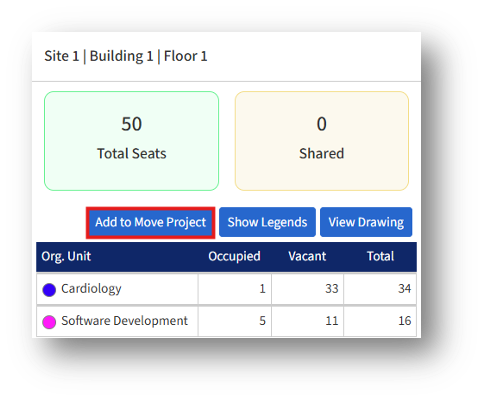
Summary Widgets
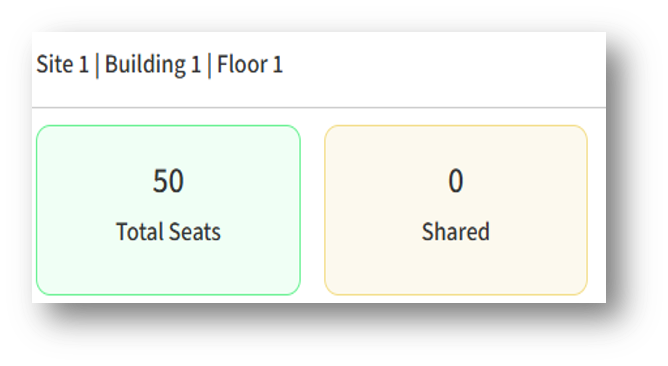
Depending on the selected location (Customer/Workplace/Building/Floor), the total number of seats and the number of shared seats differ.
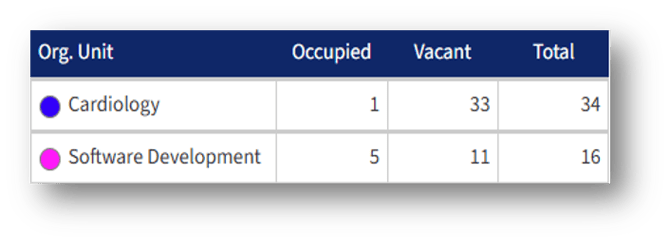
Occupancy Table (By Org. Unit)
Displays a tabular summary of seating distribution.
Add to Move Project
The “Add to Move Project” button lets you add employees to a move project from the Stack Plan module.
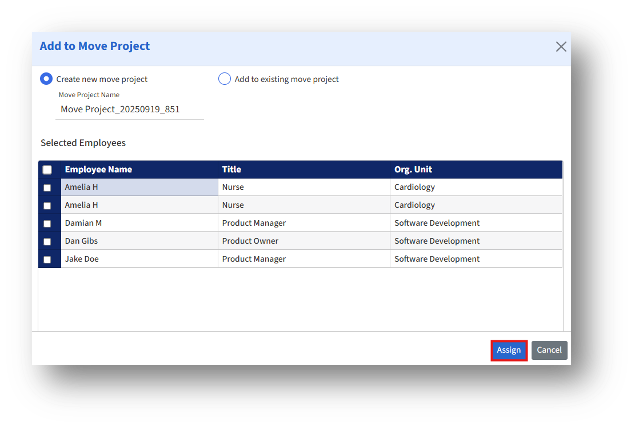
Clicking the Add to Move Project button opens the “Add to Move Project” page.
Project Selection Options
Two radio button options are provided to determine how the employees will be added:
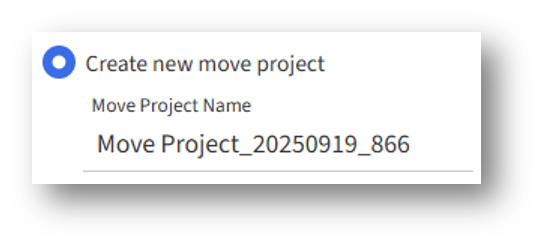
- Create new move project:
a. This option lets the user create a brand-new project for the move.
2. Add to existing move project:
a. This option allows assigning employees to a project that already exists in the system.
b. Choose Move Project – Once selected, it opens a dropdown option to pick the existing project.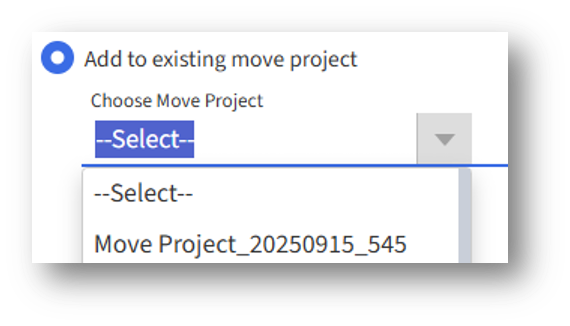
Selected Employees Section
This section lists the employees chosen for the move project. It is structured as a table with the following columns:
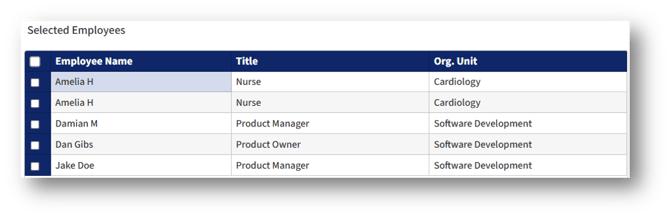
a. Appears before each row, allowing the admin to select or deselect specific employees to include in the project.
b. A master checkbox at the top of the column enables selecting/deselecting all employees at once.
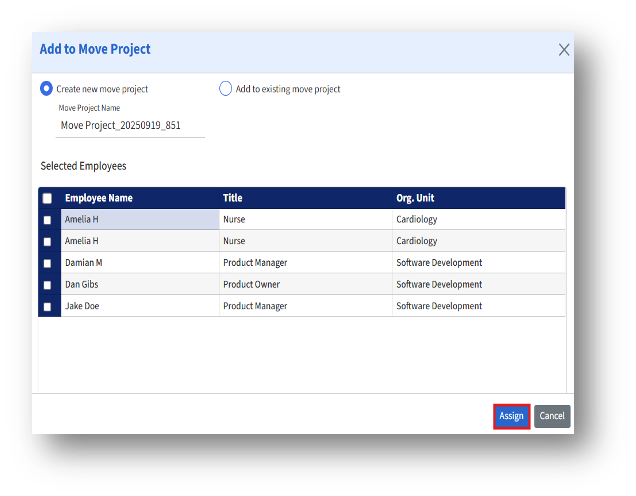
To assign the selected employees to the chosen move project, click the “Assign” button.
Show Legends
Clicking the “Show Legends” button displays the available color legends to understand the visualization.
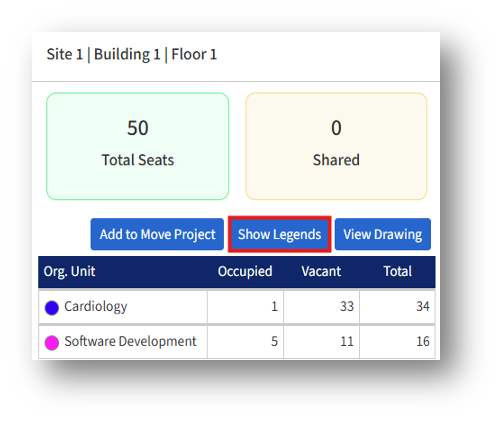
a. Clicking the Show Legends button opens the All Legends
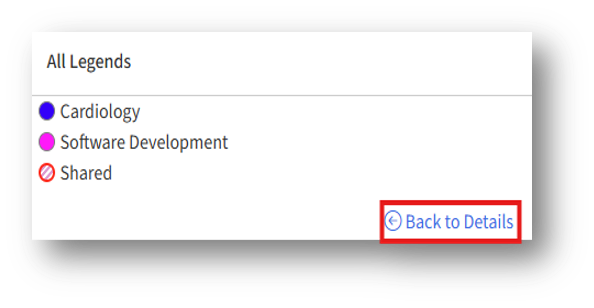
b. Click the “Back to Details” link to navigate to the previous menu.
View Drawing
Clicking the “View Drawing” button opens the floor plan drawing for a more detailed spatial view.
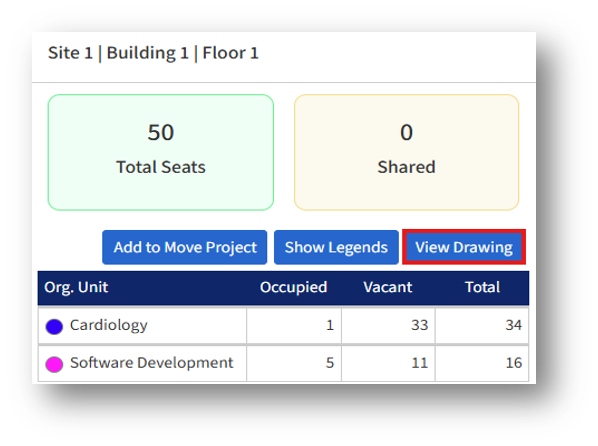
Clicking the View Drawing button opens the floor drawing. The admin can view the architectural layouts in both Space View (functional) and As-builts View (structural) perspectives.
Space View
Space View provides a combination of interactive floor plans with detailed space data. It allows users to toggle between visual seat assignments and tabular space records, making it easier to manage both occupancy and space functions on a floor.
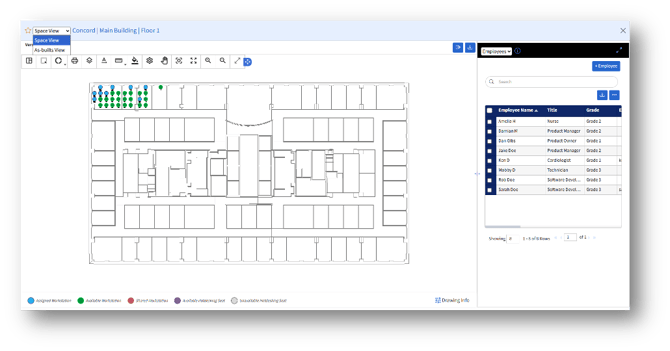
- Navigation & View Options (Top Section)
A. A dropdown menu at the top-left allows users to switch between:
a. Space View: Displays seating, workstation allocation, and occupancy.
b. As-builts View: Displays the actual architectural layout without occupancy data, focusing on structural design.
B. Breadcrumb navigation: Concord > Main Building > Floor 1 helps identify the current location in the hierarchy.
C. To make the drawing a favorite, click the favorite (star) icon near the Breadcrumb navigation.
D. Toolbar icons provide drawing utilities:
a. Multi-select – Allows selecting multiple spaces at once on the floor plan.
b.De Hatch – Remove filled color patterns from selected areas for clearer visibility.
c. Distribution map – Displays the layout distribution of workstations or rooms.
d. Plot – Generates a plotted version of the floor drawing.
e. Layers – Control the visibility of different drawing layers.
f. Move text – Enter/Reposition room labels or annotations within the plan.
g. Measure – Measure distances or dimensions (Point to Point/Wall to Wall/Area) directly on the floor plan.
h. Background – Allows the selection of the drawing’s background display.
I. Display settings – Customize how information and graphics are displayed.
J. Pan – Move the drawing view in any direction without changing zoom.
2. Floor Plan (Center Panel)
1. This gives a quick visual overview of seat allocation and availability.
2. The large central panel shows the floor layout of the site.
3. Seating arrangements are displayed:
a. Assigned Workstations (already occupied by employees).
b. Available Workstations (vacant and ready to be assigned).
3. Space Information Panel (Right Panel)
a. The right-hand panel lists all spaces/rooms on this floor, categorized by function.
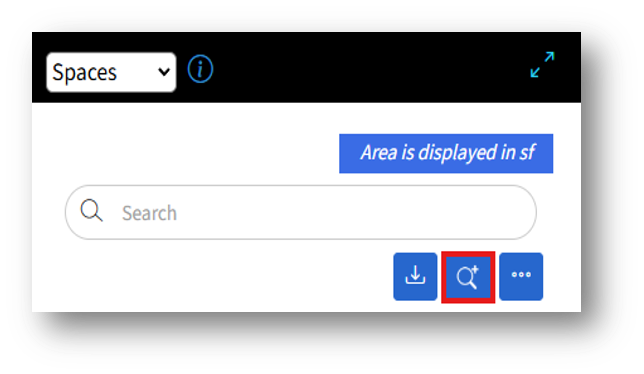
b. Dropdown at the top: When set to “Spaces,” it displays space details.
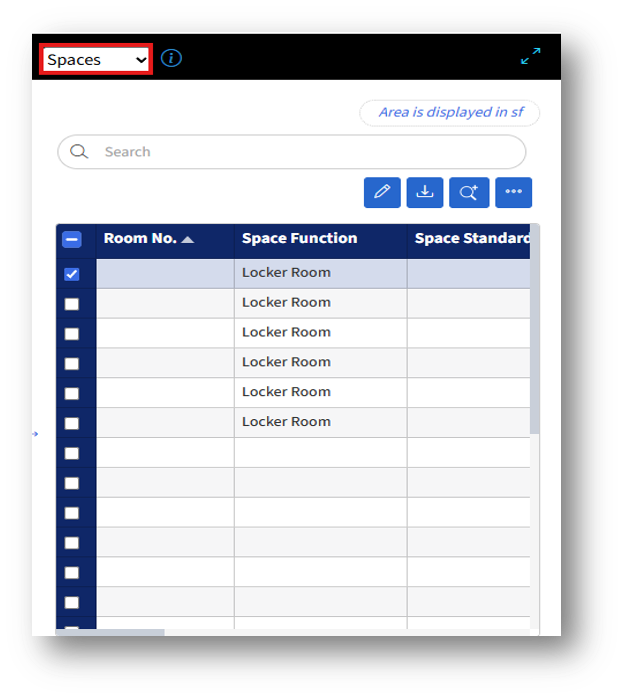
A. Search bar – Allows users to search using keywords.
B. Edit – The edit option appears after selecting a field/multiple rooms.
C. Download – Downloads the Space list table in Excel format.
D. Advanced Search – To view the Advanced Search settings, click the Advanced Search button.
C. Under “Saved Searches,” the admins can see the previously saved searches.
D. The Advanced Search page provides admins with two modes — Default and Custom — to refine and filter space-related data.
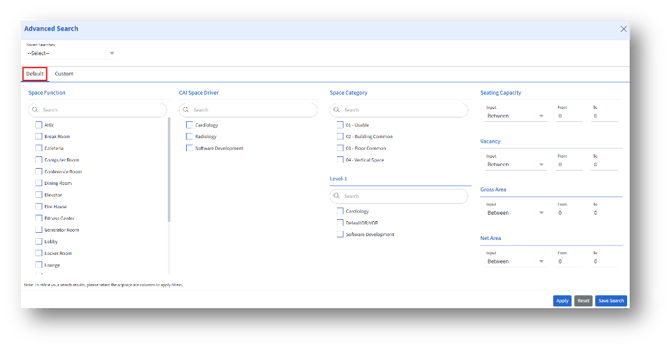
- Default Search
This mode provides predefined search fields to narrow down space data quickly.
a. Apply – Execute the search with chosen fields.
b. Save Search – Saves frequently used search criteria or field sets for easy reuse.
2. Custom Search
Custom search offers a flexible way to create search conditions with logical operators.
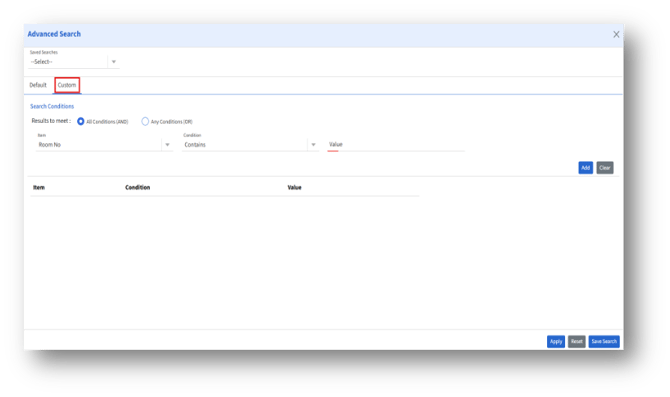
Key Features:
1. Search Conditions – Users can build their own conditions.

Choose whether results should meet:
a. All Conditions (AND) – Records must match all filters.
b. Any Condition (OR) – Records can match any one filter.
2. Item – Select the attribute to filter by (e.g., Room No).
3. Condition – Choose condition logic (e.g., Contains, Equals, Starts with).
4. Value – Input the value to search for (e.g., Room number “201”).
5. Add – After adding conditions, click the Add button to search.
6. Clear – Remove all defined conditions. Also, click the Close Icon (X) to clear the conditions.
7. After adding conditions, it will reflect below.
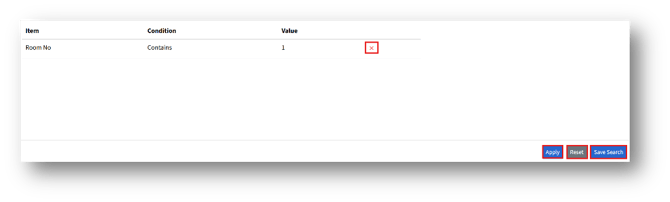
8. Apply – Run the search with defined conditions.
9. Reset – Clear the search form.
10. Save Search – Save customized queries for future use.
Dropdown at the top: When set to “Employees,” it lists all employees assigned a seat on the selected floor.
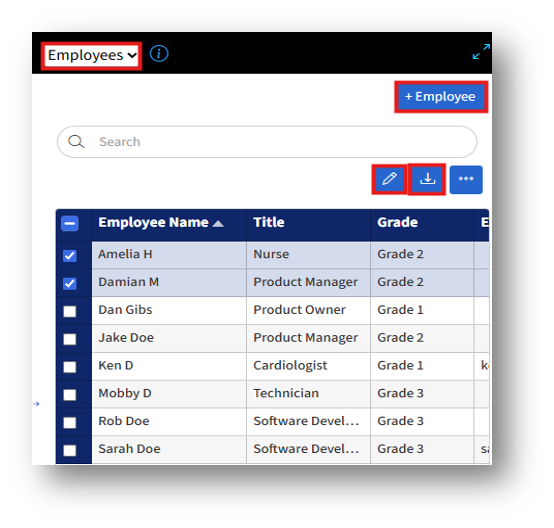
1. +Employee – Clicking the Employee button will navigate to the “Employee” page, where new employees can be added.
2. Search bar: Allows users to search using keywords.
3. Edit – The edit option appears after selecting a field/multiple employees.
4. Download – Downloads the Employee list table in Excel format.
Dropdown at the top: When set to “Seats,” it lists all seats on the selected floor.
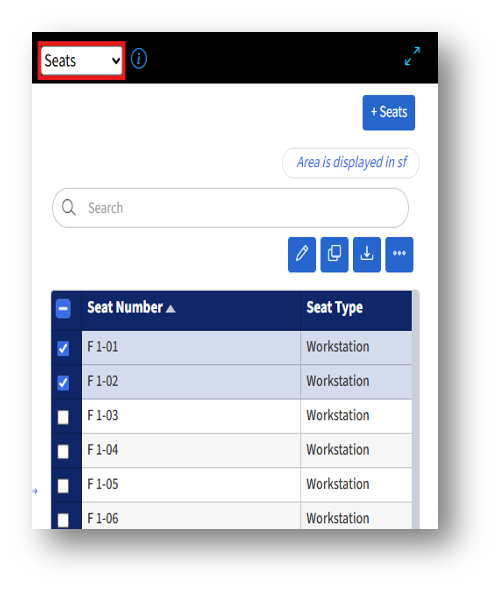
1. +Seats – Clicking the Employee button will navigate to the “Add Seat” page, where new employees can be added.
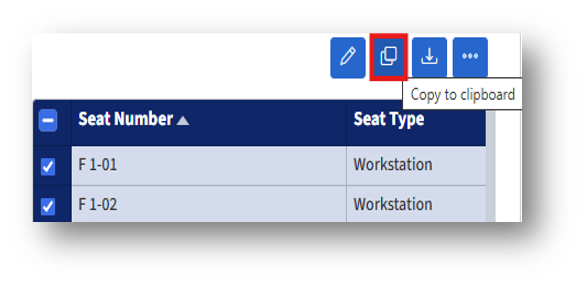
2. Copy to Clipboard – Allows the admin to copy the selected seats to the clipboard.
As-builts View
In summary, this digital drawing management interface enables users to view, navigate, annotate, and collaborate on floor plans, featuring version control and interactive tools.
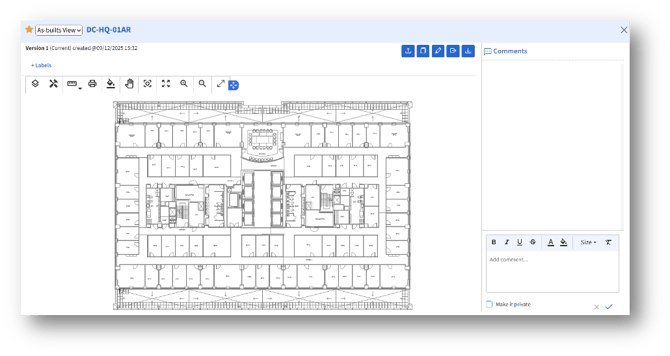
- Top Section (Header Information)
a. Title: the identifier or code for the drawing/floor plan.
b. View Mode: As-builts View is selected, meaning this is the finalized "as-built" version of the drawing after construction.
c. Versioning: Displays the current version with the creation date/time. This ensures version control for document tracking.
d. +Labels: Let users add labels for better organization/search. Click the “+Labels” button to open the “Select Label” page.
2. Drawing Area (Main Floor Plan)
Shows a detailed architectural floor layout with labeled rooms, corridors, meeting areas, restrooms, staircases, and elevator cores.
3. Comments Panel (Right Side)
Provides a space for collaborative feedback, markups, or notes.
4. Action Buttons (Top Right - Blue Icons)
a. Upload – Upload updated drawings or attachments.
b. Edit – Make changes or add markups.
c. Compare/Revision Icon – Check differences between versions.
d. Download – Save the drawing locally.