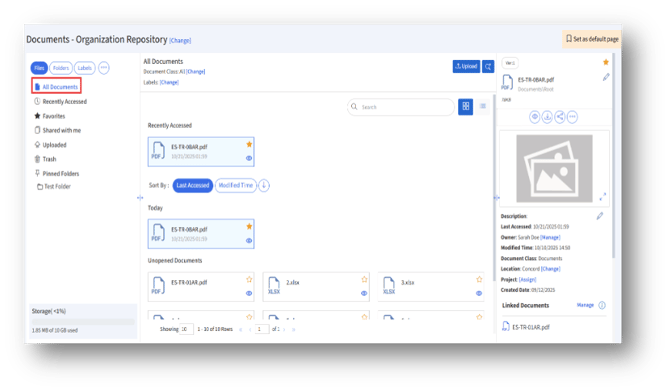
Under the “All Documents” section, the admin can see the following details:
A. Document Class – Clicking the “Change” button, the admin can select the document class view of the documents.
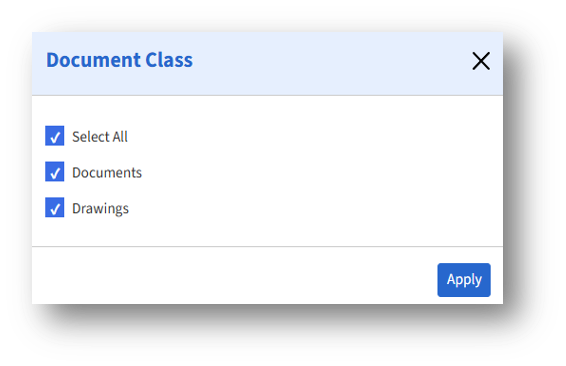
After selecting the Document class, click the Apply button to apply the changes.
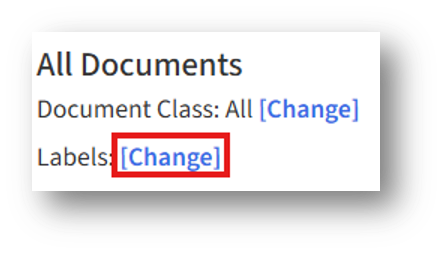
B. Labels – Clicking the “Change” button, the admin can select the document class view of the documents.
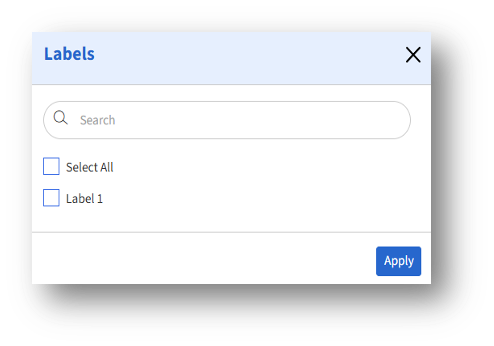
After selecting the Label, click the Apply button to apply the changes.

C. Search – Clicking the Search button will open the “Advanced Search” page.
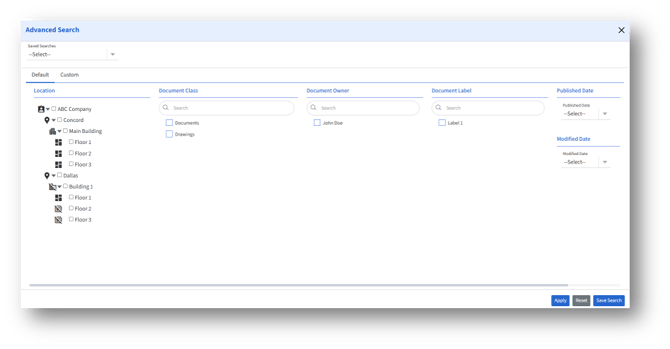
a. After setting the desired search fields, click the “Save Search” button to save the search.
b. Click the “Apply” button to apply the search results.
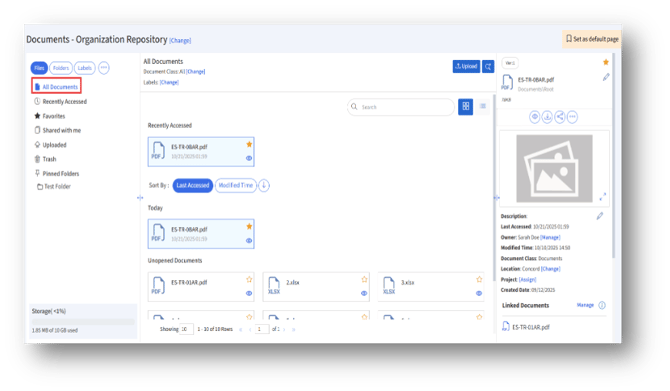
D. Upload
E. Recently accessed – Under this section, the admin can see the recently accessed documents.
F. Sort by – The admin can sort the document view by “Last Accessed” or “Modified Time” and use the arrow icon to toggle between ascending or descending order.
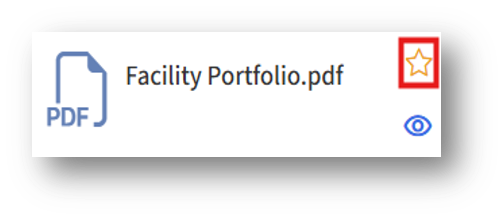
G. The admin can set a document as a “favorite” by clicking the star icon.