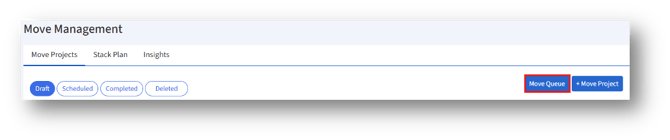
Move Queue gives a centralized view of employee seat relocations with filtering, search, and detailed employee-level move tracking. Click the “Move Queue” button to open the “Move Queue” page.
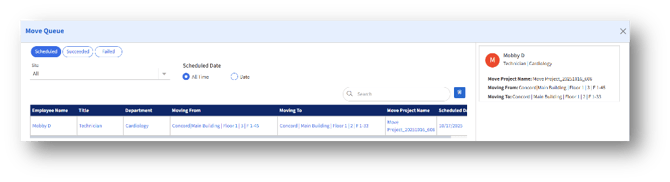
Under the “Move Queue” page, the admin can see three tabs:
1. Scheduled
2. Succeeded
3. Failed
1. Scheduled
These represent the different statuses of moves:
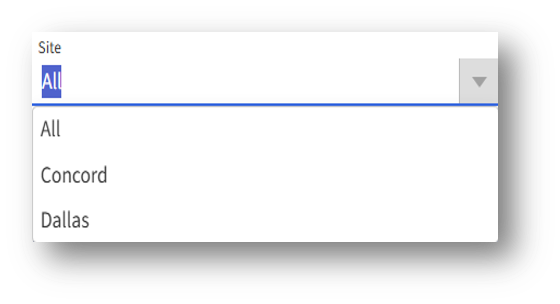
1a. Workplace/Site Filter
Allows filtering moves based on a specific workplace, building, or site. When set to All, all scheduled moves are visible.
1b.Scheduled Date Filter (All Time | Date)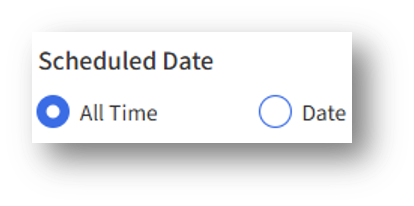
a. All Time – Displays moves scheduled at any time.
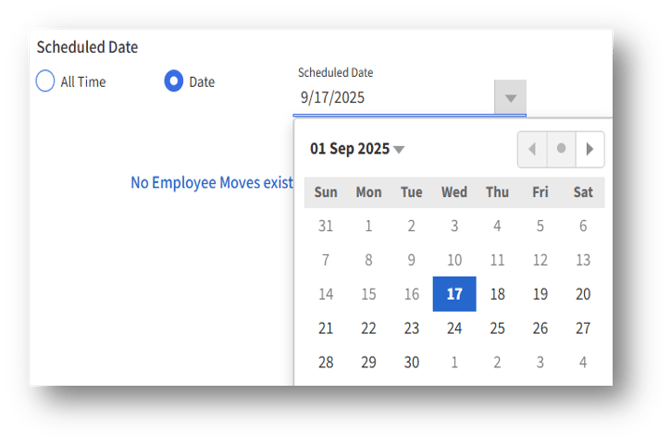
b. Date – Allows filtering moves by a specific scheduled date. To select a date, the user can click the Scheduled date drop-down and select from the calendar.
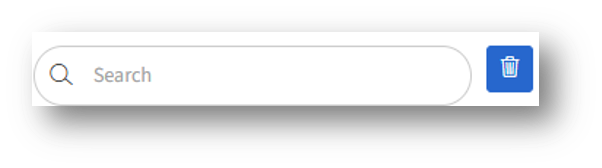
1c. Search Box with Clear Option
Users can search for a specific employee, department, or project within the move queue. The trash-bin icon clears the search input.
Employee Move Data Table
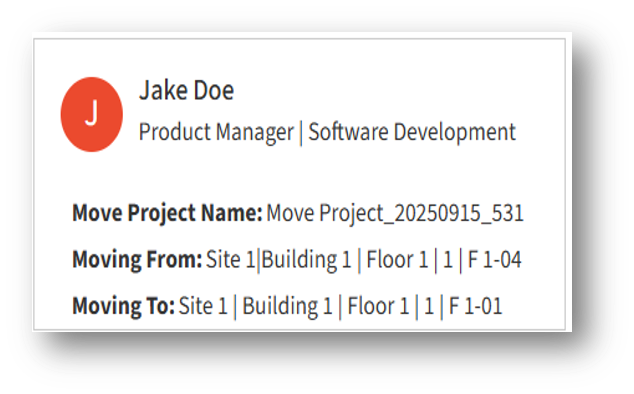
The central grid displays the list of employees scheduled for moves, along with key details.

Right-Side Pane – Detailed View
When a row in the table is selected, details appear in the pane on the right-hand side.
Succeeded
The Succeeded Move Queue displays all employee move requests that have been successfully executed.
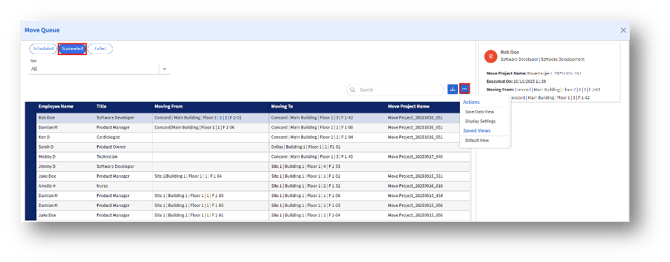
- Employee Move Data Table
The main table lists details of the employees whose moves were successful.

2. Actions and Settings
2a. A three-dot menu (⋮) is available next to the search bar for additional functions.
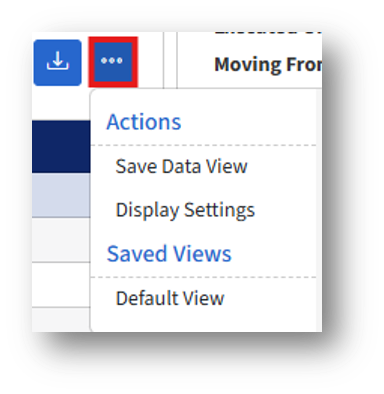
a. Save Data View: Allows the user to save the current view/filter preferences.
b.Display Settings: Customize how the table data is shown.
2b.Saved Views: Provides quick access to pre-saved layouts or filters. Currently, there’s a Default View option available.
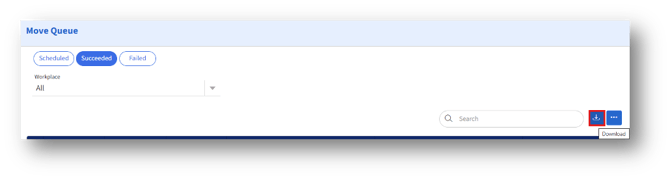
2c. Additionally, there’s a Download button (next to the three-dot menu), which downloads the data into Excel format.
Failed
The Failed Move Queue section tracks and displays employee seat move requests that could not be successfully executed due to specific issues or conflicts.
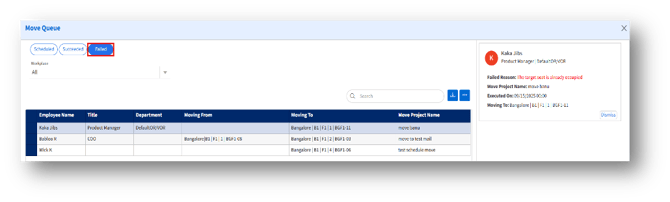
1. Failed Moves Table
The main table lists employees whose moves failed.
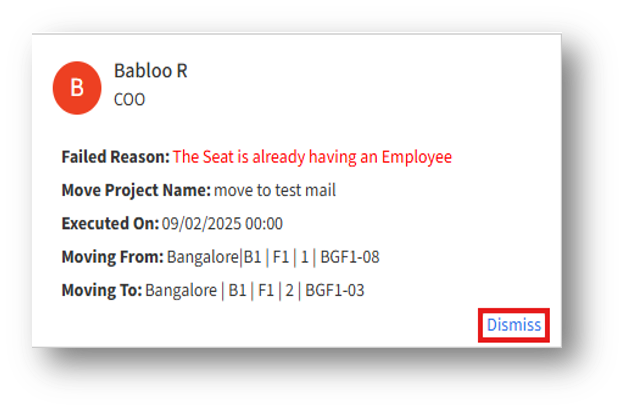
2. Detailed Failure Panel (Right Side)
When you click on a failed record, a detail panel opens on the right, showing the details below.