After selecting a document, the details will appear in the right panel.
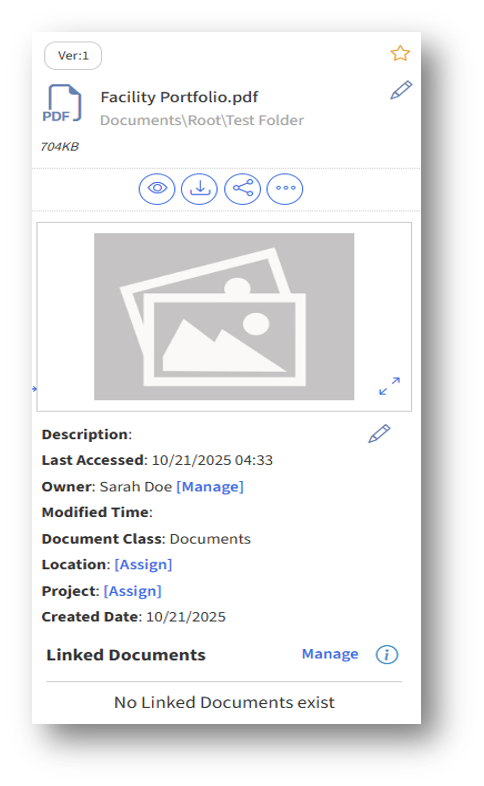
The admin can perform the following functions:
- Edit– Clicking the Edit button near the document name allows the admin to modify the document's name.
- Favorite – The admin can mark a document as a favorite by clicking the star icon.
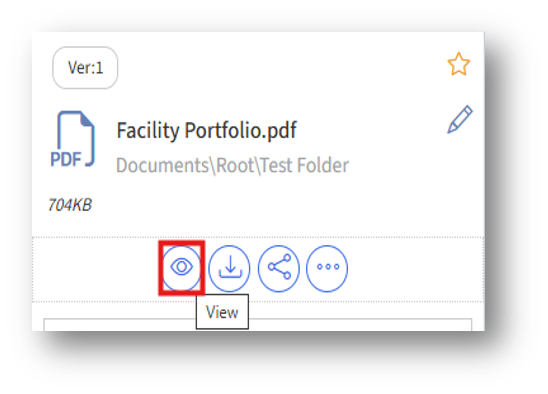
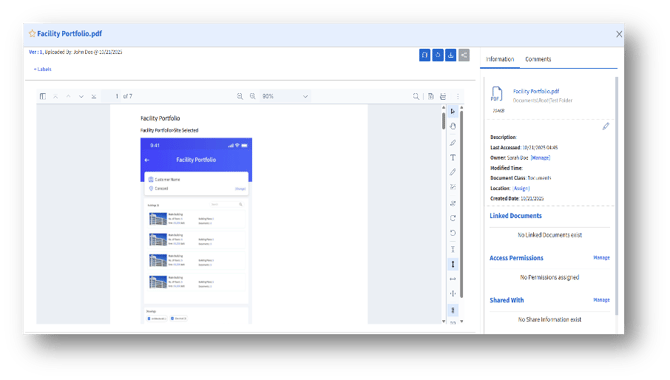
3. View – The View button enables the admin to view the document details, edit them, and add comments to the document.
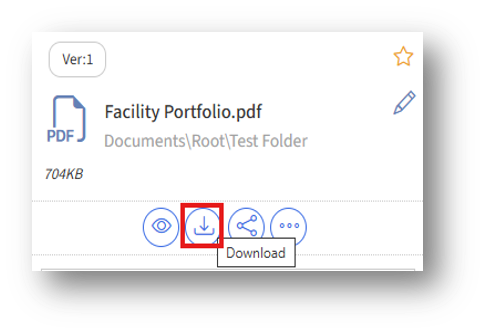
4. Download – The Download option allows the admin to download the document in PDF format.
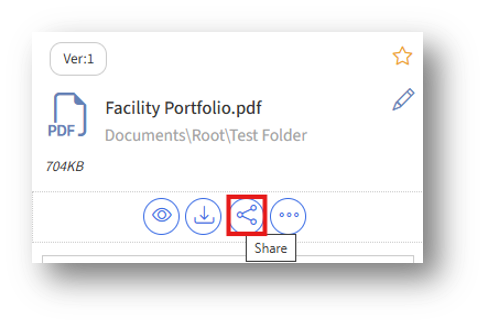
5. Share – The Share option allows admins to share documents with other employees.
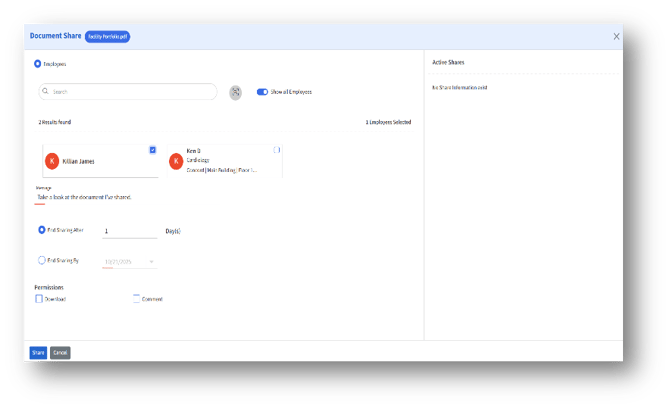
Clicking the Share button will open the “Document Share” page, where the admin can select the employees listed, set the share time limit, grant Download/Comment permissions, and click the Share button.
6. Delete – The Delete option allows the admin to delete the selected document, which will then be moved to the “Trash” folder.
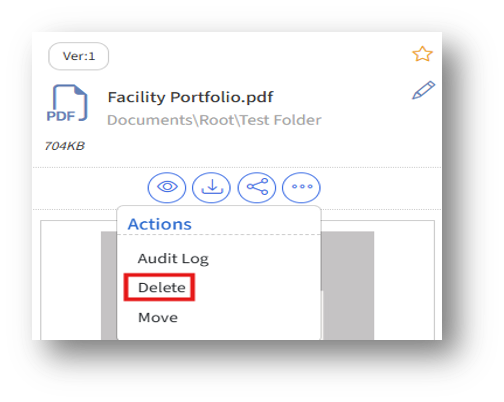
7. Move – The move option allows admins to relocate documents from one folder to another.
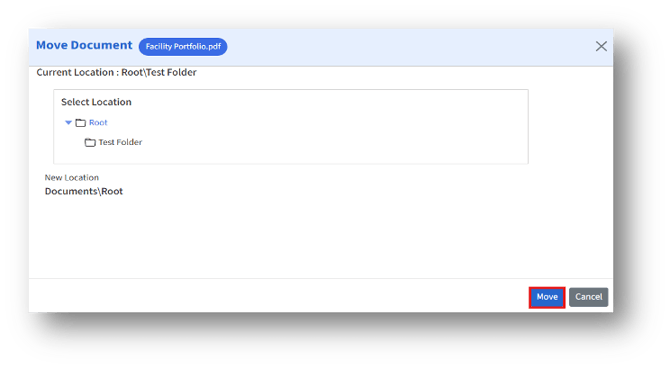
Clicking the Move button opens the “Move Document” page, where the admin can select the destination folder and then click the Move button to transfer the document from its current location to the new one.
8. Edit Description – The Edit button across the description allows the admin to edit the document description.
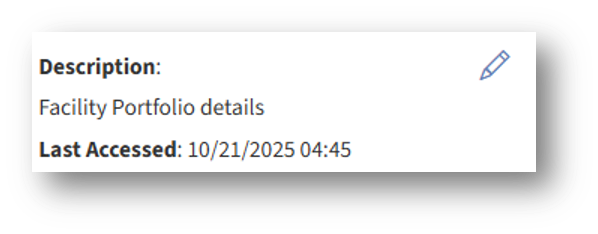
9. Last accessed – Displays the last accessed date and time.
10. Owner – Displays the current document owner. To add more owners, click the Manage button.
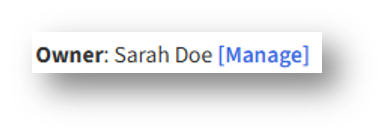
Clicking the Manage button will open the Add new Owner(s) page.
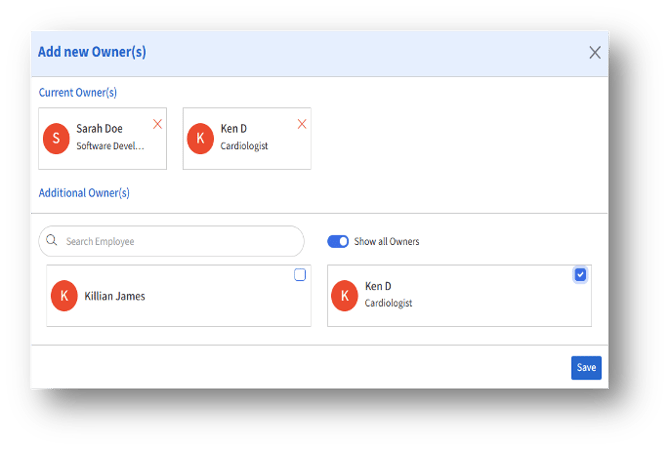
a. The Current Owner(s) section lists the current owners of the document.
b. Enabling the Show all Owners toggle button will display the options and check the name boxes to select, and click the Save button to add as a new owner.
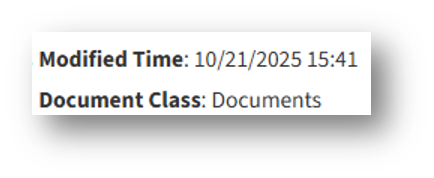
11. Modified time – Displays the modified date and time.
12. Document class – Displays the document class.
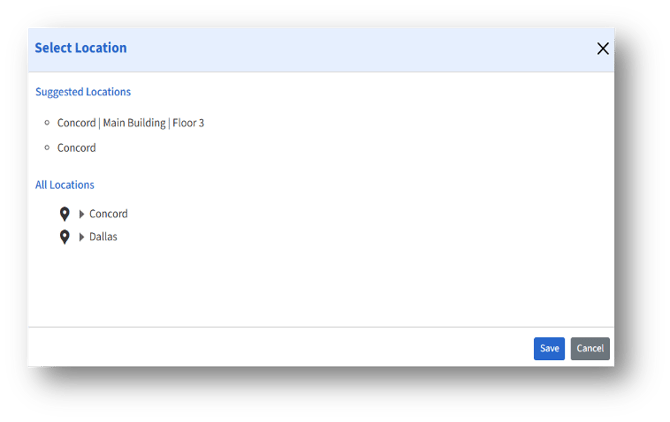
13. Location – Displays the current location. Clicking the Assign button will open the “Select Location” page.
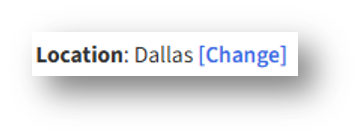
The admin can select a desired location and click the Save button.
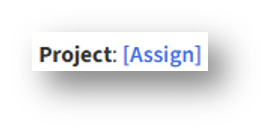
a. After selecting the project(s), click the Select button.
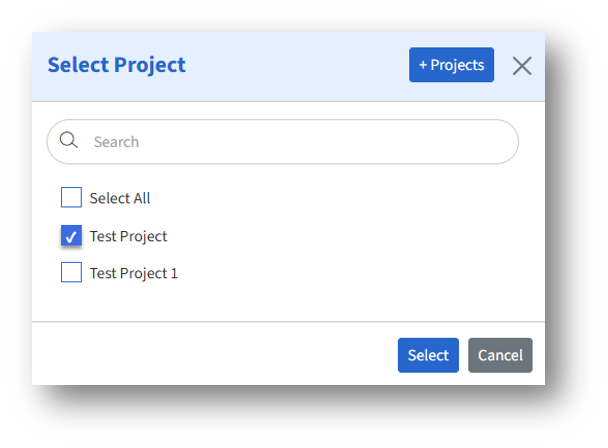
b. To add a new project, click the “+Projects” button.
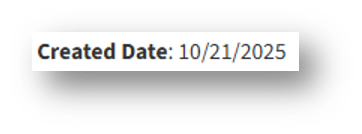
15. Created date – Displays the document's created date.
16. Linked Documents— Displays the existing linked documents.
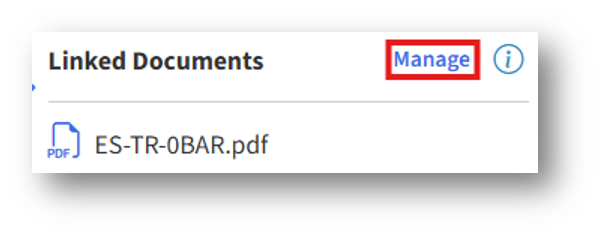
a. Click the “Manage” button to open the “Linked Documents” page to link more documents.
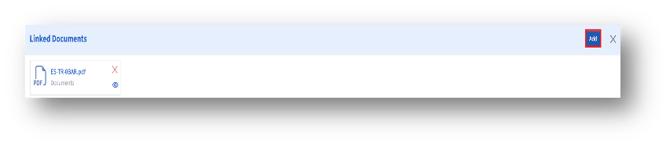
b. Click the Add button to link more documents.
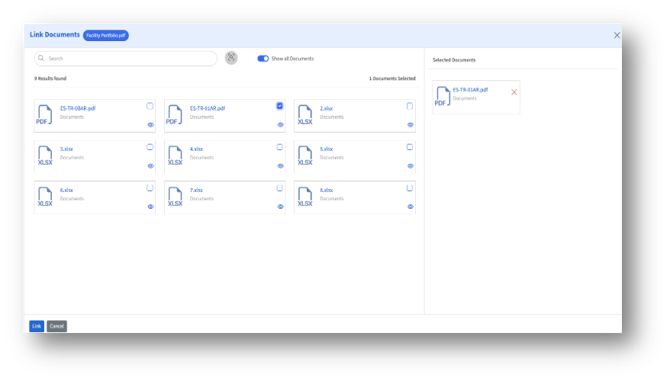
d. Select the documents and click the “Link” button to link the document.
17. Access Permissions — Displays the existing access permissions for employees.
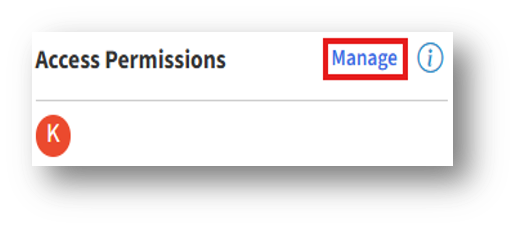
a. Click the “Manage” button to open the “Linked Documents” page to link more documents.
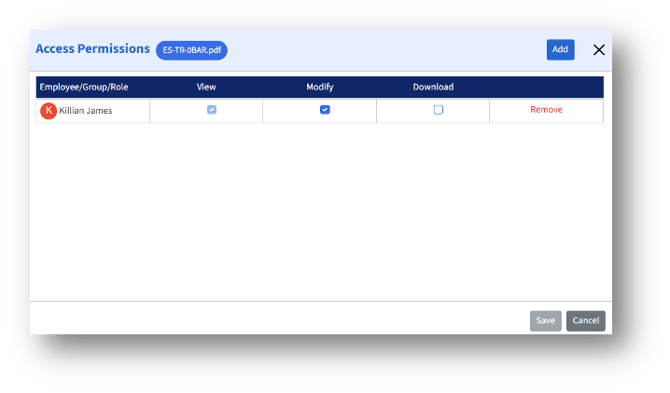
b. The admin can edit the permissions and click the Save button.
c. Clicking the Add button opens the “Add Employees, Groups and Roles” page.
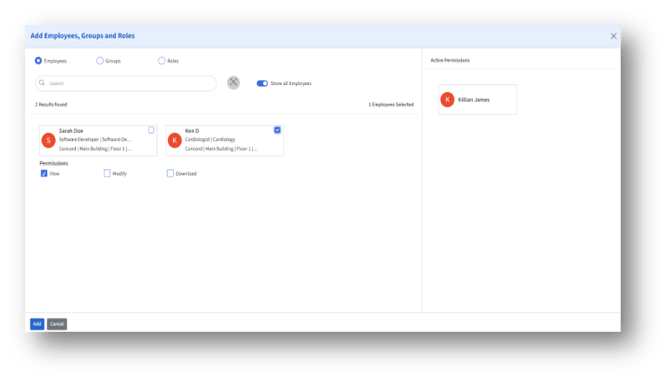
d. The admin can assign permissions such as “View,” “Modify,” and “Download” to Employees, Groups, and Roles.
e. Under the Employees, the admin can search for Employees or enable the toggle “Show all Employees” for Employees/Groups/Roles to display all the available document access-enabled employees.
f. Select the employee checkboxes and permissions and click the “Add” button.
18. Shared with — Displays the existing document shared employee name.
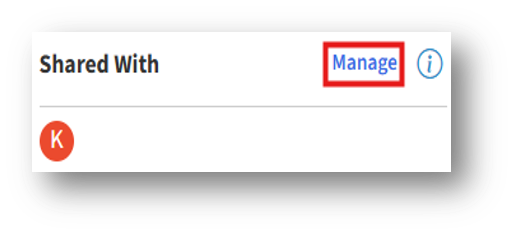
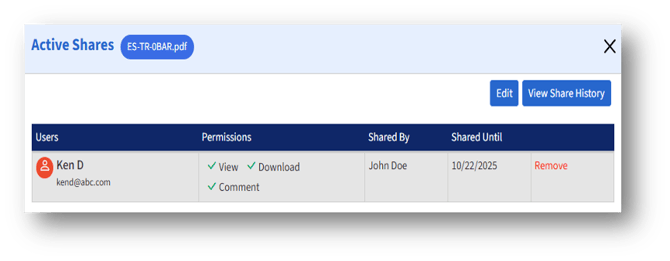
a. Click the “Manage” button to open the “Active Shares” page to view the shared details.
b. The admin can remove the user, edit, and view share history.
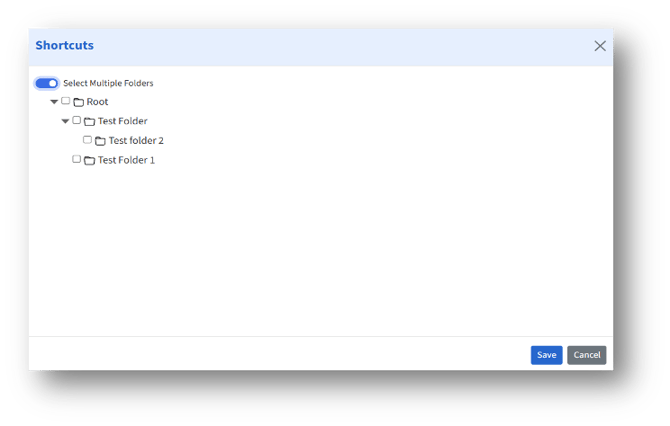
19. Shortcuts — Displays the existing shortcut.
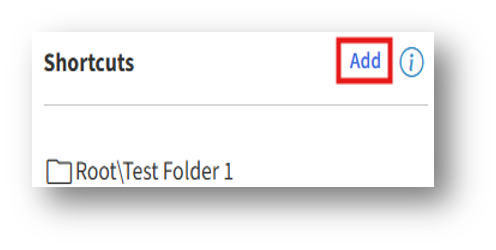
The admin can select a folder other than the current folder and add a shortcut by clicking the Save button.