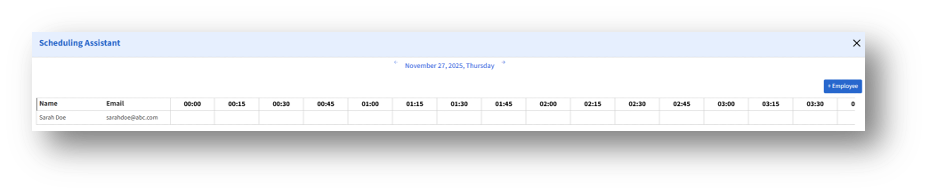
The Reservation Details page lets you view, edit, and manage all information for your seat or room reservations. You can access this detailed view for any reservation directly from your calendar.
How to Open Reservation Details
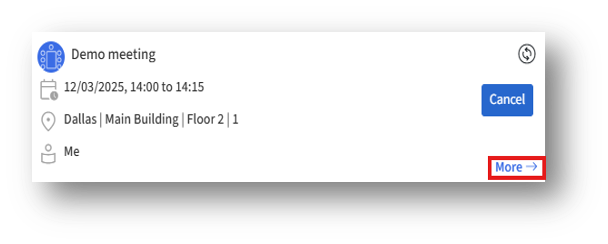
- Go to the Calendar page.
- In the right-side Reservations panel, locate the reservation you want to view.
- Click the More button to open the full reservation details page.
Reservation Details Page Overview
Once the page opens, you can access multiple tabs and actions related to your reservation:
- Details Tab
This tab shows the complete reservation summary, including:
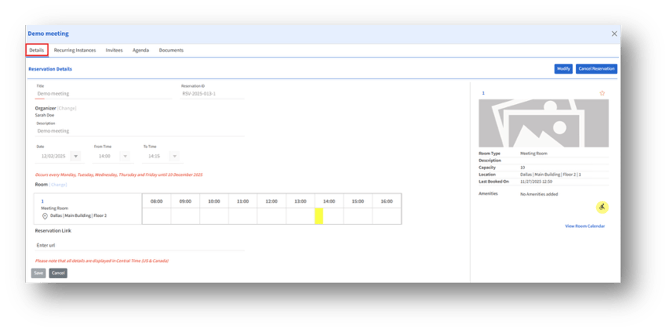
A. Title
B. Reservation ID
C. Organizer
D. Description
E. Date, From Time, To Time
F. Recurrence information (if recurring)
G. Booked Room/Seat with timeline availability
H. Reservation link (URL)
You can:
1. Modify reservation details using the Modify button.
2. Cancel the reservation using the Cancel Reservation button.
- Recurring Instances Tab (For recurring reservations)
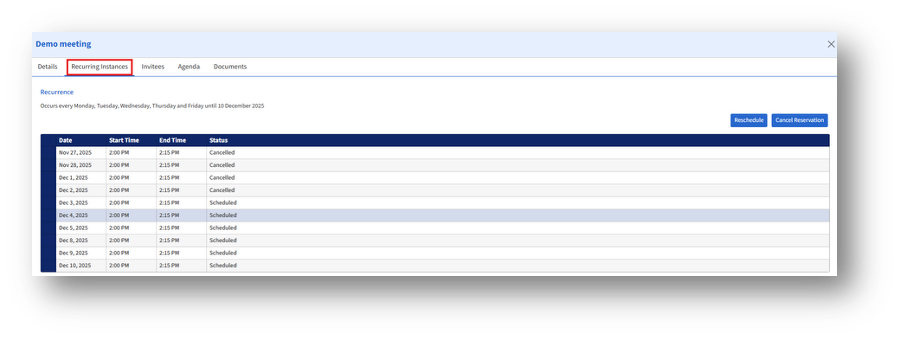
This section displays:
a. All scheduled instances in a list format.
b. Date, Start Time, End Time, and Status for each instance.
Available actions:
1. Reschedule a specific recurring instance.
2. Cancel Reservation for the entire series.
3. Invitees Tab (For Room Reservations)
The Invitees tab allows organizers to add both internal employees and external guests to a room reservation. This ensures that all participants receive updates and notifications about the meeting.
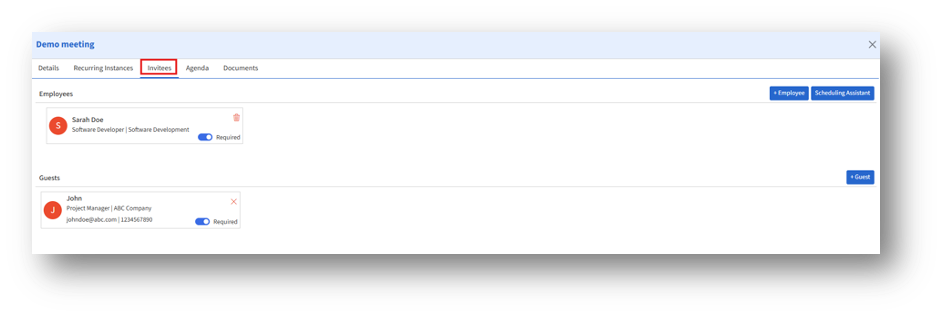
Manage attendees for the meeting:
A. View employees and guests added to the reservation.
B. Remove employees or guests by clicking the Delete button.
C. Use the Scheduling Assistant to check availability before adding invitees.