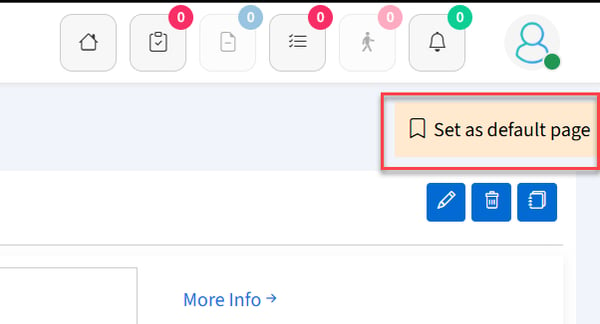
Make any page your default landing page
Get to the information you need fast by setting your default page. Click the "Set as default page" button to make the current page your default landing page.
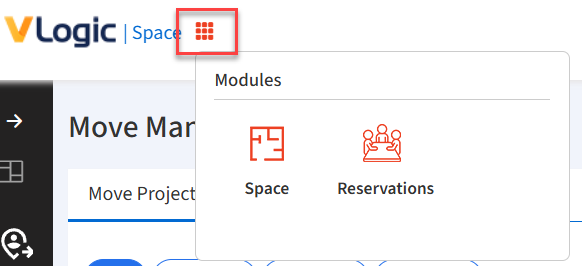
Use the Modules Menu to switch between different modules
Click on the waffle icon to open the Modules menu. Select the module you would like to open.
Use the Navigation Menu to navigate within a module.
Select from the Navigation Menu.
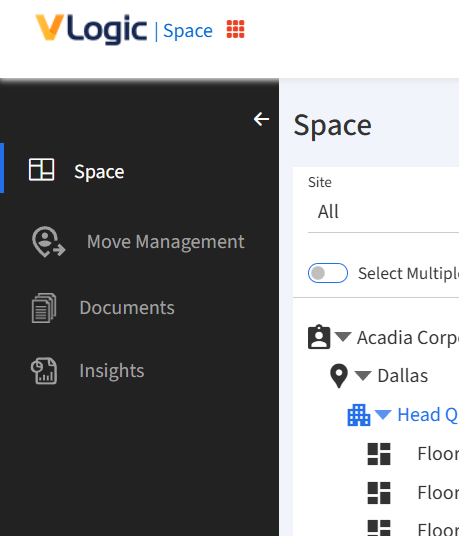
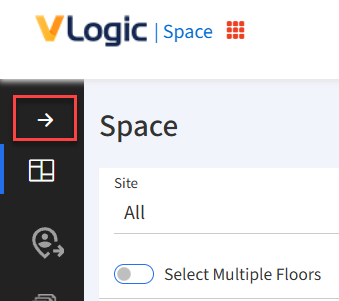
Click the arrow to expand or collapse the Navigation Menu.
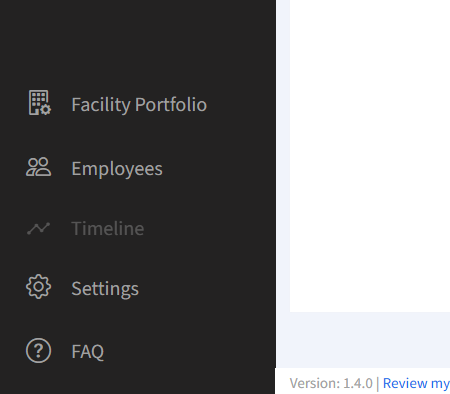
Your Facility Portfolio, Employees, Settings and more are always at your fingertips at the bottom of the Navigation Menu.
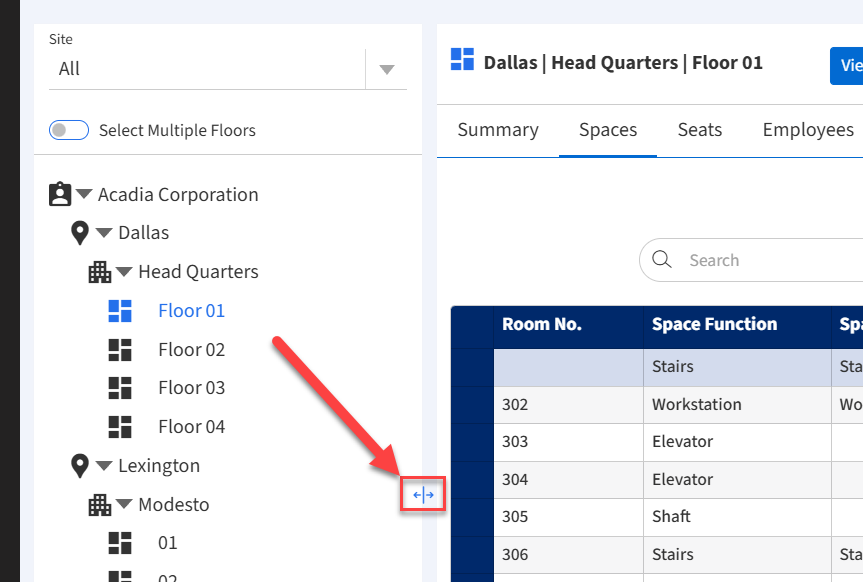
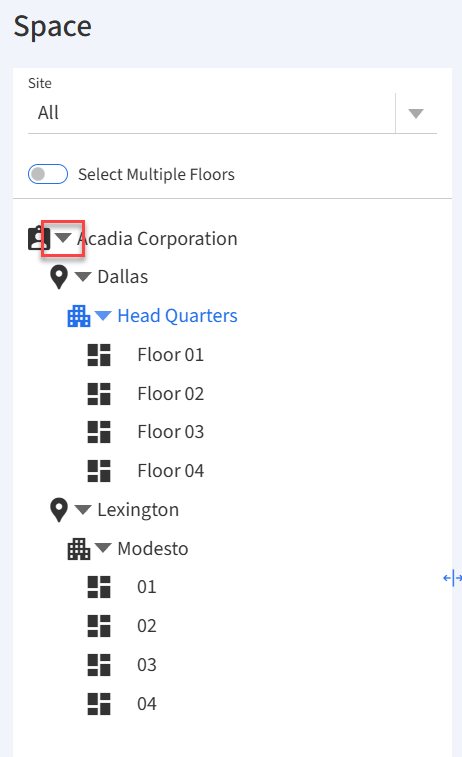
Quickly navigate through your facilities using the folder tree
Expand and collapse sections by clicking the triangles.
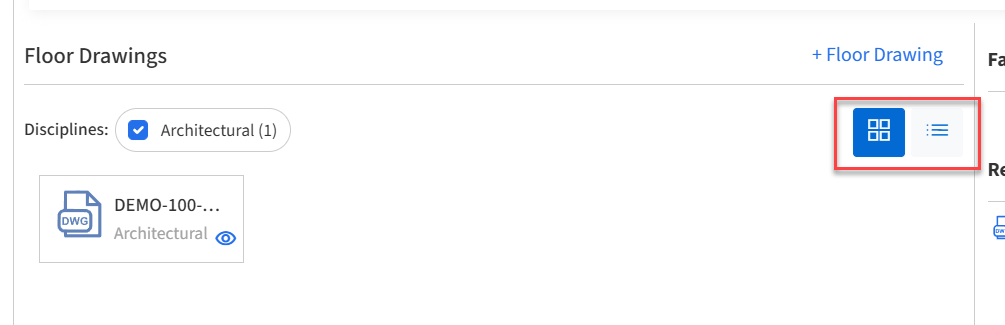
Switch between Tile and List views
View details in the right pane
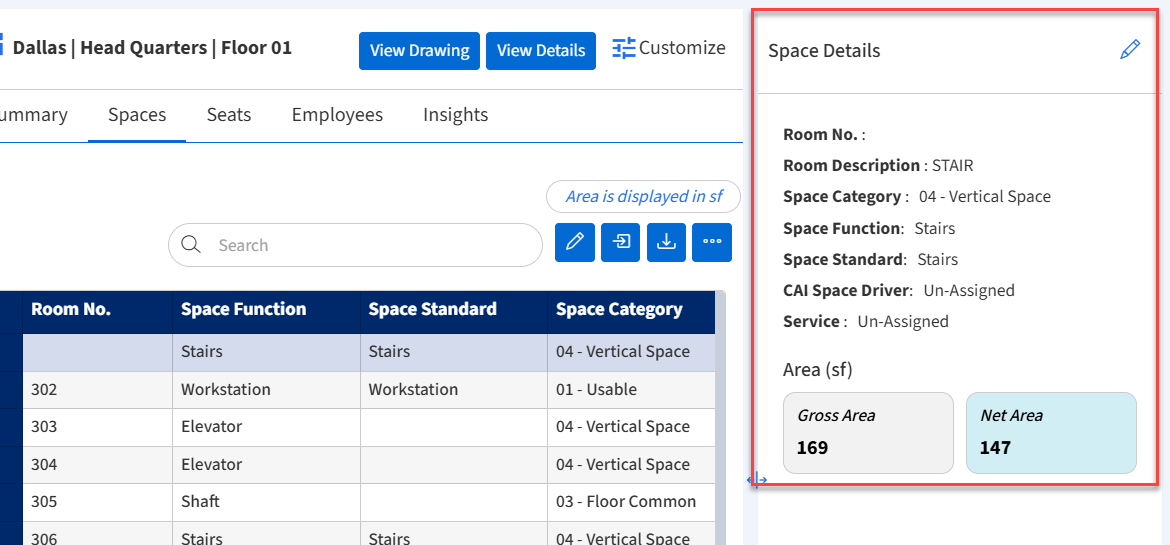
Use the sliders to make sections bigger or smaller