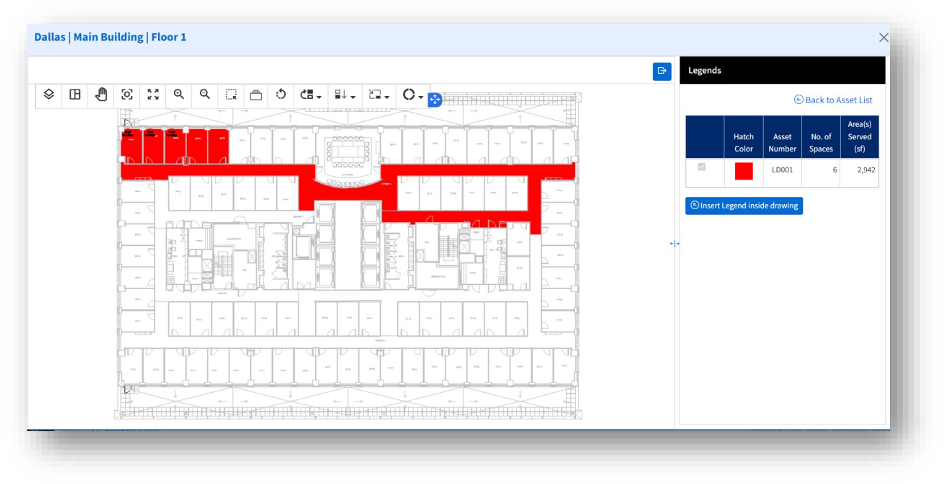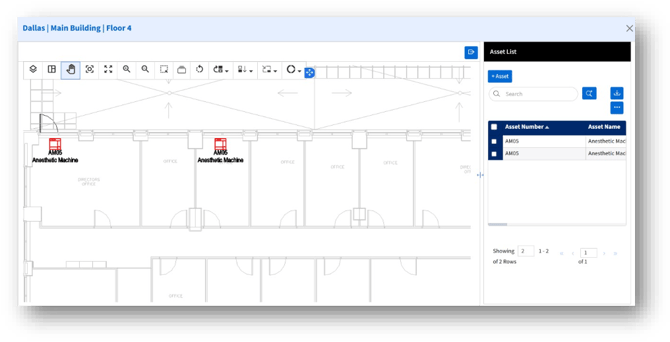
View Drawing functionality visually connects assets with floor plans, helping users understand asset placement and coverage directly within drawings.
Key capabilities include:
1. View Assets on Floor PlansAssets can be viewed and highlighted directly on floor drawings, providing immediate spatial context.
2. Duplicate Asset:
Users can quickly duplicate an existing asset by clicking the asset symbol and placing it anywhere in the drawing.
3. Rotate Asset Symbol:
Asset symbols can be rotated by specifying an angle, allowing them to match the asset's actual orientation in the physical space.
4. Move Assets:
a. Single Asset Move: Reposition an individual asset symbol to the desired location on the drawing.
b. Multiple Asset Move: Select and move multiple asset symbols together, maintaining their relative positions.
5. Align with Asset:
Precisely align one asset relative to another using:
1. Corner to Corner – Aligns the corner of the selected asset exactly with the corner of another asset.
2. Corner to Edge – Aligns the corner of the selected asset to the edge of another asset.
3. Edge to Edge – Aligns the edge of the selected asset flush with the edge of another asset.
5. Align with Wall:
Accurately align asset symbols to walls using:
a. Corner to Corner – Aligns the corner of an asset symbol directly with the corner of a wall.
b. Corner to Edge – Aligns the corner of an asset symbol to the edge of a wall.
c. Edge to Edge – Aligns the edge of an asset symbol flush with the wall edge.
6. Highlight Area(s) served by Asset Function
Based on the chosen asset function, the corresponding assets will blink, and the area(s) served by each asset will be highlighted in different colors in the drawing.