
My Reservations page provides a centralized view of all your seat and room reservations. You can track upcoming bookings, review past or cancelled reservations, and manage each reservation directly from this page.
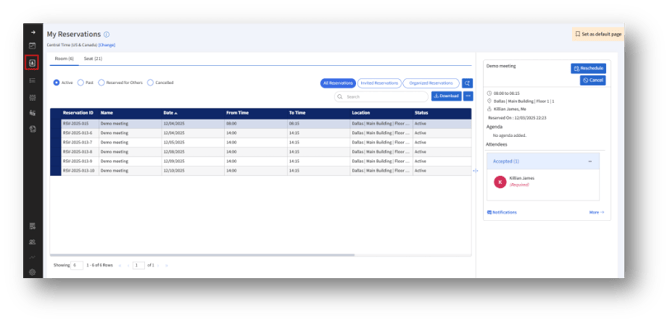
My Reservations page is divided into two main sections:
- Reservations List (Left Panel) – Displays all your reservations in a searchable, filterable table.
- Reservation Details (Right Panel) – Shows detailed information for the reservation you select.
1. Viewing Room and Seat Reservations
At the top of the page, you can select the category:
a. Room – Shows all your room reservations.
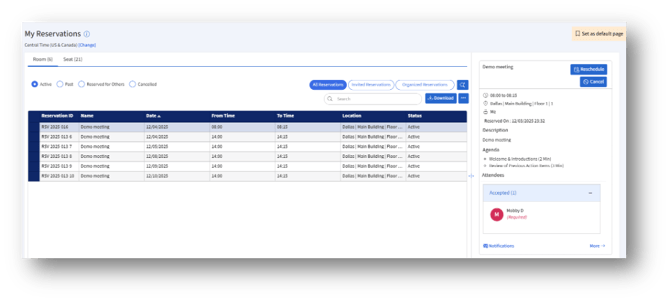
b. Seat – Shows all your seat reservations.
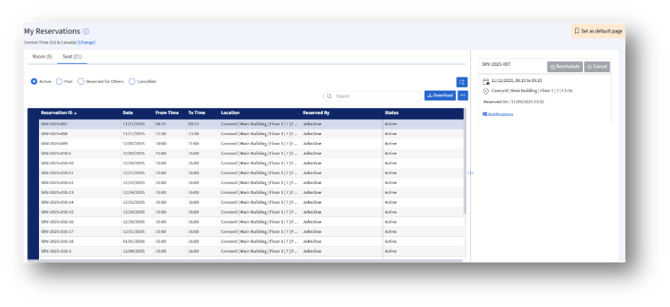
You will see the number of reservations in each category displayed in brackets.
2. Reservation Filters
Use the filter options to refine the reservation list:
a. Active – Shows upcoming or currently valid reservations.
b. Past – Displays reservations that have already occurred.
c. Reserved for Others – Shows reservations you created on behalf of others.
d. Cancelled – Lists reservations you previously cancelled.
You can also switch views between:
1. All Reservations – Displays details of all current and upcoming room reservations.
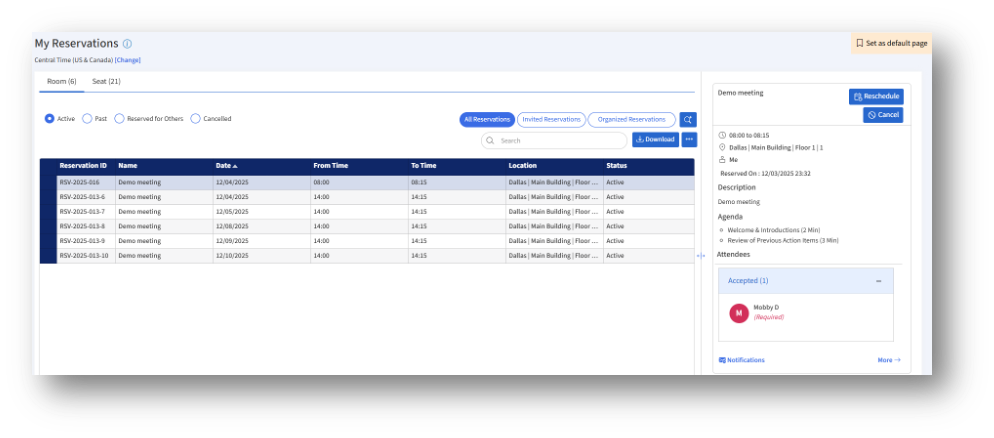
2. Invited Reservations – Shows details of room reservations where you are the invitee.
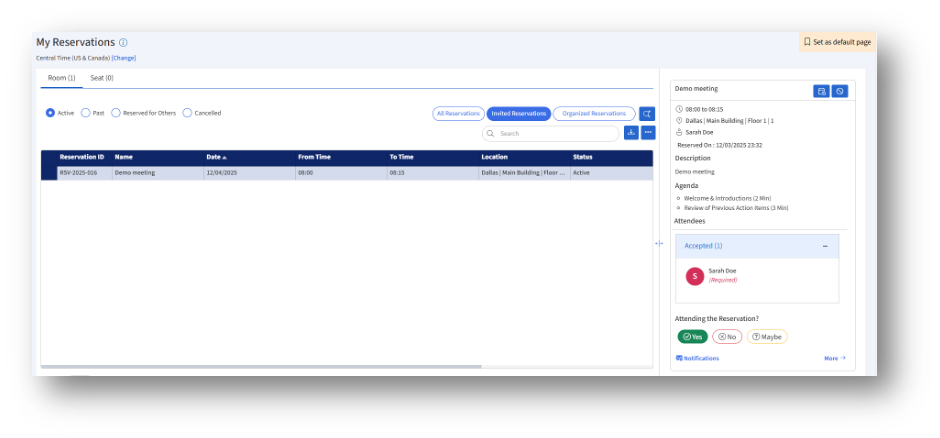
The right panel shows all details about the selected reservation, including the organizer, agenda, attendees, and your response options (Yes / No / Maybe).
3. Organized Reservations – Shows details of room reservations where you are the organizer.
3. Reservation Table
The main table lists all reservations matching your filters.
Additional functions:
A. Search Bar – Search by reservation name or ID.
B. Download Button – Export the reservation list.
Selecting a reservation row will display its full details in the right panel.
4. Reservation Details Panel (Right Side)
When you click a reservation in the table, all relevant details appear on the right.
Agenda
Displays any agenda items added by the organizer, including duration and descriptions.
Attendees
Shows employees and guests included in the reservation.
5. Actions Available
From the Reservation Details panel, you can perform the following actions:
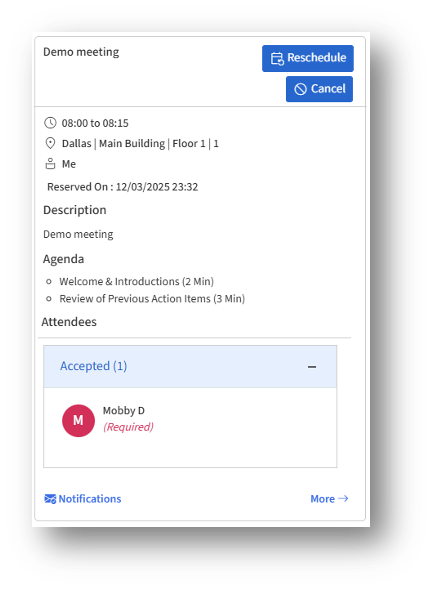
Reschedule
Open the Reschedule page to adjust your reservation date or time.
Cancel
Cancel the reservation by providing a cancellation reason.
Notifications
Click the Notifications link to view all system-generated emails related to the reservation.
More
Opens the full Reservation Details page with additional tabs (Agenda, Documents, Invitees, Recurrence, etc.)