
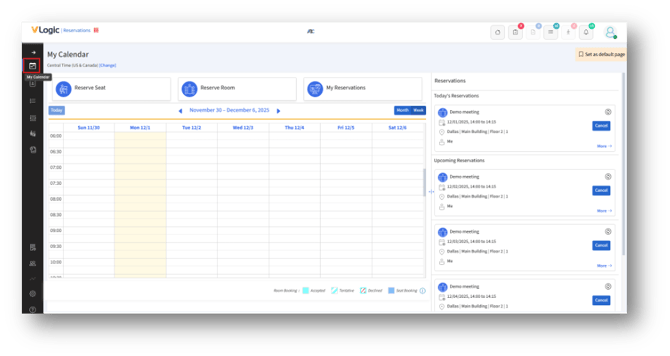
The My Calendar page lets employees view, create, manage, and update their seat and room reservations through an easy, calendar-based interface. It provides a weekly or monthly view of your schedule, along with quick access to your upcoming reservations and actions, such as canceling or rescheduling.
Key Sections
- Top Menu
a. Reserve Seat – Start a new seat reservation.
b. Reserve Room – Schedule a new room reservation/meeting.
c. My Reservations – View a list of all your bookings.
2. Calendar View
A. Displays your reservations by day, week, or month.
B. Click any time slot to create a new reservation directly.
C. Use the left/right arrows to navigate between weeks.
3. Reservations Panel (Right Side)
1. Shows Today’s Reservations and Upcoming Reservations.
2. Each reservation includes time, location, and quick actions such as Cancel.
4. Legend (Bottom)
Indicates color codes for Accepted, Tentative, Declined, and Seat Booking.