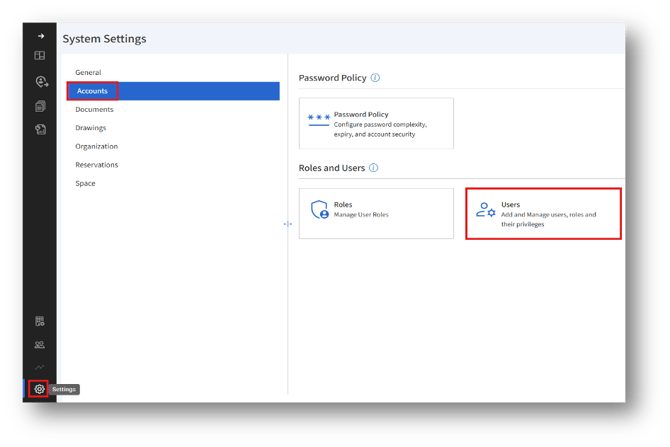
1. In the left menu, go to Settings (gear icon) → Accounts → Users.
2. The user can change the user role to Administrator role by editing the user details in the “System Users privilege” page.
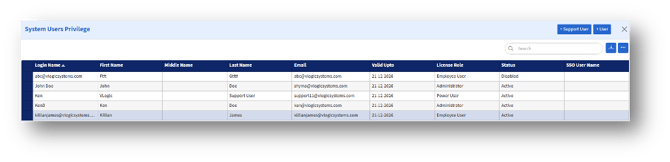
3. Locate and double-click the user you created to open and edit their details.
4. In the User Edit page, under the “License Role” section, click the “Change” button.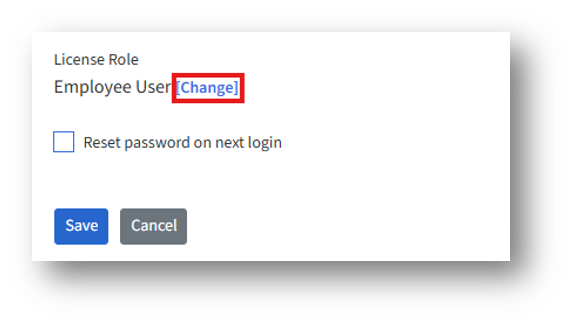
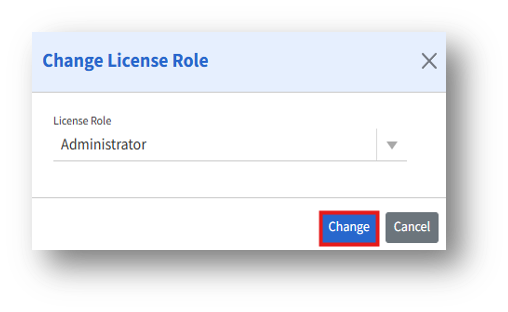
5. The “Change License Role” page appears and select the “Employee User” option from the drop-down menu.