
This section explains how employees can reserve a seat for themselves by selecting the desired date, time, and optional recurrence, then choosing an available seat in either the Data view or the Drawing view.
Click the Reserve Seat button on the top menu.
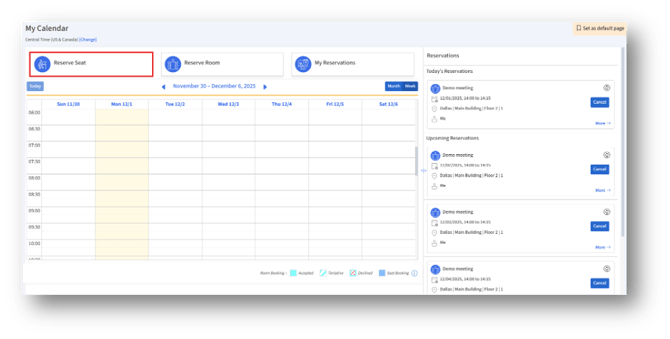
Then, the Reserve Seat page appears.
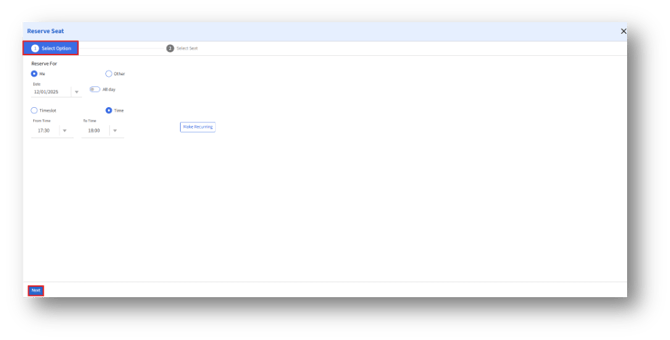
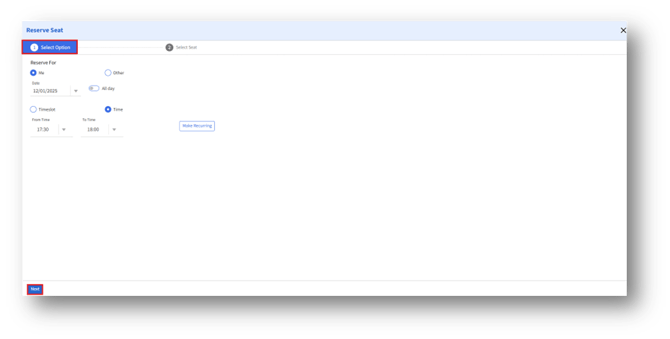
- Select Option
1.1 Open the Reserve Seat Page
Navigate to the Reserve Seat section of the application.
You will see a two-step workflow:
- Select Option
- Select Seat
1.2 Reserve For – Me
Under Reserve For, choose Me to book a seat for yourself.
1.3 Select Reservation Date
A. Click the Date field and choose the preferred reservation date.
B. Optionally enable All day if you want to reserve the seat for the entire day.
1.4 Choose Reservation Time
You can reserve by Timeslot (preset durations) or Time (custom From/To time).
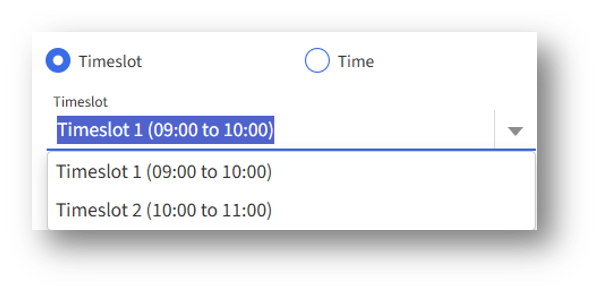
If using Timeslot
1. Select Timeslot.
2. Pick the required slot from the available options.
If using Time
1. Select Time.
2. Specify From Time and To Time (example: 16:00 to 17:00).
1.5 Make the Booking Recurring (Optional)
A. Click Make Recurring to convert the reservation into a repeating schedule.
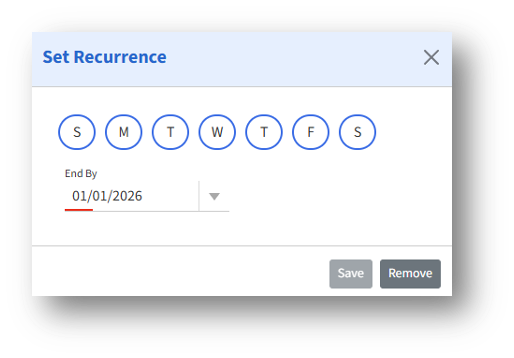
Click the day buttons (S, M, T, W, T, F, S) to choose on which days the reservation should repeat.
C. End By
Choose a date by which the recurring schedule should stop.
D. Click Save to save the recurrence details. Then, the page automatically navigates to the Reserve Seat page.
1.6 Proceed to Seat Selection
Click Next to continue to the seat selection step.
 2. Select Seat
You can select a seat through:
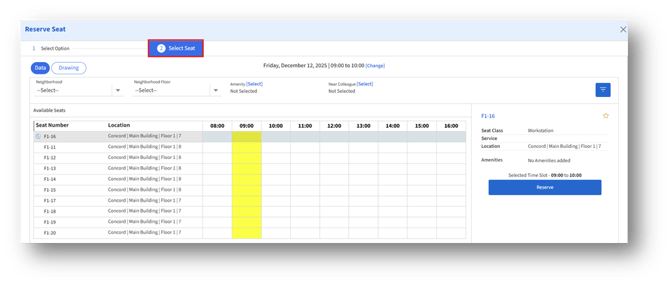
A. The Data view (list + timeline)
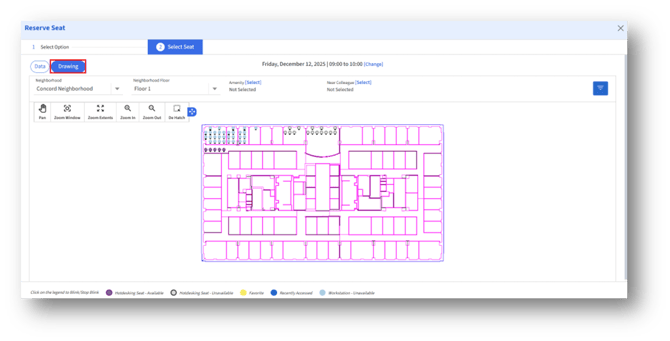
B. The Drawing view (floor plan)
2.1 Data View – List of Available Seats
The Data view displays:
1. Seat Number
2. Location
3. A timeline showing availability by hour
Steps to Select a Seat
- Review the Available Seats list.
- Scroll horizontally to check seat availability across the chosen time window.
- Click a seat row to view seat details on the right panel.
- Confirm that the Selected Time Slot displayed matches your chosen duration.
- Click Reserve to book the seat.
Additional Filters Available
1. Location/Neighborhood
2. Amenities
3. Near Colleague
4. Filter icon opens advanced filtering options
2.2 Drawing View – Floor Plan Selection
You can also select seats visually on the floor plan.
Navigation Tools
A. Pan – Move around the floor plan
B. Zoom Window – Zoom into a drawn selection
C. Zoom Extents – Reset to full view
D. Zoom In/Zoom Out – Adjust zoom level
E. De-Hatch – Remove fill or shading and show only space outlines
Seat Color Legends
1. The legends at the bottom of the page help admins to quickly identify the status and type of seats on the map.
2. Click on any legend to toggle blinking seats on the floor plan for easier identification.

Selecting a Seat
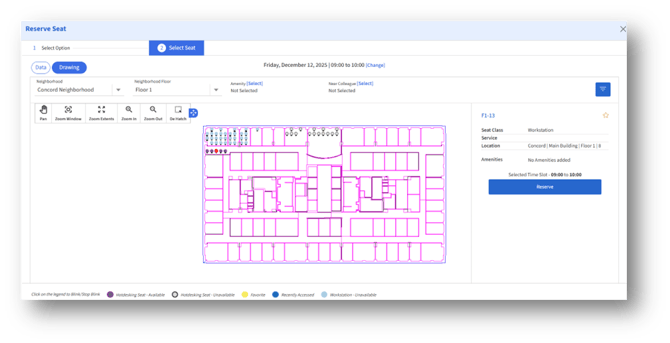
- Set the filters.
- Click any available seat icon on the drawing, and the selected seat will appear red.
- Seat details appear in the right panel.
- Verify the date and time highlighted at the top.
- Click Reserve to complete the booking.
3. Confirmation
Once reserved:
A. A confirmation message appears.
B. The reservation becomes visible in your My Reservations or Timeline section.