
This section explains how authorized admins can reserve a meeting room on behalf of another employee by selecting the employee, entering meeting details, choosing a suitable room, and scheduling the reservation.
Accessing the Reserve Room Page
a. Click the Reserve Room button on the top menu of the My Calendar page.
b. The Reserve a Room page opens, allowing you to create a room reservation for another employee.
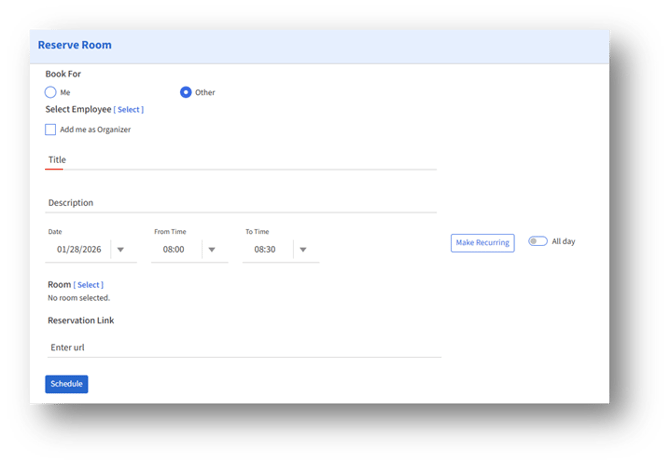
- Select Employee
1 .1 Choose Book For – Other
Select Other to reserve a room on behalf of another employee.
1.2 Open Employee Selection
Click [Select] next to Select Employee to open the employee selection window.
1.3 Select an Employee
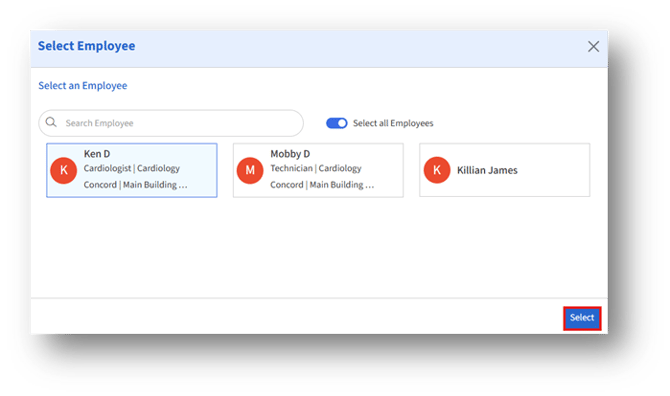
1. You can:
1a. Use the Search Employee field to find a specific user.
1b. Select one employee from the displayed list.
1c. Enable Show All Employees to choose all available users.
1d. Click Select to confirm.
1e. The selected employee details now appear on the reservation page.
1f. You may also enable Add me as Organizer to include your name as the meeting organizer.
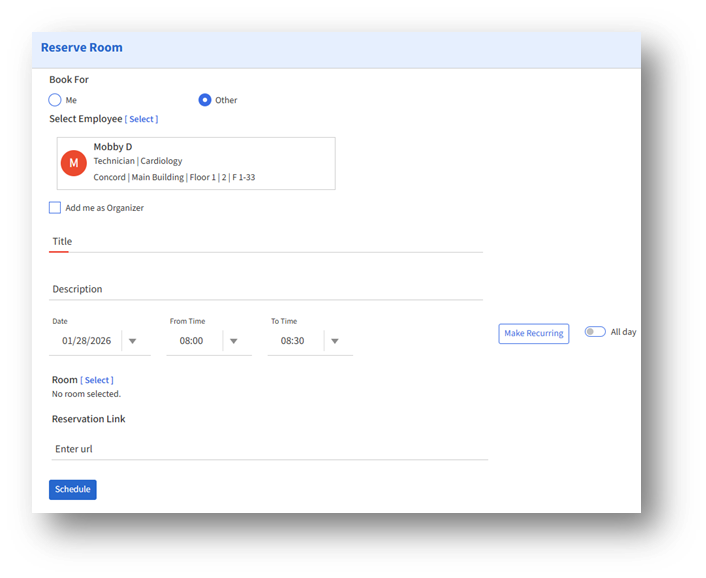 2. Enter Meeting Details
2.1 Title and Description
Enter:
A. Title – The subject of the meeting.
B. Description – Any relevant meeting notes or purpose.
2.2 Select Date and Time
Set when the room is needed:
1. Date – Choose the meeting date.
2. From Time – Start time.
3. To Time – End time.
4. All day – Enable if the reservation is required for the whole day.
2.3 Make Recurring
Click Make Recurring to schedule the booking to repeat across multiple days.
You can:
a. Select days of the week
b. Set an End By date
c. Save or remove the recurrence pattern
3. Select a Room
Click Room [Select] to open the room selection window.
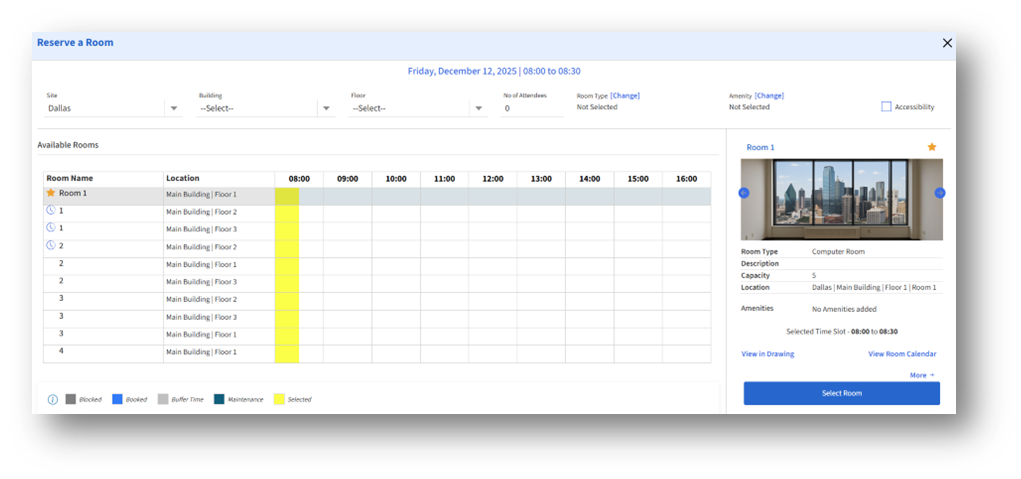
3.1 Room Selection – Data View
The Data View displays:
A. List of available rooms
B. Room location (Site, Building, Floor)
C. Room Type and Capacity filters
D. Amenities and Accessibility filters
E. A timeline showing hourly room availability
How to Select a Room
- Review the list of rooms and their availability grid.
- Look for open times that match your selected slot (highlighted in yellow).
- Click a room to preview its details in the right pane.
- Click Select Room to add the room to the reservation.
3.2 Room Availability Legend
A color-coded legend helps identify the status of each time block.
4. Review Selected Room
After selecting a room:
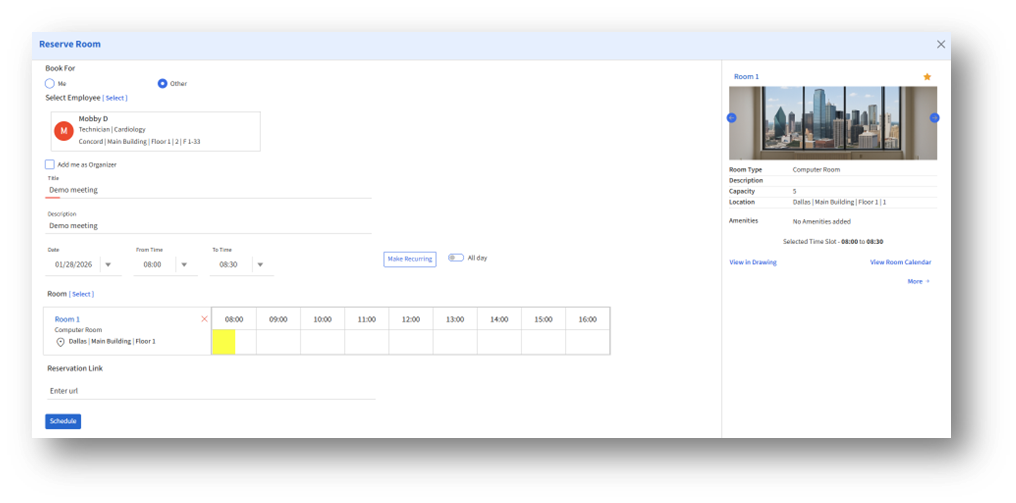
A. The chosen room appears on the main reservation screen
B. The timeline visually highlights the selected slot
C. Room details and amenities appear on the right panel
You may:
1. Remove the room if needed
2. Adjust date/time
3. Add a Reservation Link
6. Schedule the Reservation
Click Schedule to finalize the booking.
A confirmation message appears, and the reservation is saved to the selected employee.