
- Click the +Employee button on the Invitees tab/Scheduling Assistant page to add employees from within your organization to the reservation.
- The Add Invitee (Employee) window appears.
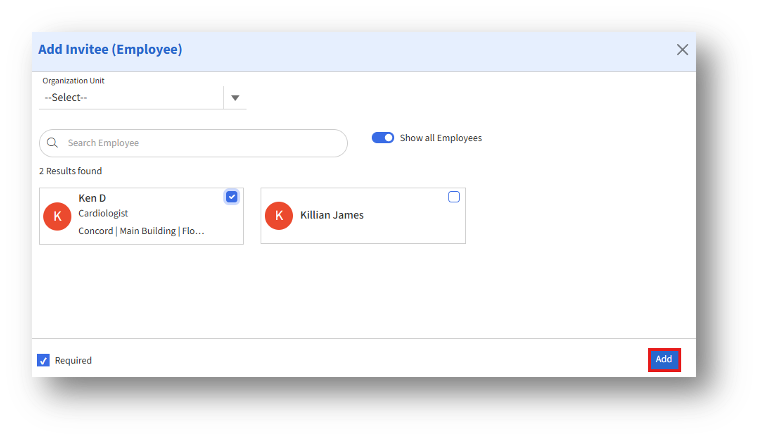
Here, you can:
A. Select an Organization Unit (optional) to filter employees by department.
B. Use the Search Employee bar to locate a specific person quickly.
C. Use the Show all Employees toggle to view all available employees across units.
3. From the search results, select one or more employees by clicking the checkbox on their profile card.
4. (Optional) Enable Required if the selected employee must attend the meeting.
5. Click Add to include the selected employee(s) in the reservation.