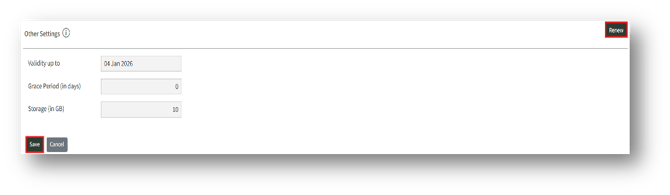
Navigate: Customer Page → License tab.
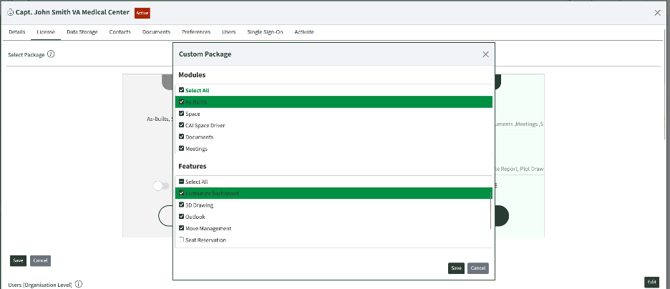
A. Select Customize under “Custom” option (Click the toggle “Subscribe” button ON).
B. Check all Modules (Major Features) and Features required for the customer
C. After selecting the modules and features, click the “Save” button. Then, scroll down for the next section.
|
Role |
Select |
Add |
Modify |
Delete |
Manage |
|
Administrator (Access Across Modules) |
Yes |
Yes |
Yes |
Yes |
Yes |
|
Power User |
Yes |
Yes |
Yes |
Yes |
No |
|
Basic User |
Yes |
No |
No |
No |
No |
|
Employee User |
Limited Privileges Book Room, My Calendar, My Booking List, Book Seat, My Team Booking |
||||
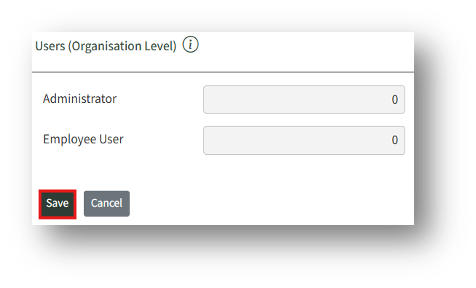
D. Add number of Administrator and Employee Users and click Save
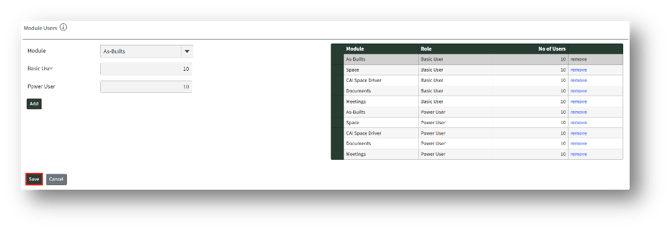
1. Configure Power and Basic Users Count. This needs to be set for each feature (module).
1a. Select a “Module” from the dropdown.
1b. Enter the number of seats for each role (Basic User or Power User) and click the Add button to add the entered details.
1c. The added details will appear under the table shown on the right side.
1d. Click Save to store the details before proceeding to the Other Settings section
2. Update Valid Up to and set Grace Period and Storage Size.
2a. Validity Up to – Account Validity Date
2b. Grace Period – Number of days after the “Validity up to” the Customer will be active, by default it will be “0”.
2c. Storage - Maximum Storage for Binary data. Need to set non default value to Customers with “Documents”.