1. To add an employee, click the “Add Employee” button in the top-right corner of the page.

2. Then, the “Details” tab under the Employee page appears.
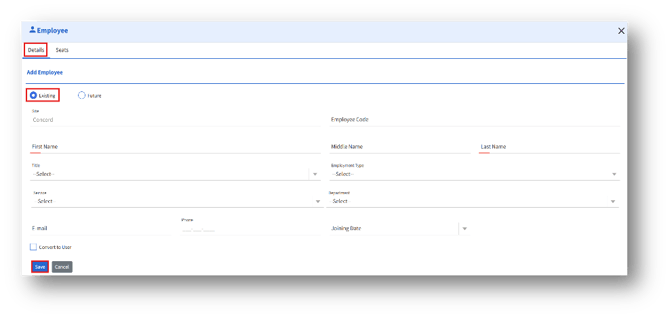
3. The “Add Employee” section lets admins add and configure employee records in the system.
Employee Type Selection
1. Existing:
Select this option to add details for employees who are currently active in the organization.
2. Future:
Select this option to pre-register employees who are expected to join the organization later.
- Existing
a. Enter the following details.
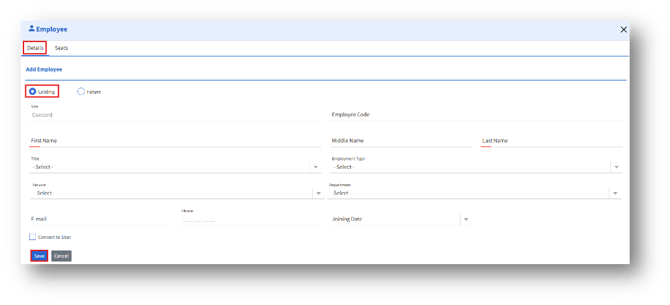
b. Only Employees added under “Existing” can be converted into users.
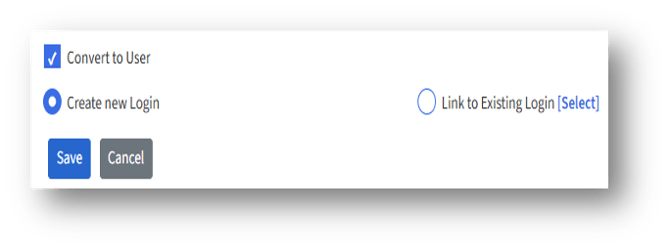
c. Convert to User – This checkbox grants the employee system login access. When selected, the login configuration options become available, and the E-mail field above becomes mandatory.
d. Create New Login – Select this Radio Button to create a brand-new system login for the employee.
e. Link to Existing Login – Choose this option to link the employee record to an already existing system login. Clicking the Select button will open the “Link Employee to existing User” page.
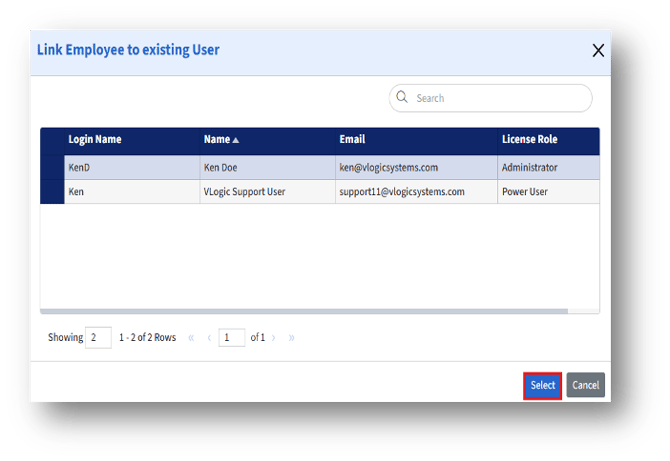
f. Choose an option and click the Select button.
g. The linked admin will appear as shown below.
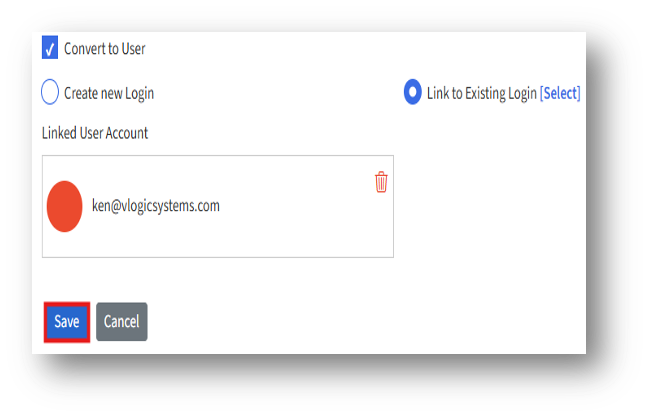
h. Click the Save button to store the new employee record and associated details in the system.
2. Future
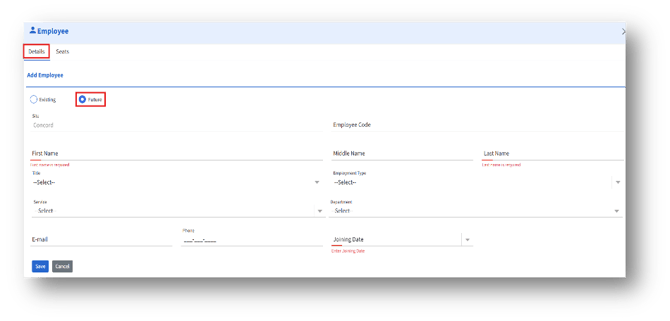
To create a future employee, enter the details and click Save.
3. Seats tab
a. After adding employee details, the “Seats” tab becomes active.
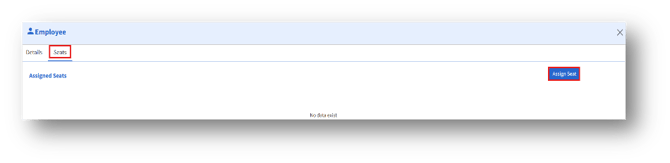
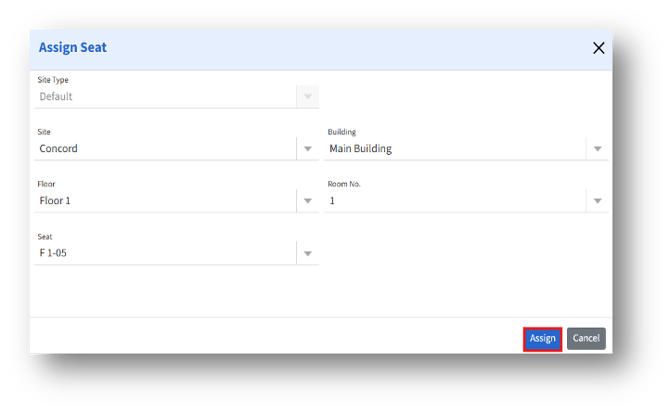
b. To assign a seat, click the “Assign Seat” button.
c. Then, the Assign Seat page appears.