Step 1 – Open the Seats Tab
A. From the top navigation menu, click the “Seats” tab.
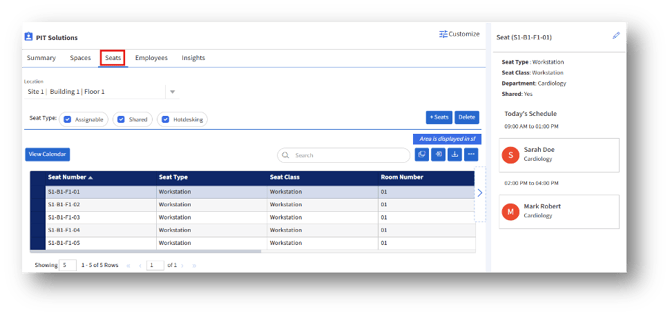
B. The system will display a list of all seats for the selected site, building, and floor.
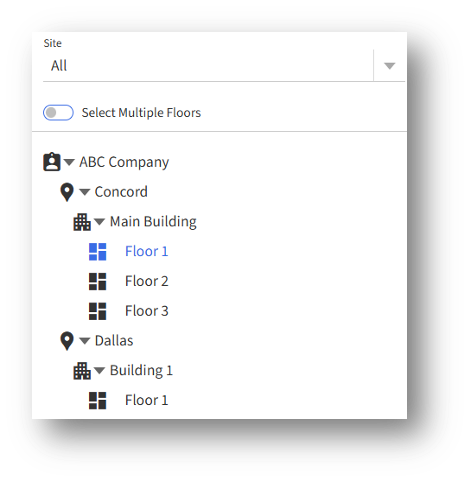
Step 2 – Select a Location
Use the Location tree at the top to choose the specific Site, Building, and Floor you want to view.
Step 3 – Apply Seat Filters
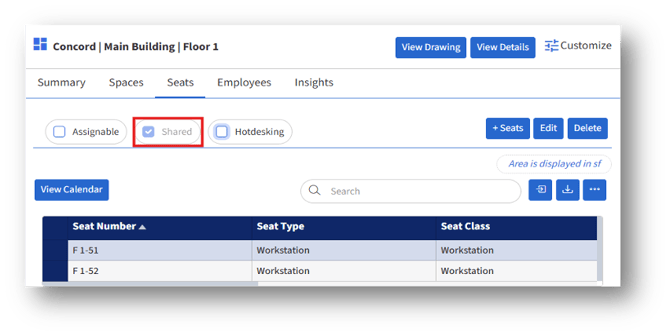
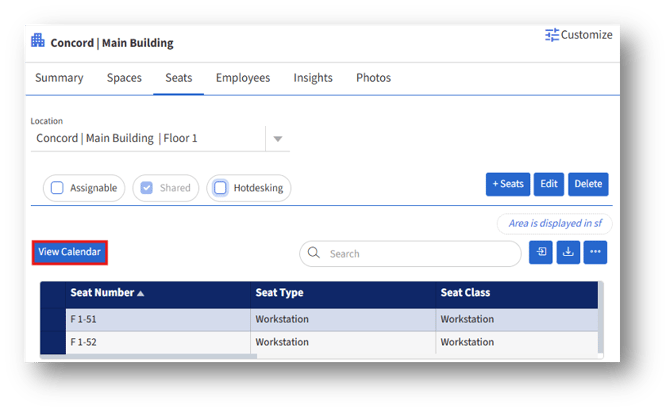
A. Select the “Shared” seat type filter to view the shared seats. Only then does the “View Calendar” option appear.
B. “Shared” are the seats used by multiple employees
Step 4 – Select a Seat
A. Click on a seat (e.g., F1-01).
B. The Seat Details panel will open on the right panel.
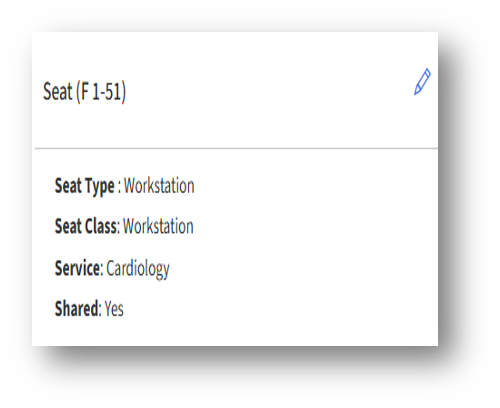
Step 5 – Check Availability for Shared Seats
A. Look at Today’s Schedule in the right panel.
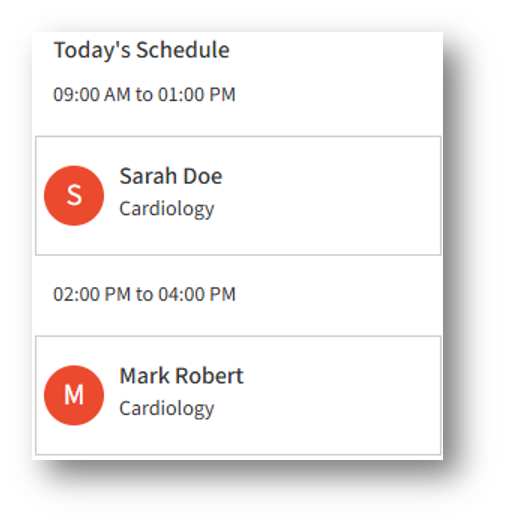
B. Any time slots not listed are available for booking.
Step 6 – Schedule a Seat
A. If the seat is free during your required time slot:
- Click the “View Calendar” button to open the “Seat Calendar” page.
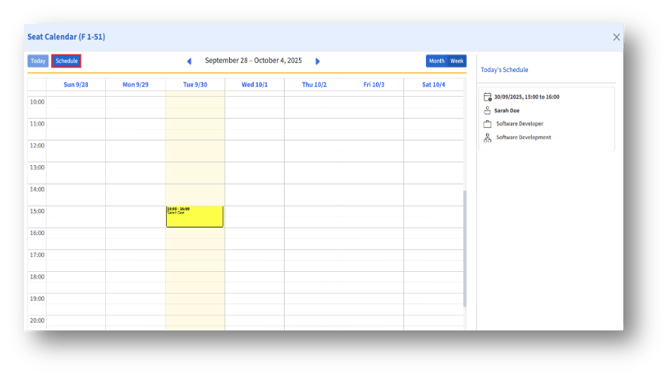
- In the Seat calendar, the admin can schedule a seat by:
a. Clicking the “Schedule” button, or
b. Selecting the desired date and time slot in the available calendar.
3. Then, the “Schedule Seat for Employee” page appears, and the admin can enter the following details:
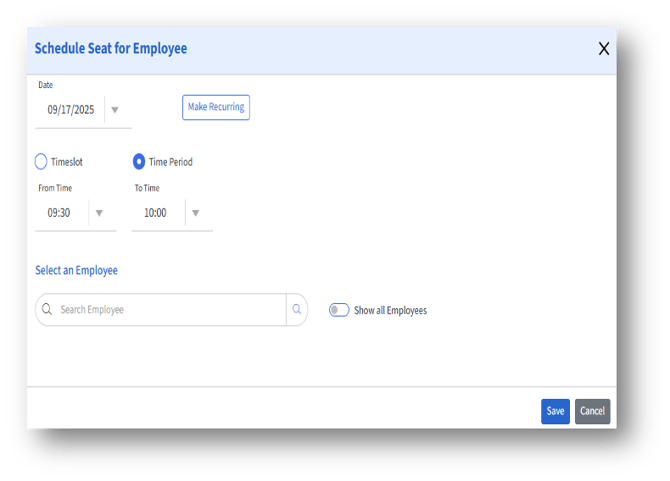
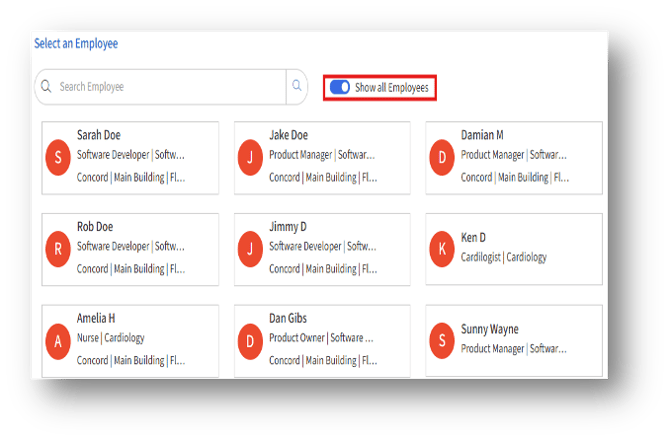
A. Show all employees – Enable the toggle button to show all the available employees.
B. Make recurring – Click the “Make recurring” button to make a recurring seat schedule.
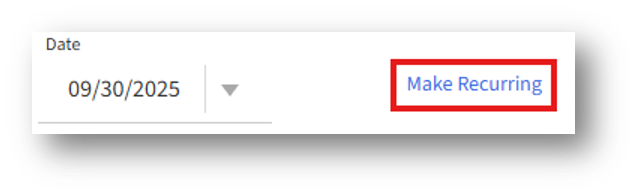
C. Click the “Make recurring” button to navigate to the “Set Recurrence” page.
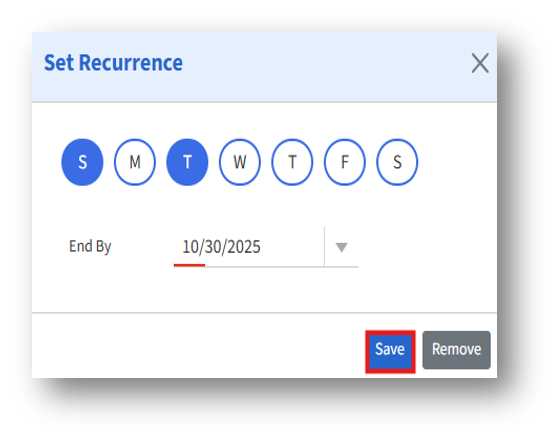
D. Select the desired days and choose the “End by” date, and click the Save button.
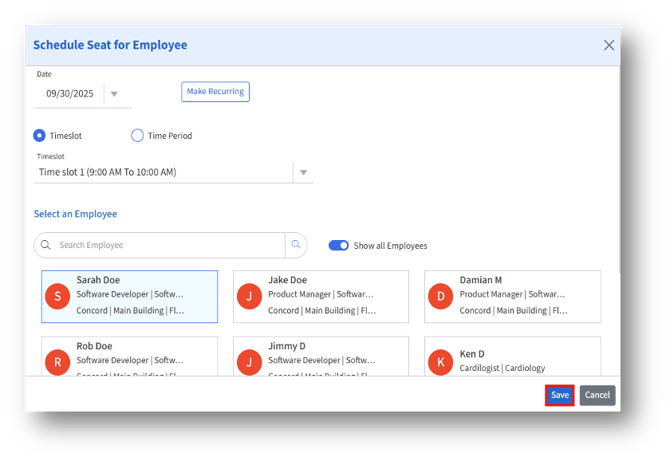
E. After filling in the required details, click the Save button.
Step 7 – Confirm Your Schedule
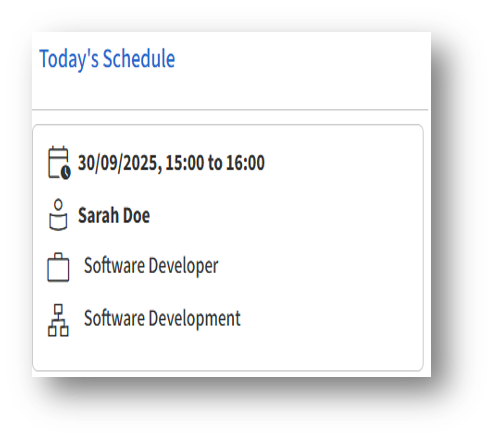
After scheduling, the details will be displayed under the “Today’s Schedule” section on the right panel, showing your reserved slot.