
The Notifications feature lets you easily review all alerts for your seat and room reservations — including confirmations, updates, and reschedule notices. This helps you stay informed about changes to your bookings at any time.
How to View Notifications:
- Go to the Calendar view.
Your upcoming and past reservations will appear on the right-hand panel. - Select a reservation.
Click on any reservation from the right pane to open its details.
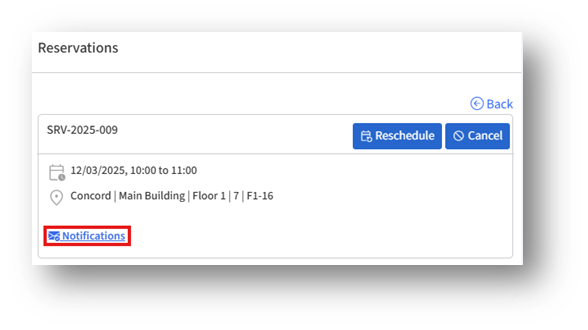
3. Click the Notifications button.
This button appears below the reservation details.
It opens the Notifications page, displaying all system-generated messages for your reservations.
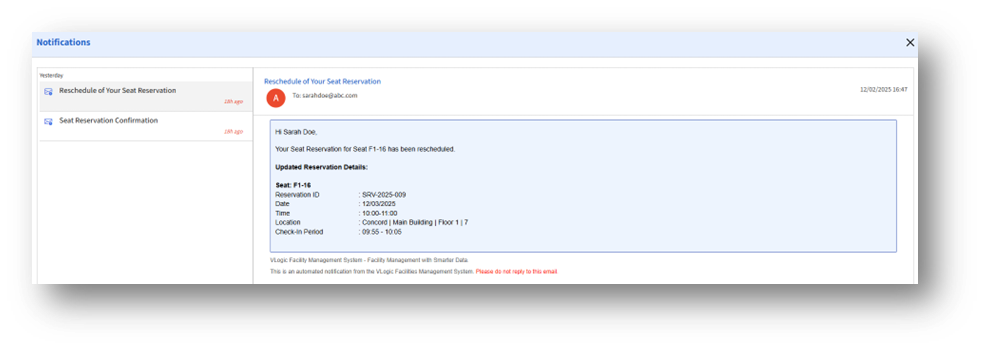
4. Review your notifications.
The Notifications page lists messages by date.
Selecting a message opens its complete content, including details such as the reservation ID, date, time, location, and check-in information.
5. Return to the Calendar.
You can close the window or use the Back option to continue managing reservations.
What You Can See in Notifications
- Reservation confirmations
- Reschedule updates
- Cancellation confirmations
Each notification includes a detailed summary of your reservation and is stored for easy reference.