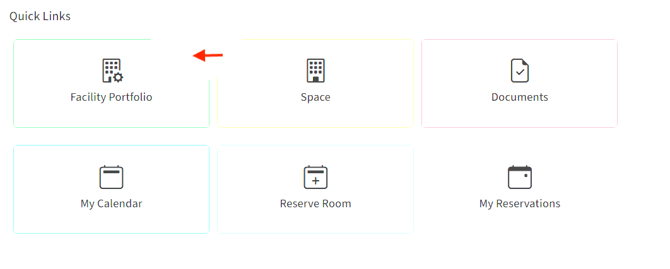
To start please select the Facility Portfolio card from the quick links section. Please see image below:
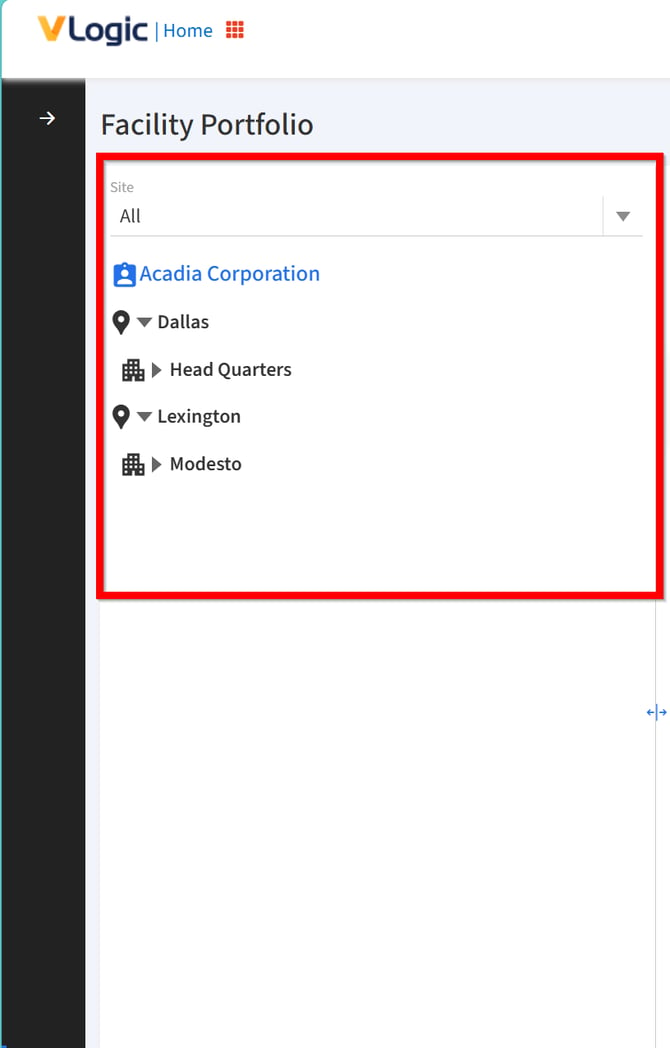
1. To add a Site, Select Customer name in left and click the “+Site” button.
Select the customer name from the left panel as shown below:
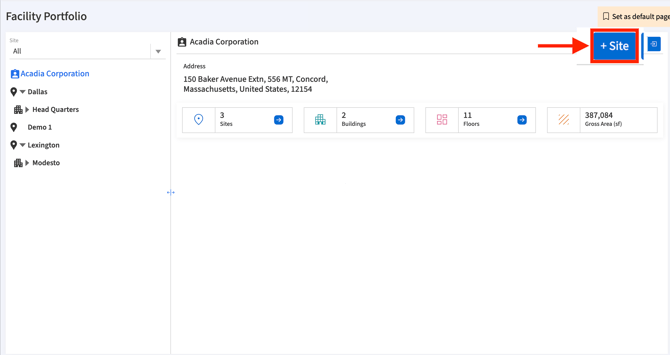
After selecting the customer name above then click on the + Site on the right as indicated below:
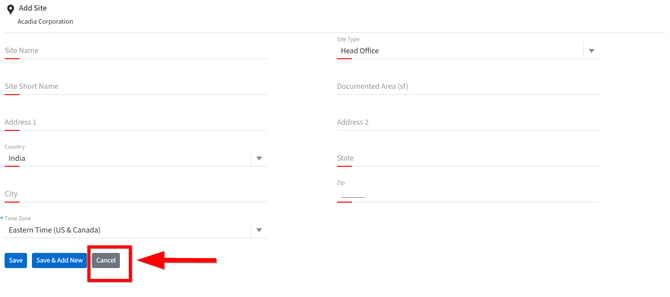
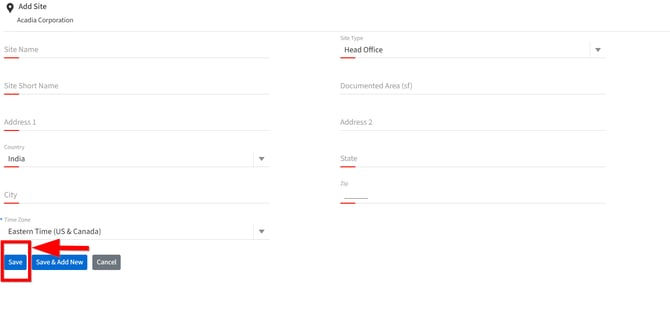
2. Clicking the “+Site” button opens the “Add Site” page.
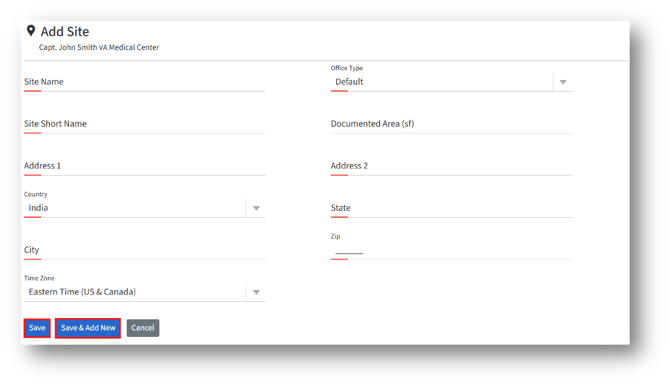
All the fields which are in red above in the image are mandatory to fill out.
3. In the “Add Site” page, the user can see the following details:
Site name* – Enter the full name of the workplace, e.g., “Downtown Corporate Office”.
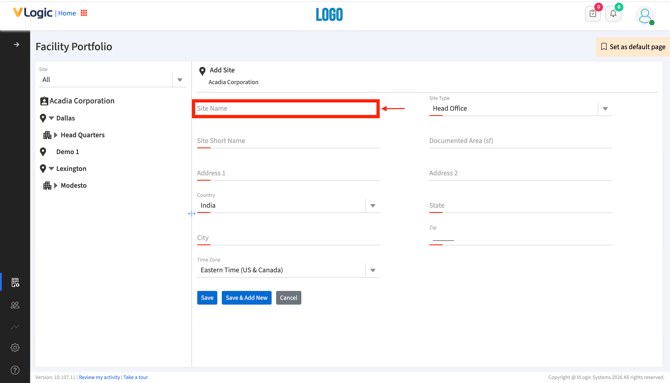
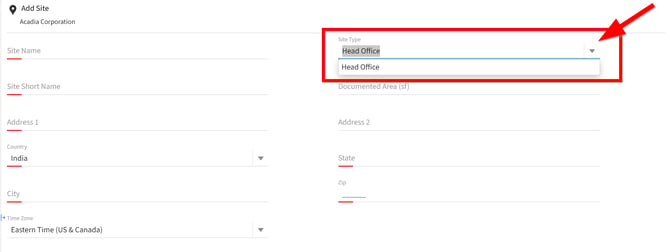
Site type* – Specify the type of workplace/site, e.g., Office, Factory, Retail Store, Warehouse.
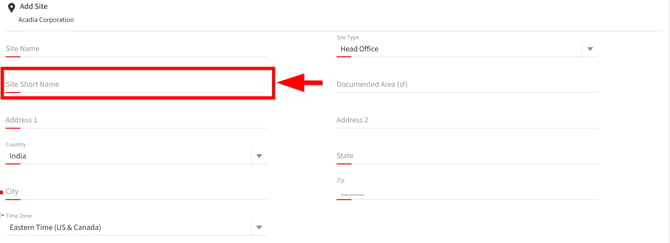
Site short name* – Enter an abbreviated name for easy reference, e.g., “DCO”.
Documented area (sf) – Enter the total area of the site in square feet, e.g., 25,000.
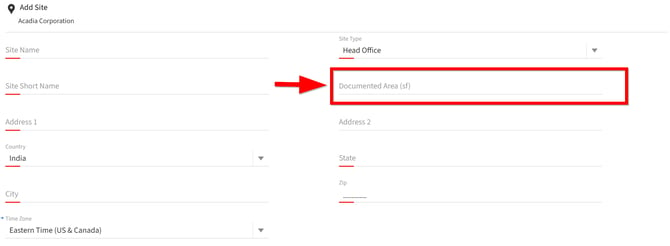
Address 1* – Enter the primary street address, e.g., “123 Main Street”.
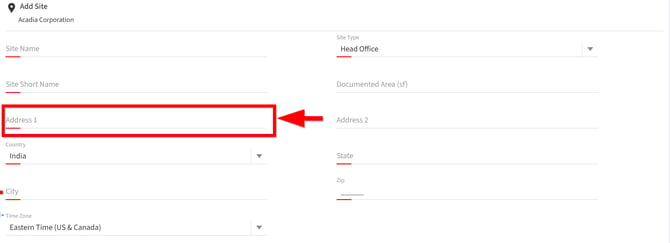
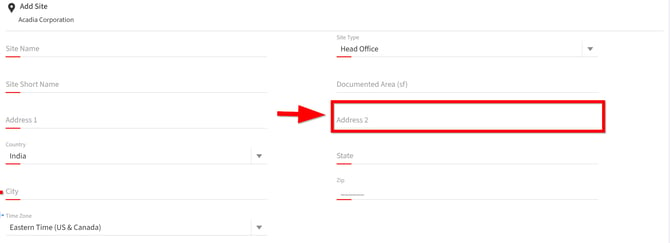
Address 2* – Enter additional address information if needed, e.g., “Suite 400” (optional).
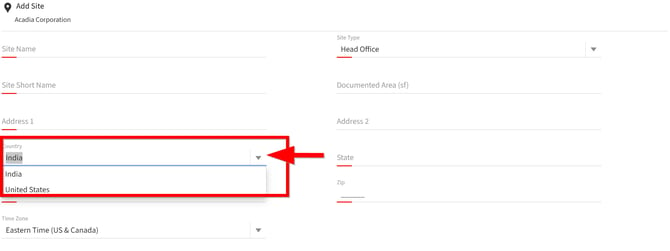
Country* – Select or enter the country where the site is located, e.g., United States.
State* – Enter the state or region, e.g., California.
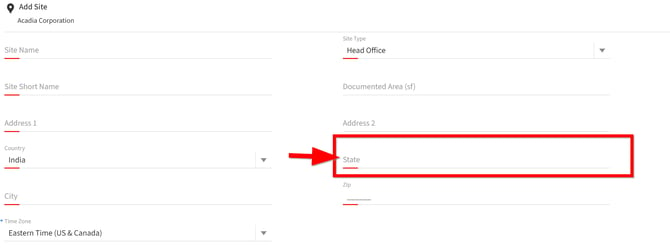
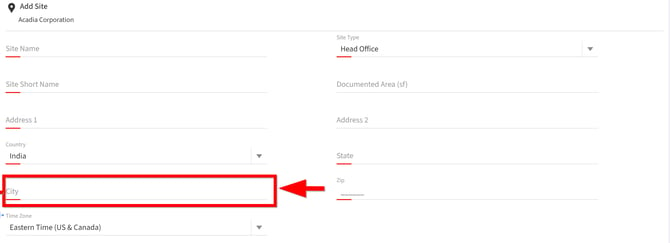
City* – Enter the city, e.g., Los Angeles.
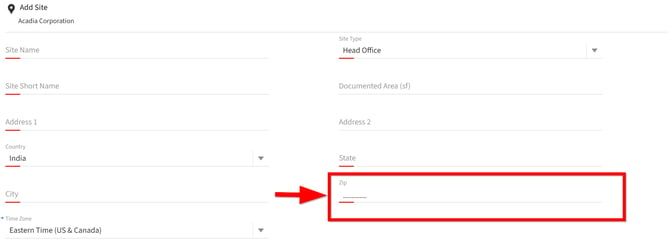
Zip* – Enter the postal code, e.g., 90015.
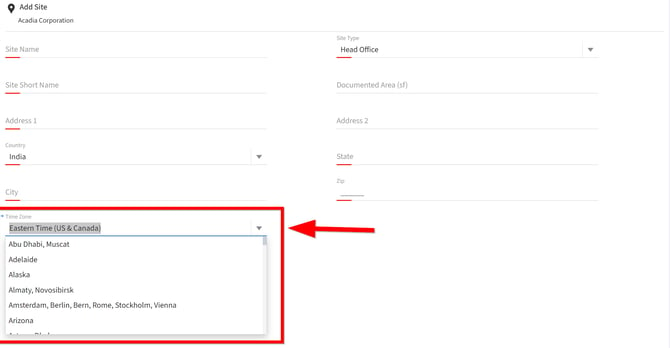
Time Zone – Select the time zone corresponding to the site location.
4. Click the “Save” button to create a new site.
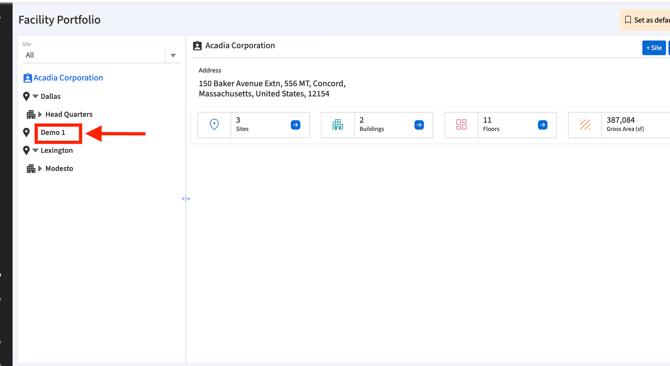
5. After clicking save it will be displayed in the left panel as shown below:
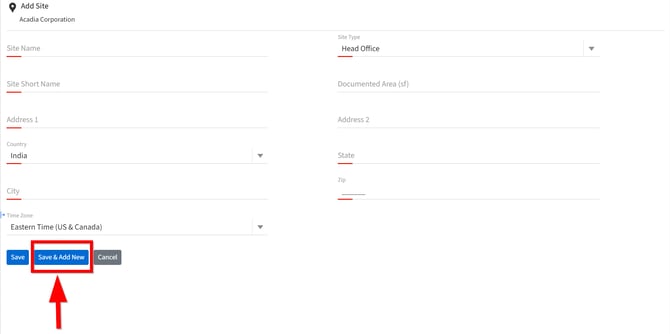
6. Click the “Save & Add New” button to create the current site and clear the form to add another one.
7. Click the “Cancel” button to discard changes and return without saving.