
1. When a building is selected, the building details page appears.
2. To add a floor inside the selected building, click the “+Floor” button.
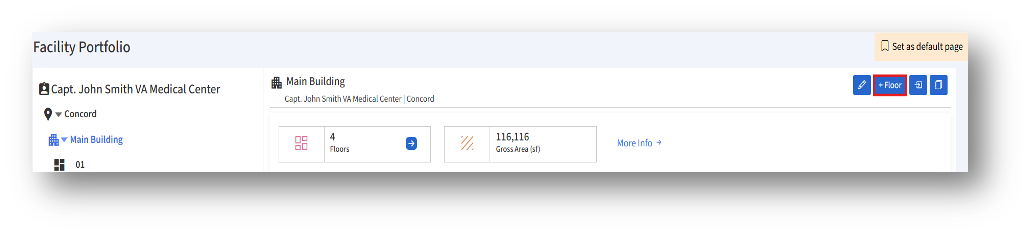
3. Clicking the “+Floor” button opens the “Add Floor” page.
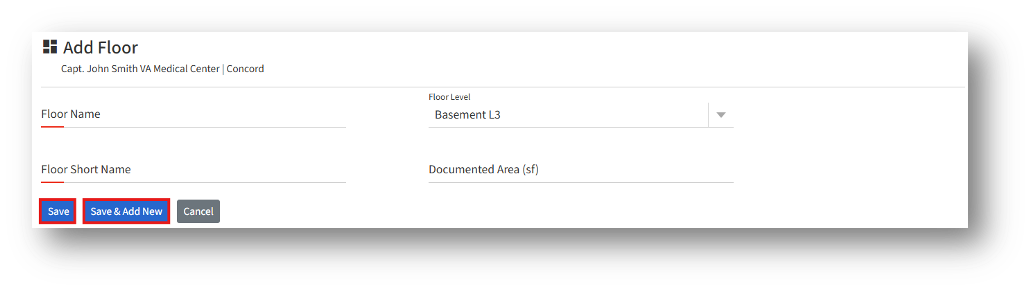
4. In the “Add Floor” page, the user can see the following details:
4a.Floor Name* – Enter the full name of the floor (e.g., "Main Administrative Building").
4b.Floor Level – Choose the level of the floor from the available drop-down list.
4c.Floor Short Name* – Enter an abbreviated version of the floor name.
4d.Documented area (sf) – Enter the size of the building in square feet.
5. After entering the details, click the “Save” button to create a new floor.
6. Click the “Save & Add New” to save the current floor and clear the form to add another one.
7. Click the “Cancel” button to discard changes and return to the previous page without saving.