
1. When a Workplace/Site is selected, the Workplace/Site details page appears.
2. To add a building, click the “+Building” button.
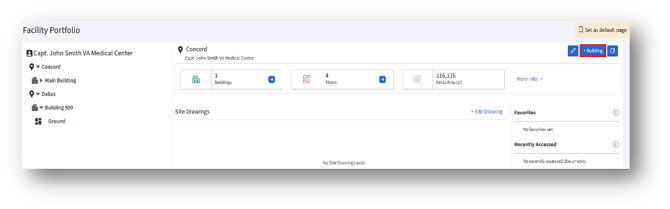
3. Clicking the “+Building” button opens the “Add Building” page.
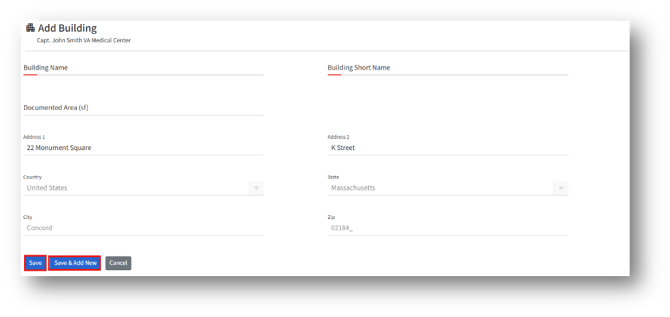
4. In the “Add Building” page, the user can see the following details:
4a.Building name* – Enter the full name of the building (e.g., "Main Administrative Building").
4b.Building Short Name* – Enter an abbreviated name for the building (e.g., "Admin Bldg" or "Bldg A").
4c.Documented Area (sf) – Enter the size of the building in square feet (e.g., "10,000").
4d.Address 1 – Enter the primary street address.
4e.Address 2 – Enter additional address information if needed
4f.Country – Set by default
4g.State – Set by default
4h.City – Set by default
4i.Zip – Set by default
5. After entering the details, click the “Save” button to create a new building.
6. Click the “Save & Add New” to save the current building and clear the form to add another one.
7. Click the “Cancel” button to discard changes and return without saving.