
The Schedule Maintenance feature allows authorized admins to block a room for a specified period to perform maintenance, renovations, or other planned activities. Scheduling maintenance ensures the room is not available for booking during the selected timeframe.
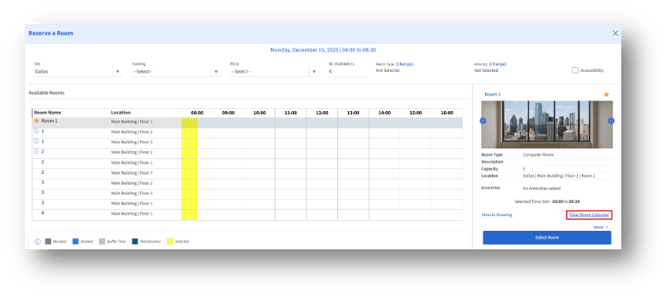
- Open the Schedule Maintenance Window
To view the Room calendar, click the View Room Calendar link, which appears either when reserving a room or from the Rooms option.
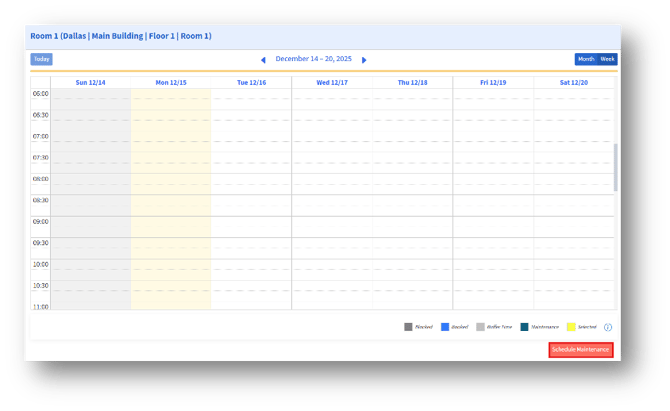
a. From the Room Calendar, click Schedule Maintenance.
b. The Schedule Maintenance window appears.
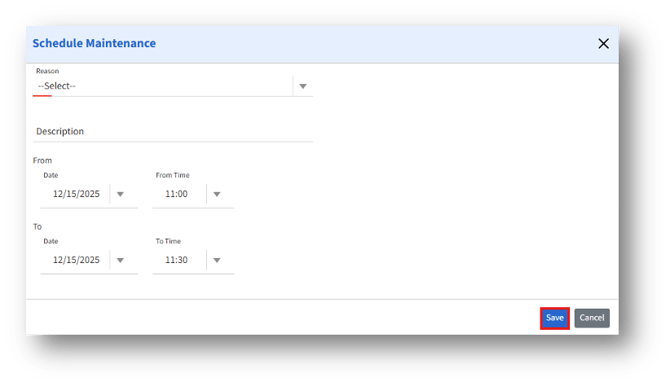 2. Enter Maintenance Details
2.1 Select Reason
2a. Open the Reason dropdown and choose one of the predefined maintenance types:
2b. Maintenance – General servicing, cleaning, or equipment check
2c. Others – Any maintenance not listed under standard options
2d. Renovation Work – Structural or layout modifications
2e. Select the reason that best describes the scheduled activity.
2.2 Add Description (Optional)
1. Enter any relevant details about the maintenance work.
2. This helps other users understand why the room is unavailable.
3. Set Maintenance Duration
- You must specify the start and end dates and times for the maintenance block.
- The system will block the room for the entire selected duration, preventing any reservations during that time.
- Click Save to schedule the maintenance.
- The room calendar updates to show the maintenance block in the timeline.