
You can create reservations directly from the Calendar view on the My Calendar page for quick, efficient booking. Follow the steps below to schedule either a seat or a room reservation.
1. Open the Calendar View
Navigate to the My Calendar page to view your daily and weekly schedules.
2. Select a Date and Time
Click on the desired date and time slot on the calendar grid.
This opens the Choose Reservation Option window.
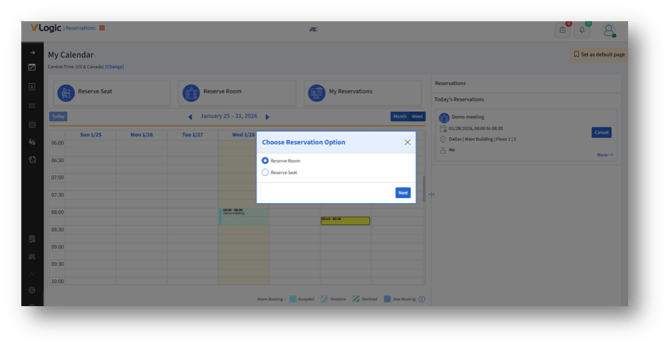
3. Choose the Type of Reservation
In the pop-up window:
a. Select Reserve Room, or
b. Select Reserve Seat
Click Next to proceed.
4. Enter Reservation Details
Depending on your selection:
1. Reserve a Room/Reserve Seat page appears.
2. Choose date and time (pre-filled based on the calendar slot chosen).
3. Meeting title and description
4. Reserve for Me or Others
5. Time or Timeslot
6. Recurrence options
5. Complete the Reservation
Follow the on-screen steps to select a room or seat.
After confirming the details, click Schedule to finalize the booking.