
Navigate: Reports and Insights → Data View →Drawings.
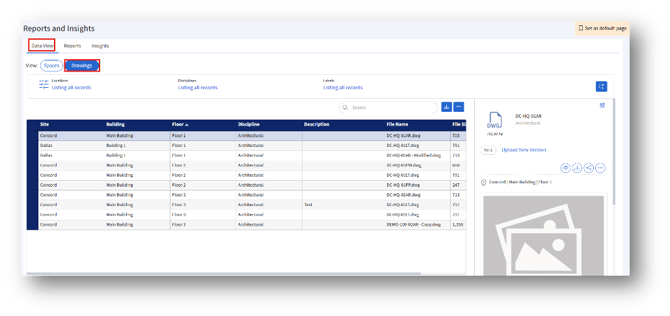
The Drawings tab in the Data View section of Reports and Insights allows users to view, manage, and update architectural and related drawing files for different sites, buildings, and floors.
- View Selection
Drawings Tab:
Click the Drawings tab to view all drawing-related data.
2. Filter Panel
Search and Filter Button
A Search icon enables users to perform keyword-based searches.
An Advanced Search option can be used to refine results further.
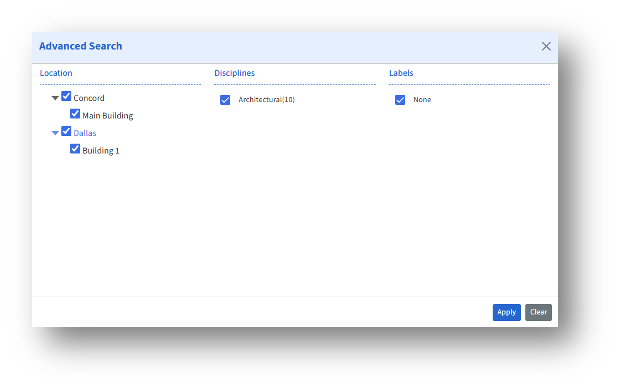
The Advanced Search results are displayed on the Drawings tab.
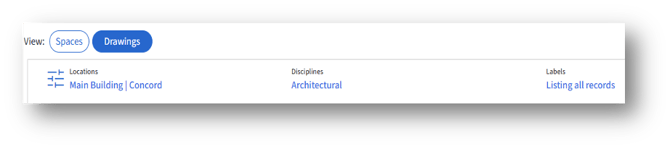
Located at the top of the page, this section displays the following.
Locations
Displays the location set in the Advanced Search.
Disciplines
Displays the disciplines set in the Advanced Search Lists (e.g., Architectural, Electrical, Mechanical).
Labels
Used to categorize or tag drawings for quick retrieval.
Displays “Listing all records” when no filter is applied.
3. Data Table
Displays the available drawing records with details for each entry.
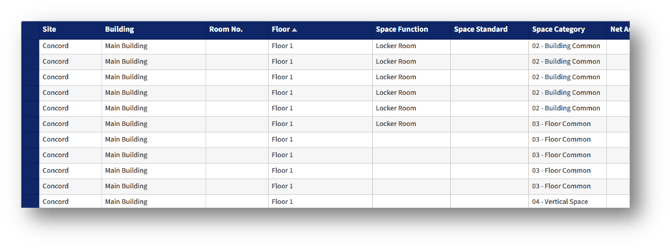
Sorting:
Rows can be sorted in ascending or descending order by clicking on the column heading. Once clicked, the Sort button appears; click it to apply the desired sorting.
4. Drawing Preview and File Actions (Right Panel)
When a drawing record is selected, a preview and Customize options appear on the right side.
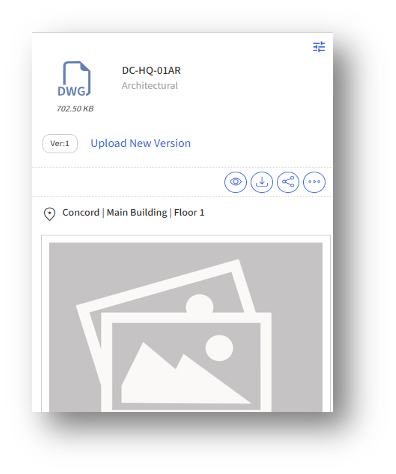
Version Information
Displays the current version (e.g., Ver: 1).
Option available to “Upload New Version” of the same drawing file.
File Actions
View: Opens the drawing file for viewing.
Download: Downloads the selected drawing file.
Share: Allows sharing or linking the file.
Drawing Preview
Displays a visual thumbnail or placeholder image for the drawing.
Location Details
Shows the exact file path (e.g., Concord | Main Building | Floor 1).
Versions Section
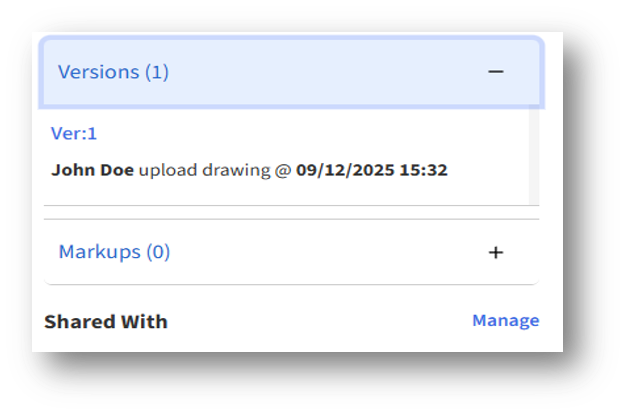
Displays available file versions under Versions (1).
Users can expand or collapse to view version history.
Markups
Displays any markups or annotations associated with the drawing.
Shared With
The Manage option allows the admin to view or modify sharing permissions.