
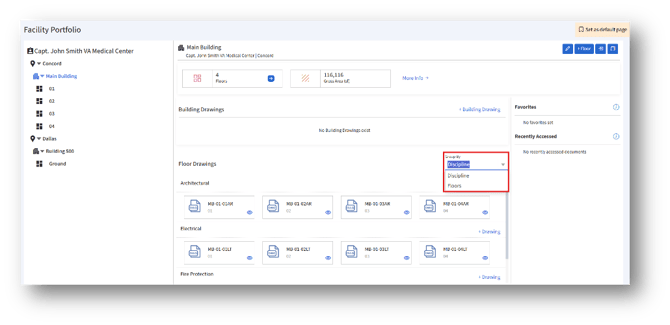
1. After choosing the Discipline drop-down, click the “+Drawing” button under the desired discipline such as Architectural, Electrical etc.
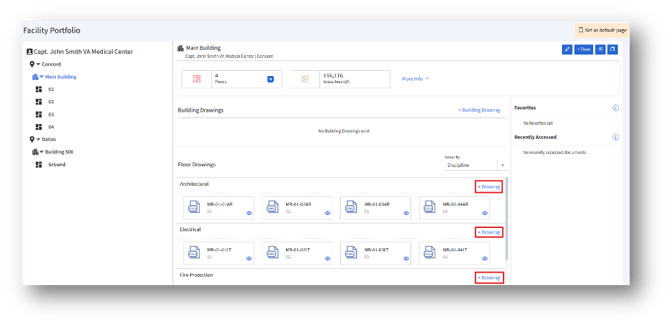
1a. Click the “+Drawing” button to upload a new drawing.
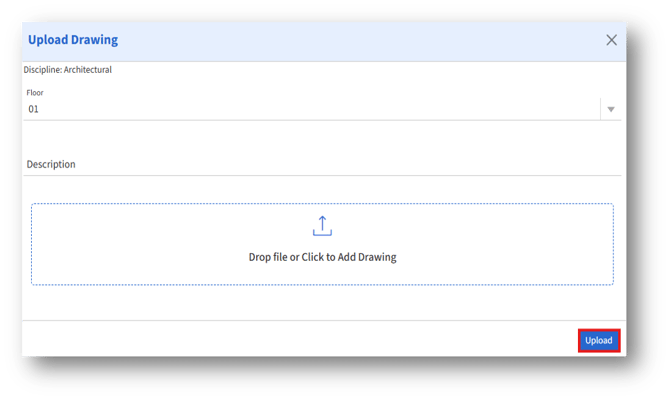
1b. The “Upload Drawing” page will appear.
Discipline
At the top of the window, the selected “Discipline” field is shown (e.g., Architectural).
Choose the Floor
1. Below the discipline field, you will see the “Floor” dropdown.
2. Select the floor where the drawing should be assigned (e.g., 01).
3. This step ensures that the uploaded drawing is linked to the correct floor level in the system.
Enter a Description (Optional)
1. A “Description” text box is provided where you can enter details about the drawing.
2. Example: “Architectural floor plan for level 01 showing room layouts and circulation.”
3. Adding a description makes it easier for others to identify and reference the drawing later.
Upload the Drawing File
In the upload area marked with “Drop file or Click to Add Drawing,” you have two options:
1. Drag and Drop: Drag your DWG drawing file directly into the box.
2. Click to Browse: Click inside the box to open a file explorer window, then browse and select the drawing file from your system.
Confirm the Upload
1. After selecting the file, it will appear in the upload area.
2. Double-check that the correct file has been added.
Finalize the Upload
1. Once all required details are filled in, click the “Upload” button located at the bottom-right corner of the window.
2. The system will process and attach the drawing to the selected floor under the specified discipline.