
Under Floor drawings, choose the Group by “Floors” option. 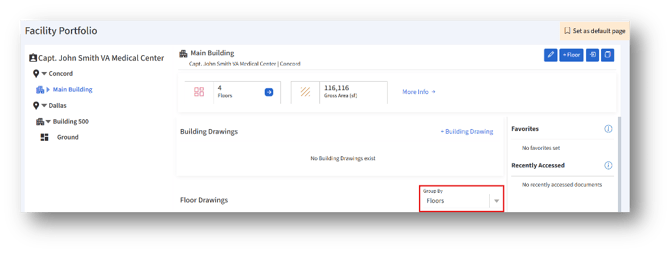
To add a floor drawing, follow the steps below:
1. Select Floor
1a. In the Floor field, choose the correct floor from the available options.
1b. Example: Floor: 01.
1c. To upload drawings against each floor, click the “+Drawing” button.

1d. The “Upload Drawing” page will appear.
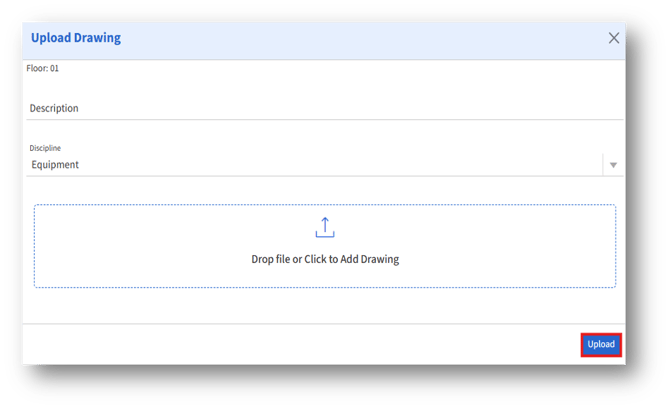
1e. The selected floor is shown at the top of the page.
2. Enter Description
2a. Provide a brief description of the drawing you are uploading.
2b. Example: Description: Equipment layout.
2c. This helps identify the purpose or content of the drawing.
3. Select Discipline
3a. From the “Discipline” dropdown, choose the relevant discipline (e.g., Architecture, Electrical, Mechanical, Plumbing, Fire Safety, etc.).
3b. This ensures the drawing is categorized correctly for future reference.
4.Upload Drawing File
4a. Use the “Drop file or Click to Add Drawing” option to upload the file.
4b. You can either:
1. Drag and drop the DWG drawing file directly into the upload area, or
2. Click the upload box to browse your computer and select the file manually.
5. Confirm Upload
5a. Once the file is uploaded, verify the details (floor, description, and discipline).
5b. Click the Upload button to complete the process.