
Follow the steps below to add a drawing:
1. Open the Upload Drawing Window
1a. Navigate to the required floor where you want to add the drawing.
1b. Click the “+Floor Drawing” button to upload a new drawing.
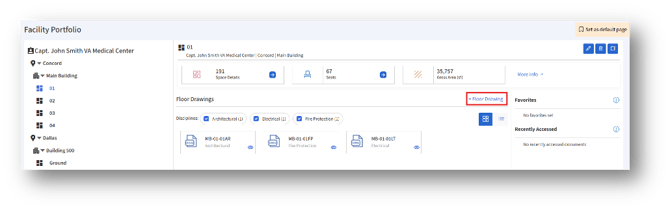
1c. The “Upload Drawing” page will appear.
2. Enter a Description
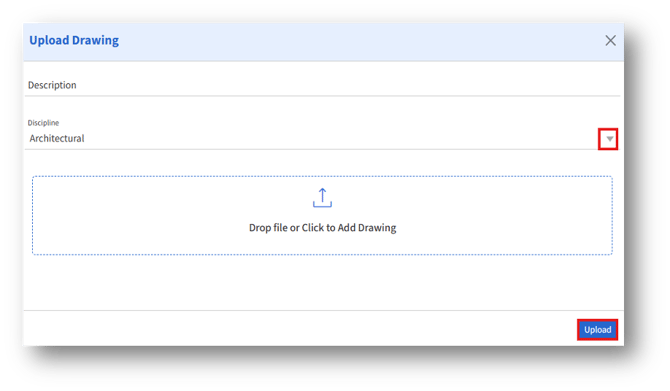
2a. In the “Description” field, provide a short, clear title for the drawing.
2b. Use descriptive names that make it easier to identify the drawing later, such as “Main Building – Ground Floor Plan”.
3. Select the Discipline
3a. The “Discipline” field categorizes the drawing by type, such as Architectural, Structural, Electrical, Mechanical etc.
3b. Click the dropdown menu and select the discipline that best fits the drawing being uploaded. The default value is General.
4. Upload the Drawing File
In the upload area labelled “Drop file or Click to Add Drawing”, you can either:
4a. Drag and drop the DWG drawing file from your computer, or
4b. Click the upload box to browse and select the file from your system.
5. Verify File Selection
5a. Once the file is added, confirm that the correct file name appears in the upload section.
5b. If you selected the wrong file, remove it and upload the correct one.
6.Upload the Drawing
6a. After filling in the description, selecting the discipline, and attaching the file, click the “Upload” button in the bottom-right corner.
6b. The file will be uploaded and linked to the chosen workplace or site.
7. Cancel if Needed
If you do not wish to proceed, click the X icon in the top-right corner to close the window.