
Accessing the Reserve Room Page
a. Click the Reserve Room button on the top menu of the My Calendar page.
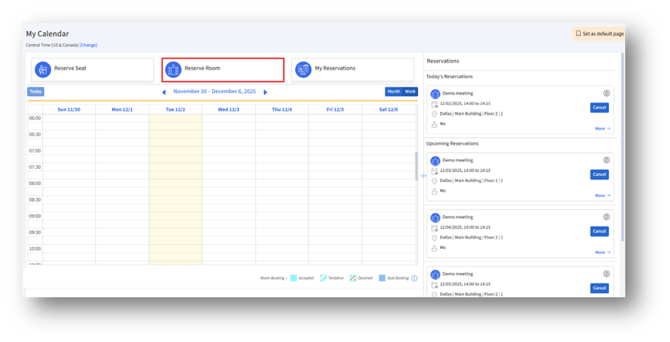
b. The Reserve Room page appears, where you can begin creating your room reservation.
- Enter Reservation Details
1.1 Book For – Me
Select Me under Book For to reserve a room for your own use.
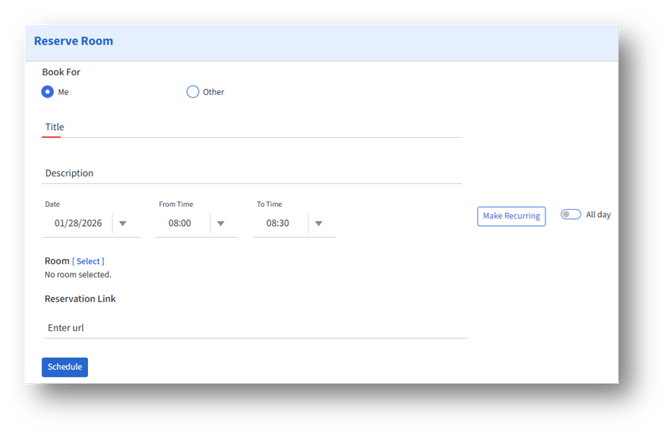
1.2 Add Meeting Title and Description
A. Title: Enter the meeting or booking name.
B. Description: Optionally describe the purpose or details of the meeting.
1.3 Select Date and Time
Set when the room is needed:
1. Date: Choose the meeting date.
2. From Time: Select the start time.
3. To Time: Select the end time.
4. Enable the All day option if the room is required for the entire day.
1.4 Make Recurring (Optional)
Click Make Recurring to schedule repeating reservations.
You can:
a. Select days of the week
b. Set an End By date
c. Save or remove the recurrence
2. Select a Room
Click Room [Select] to open the room selection window.
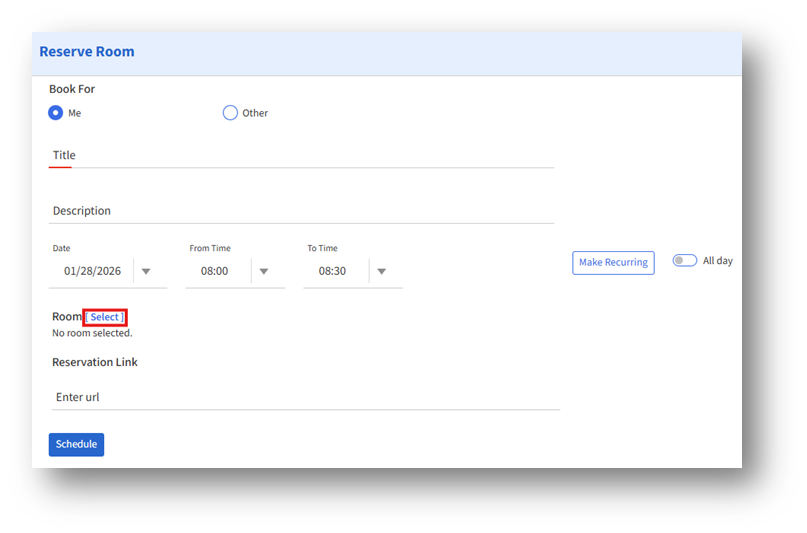
Room selection is required for offline and hybrid (onsite and online) reservations/meetings.
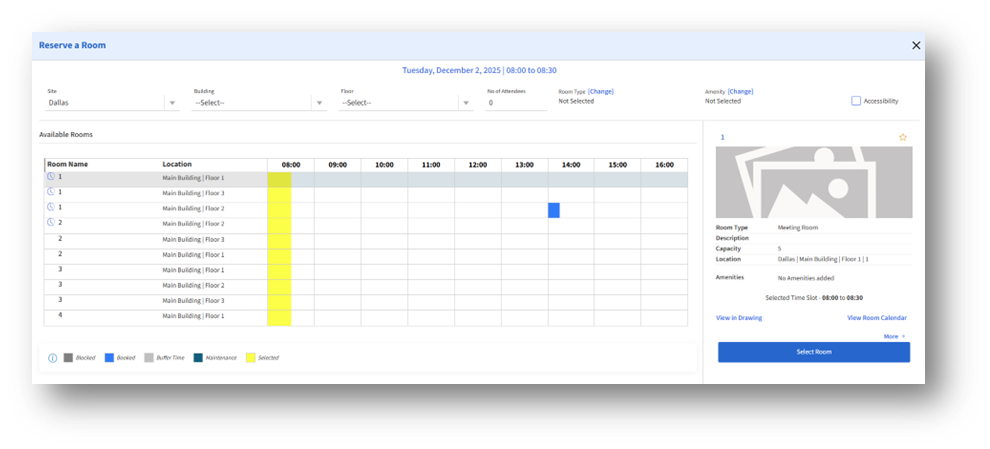
2.1 Room Selection – Data View
You will see:
1. Available Rooms
2. Location details
3. Hourly availability grid
4. Filters
How to Select a Room
- A room will be selected by default, and you can choose any available rooms and review their availability.
- Select a room to view its details in the right panel.
- The time selected in the Select option will be reflected in the right panel.
- You can change the time by scrolling horizontally to choose a new time window.
- Click the Select Room button on the right panel to add it to your booking.
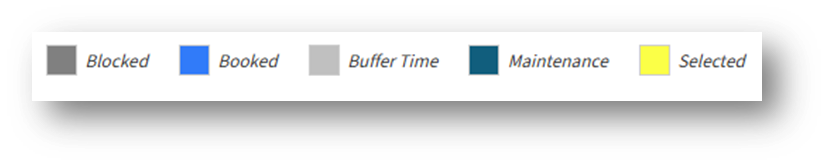
2.2 Room Color Legends
The color legends at the bottom indicate the availability and status of each room.
 3. Drawing View
a. If you click View in Drawing, you can select the room visually on the building floor plan.
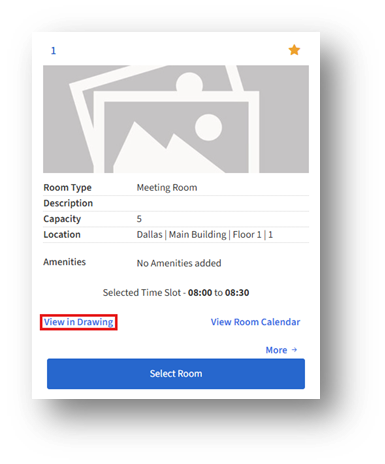
b. Selecting a room displays its details on the right panel.
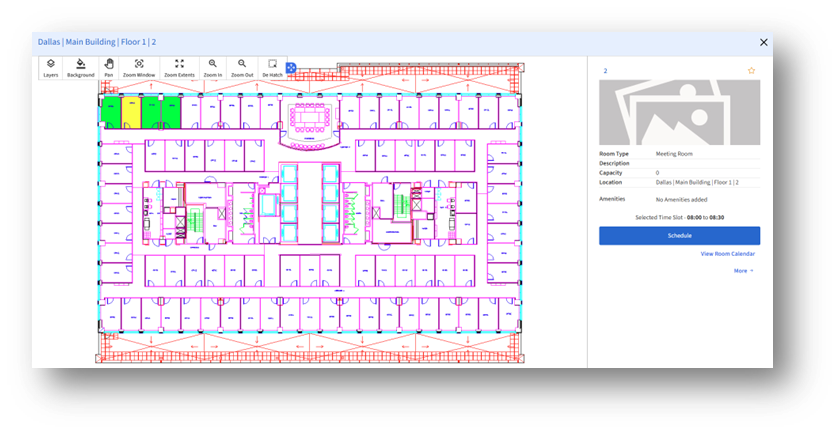
c. Click Schedule to complete the reservation.
4. View Room Calendar
Click View Room Calendar to see the room’s daily or weekly schedule for:
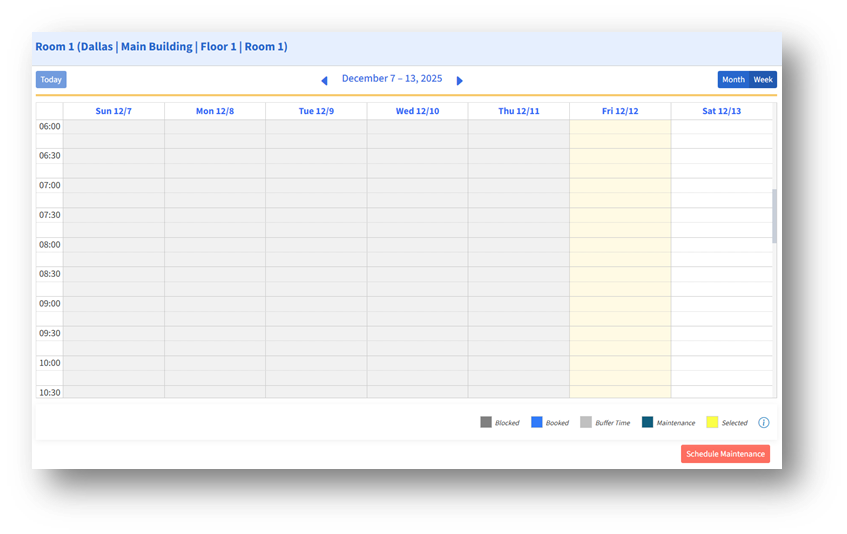
1. Existing bookings
2. Maintenance blocks
3. Buffer time
4. Available slots
This helps verify conflicts before scheduling.
5. Review Selected Room
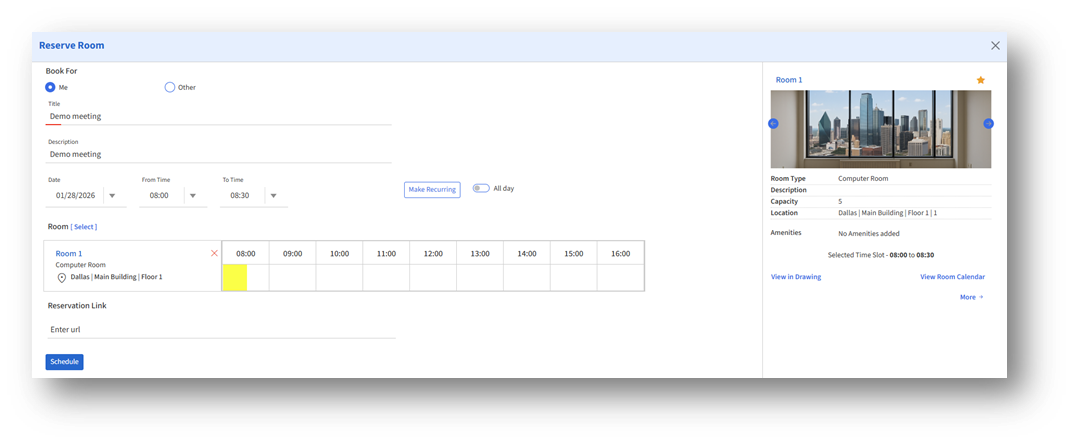
After selecting a room:
A. The chosen room appears on the main page
B. The timeline displays your selected time slot
C. Room details and amenities appear on the right
You may also remove the room, adjust the date/time, or add a meeting link.
6. Add Reservation Link
Enter an online meeting link in the Reservation Link field. This option is for online and hybrid reservations/meetings.
7. Finalize the Reservation
Click Schedule to confirm your room reservation.