
You can modify the date or time of an existing seat reservation directly from the calendar. Follow the steps below to reschedule your booking.
1. Select the Existing Reservation
Go to the Calendar view and click on the seat reservation you want to modify.
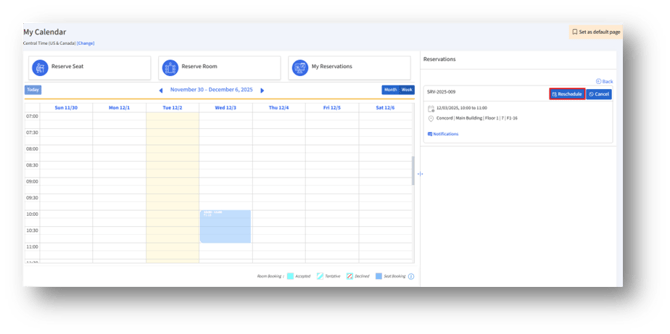
A details window opens, offering options to manage the reservation.
2. Click the Reschedule Button
Click Reschedule to open the rescheduling interface.
3. Update Reservation Date and Time
The Reschedule Seat Reservation page appears.
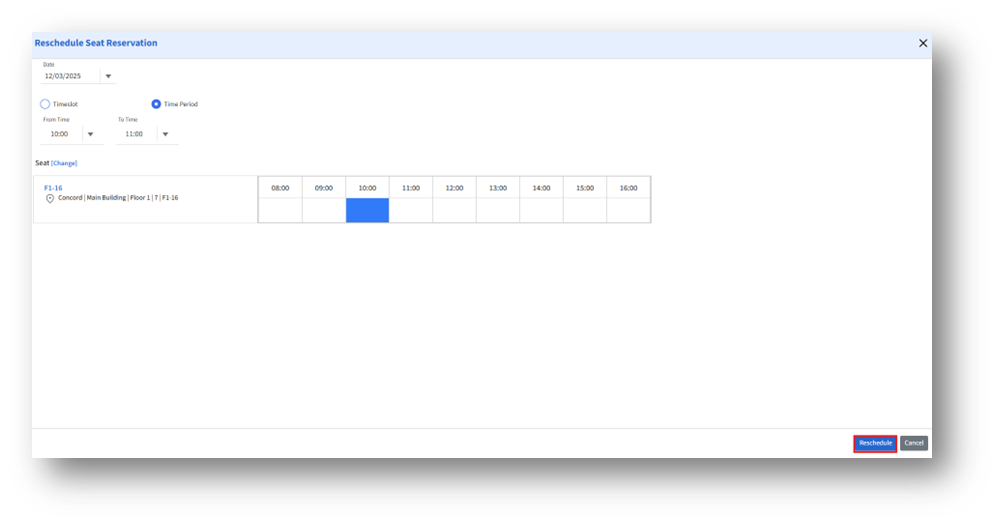
Here you can:
1. Change the Date
2. Choose between Timeslot or Time Period
3. Set From Time and To Time for the new booking window
4. Review Availability or Change the Seat
The timeline displays the availability of the currently reserved seat.
a. Confirm that the new time is available (highlighted in the timeline), or
b. Click [Change] to select a different seat if needed
This ensures your updated reservation does not conflict with any existing bookings.
5. Confirm the Updated Reservation
Once all changes are set, click Reschedule to save the updated reservation.
If you do not wish to proceed, click Cancel.