
Room reservations can be rescheduled directly from the calendar or through the reservation details panel. Follow the steps below to update the meeting date or time.
Method 1: Reschedule from the Calendar View
- Select the Existing Reservation
a. In the My Calendar page, click the room reservation you want to modify.
b. The reservation details will appear in the right pane.
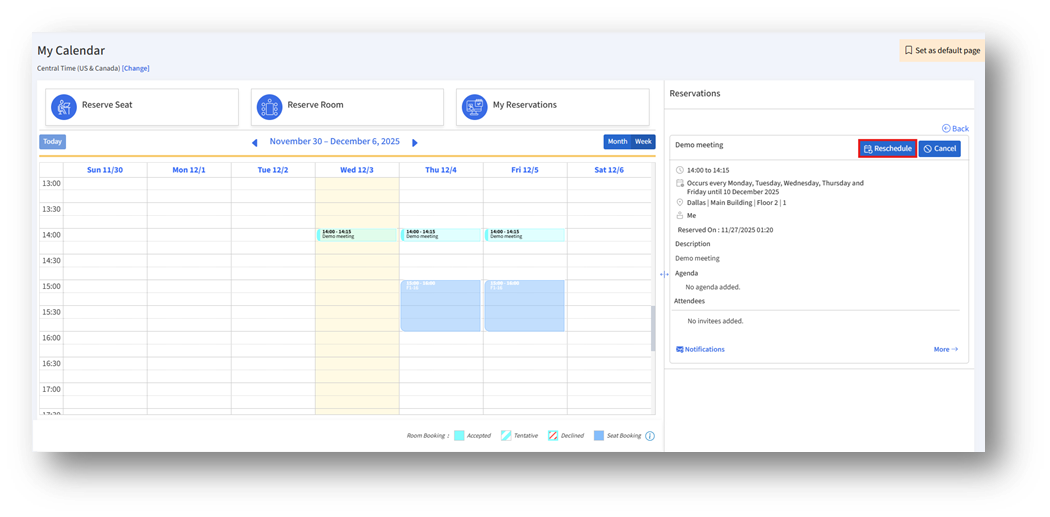
2. Click the Reschedule Button
Click Reschedule to open the Reschedule Reservation
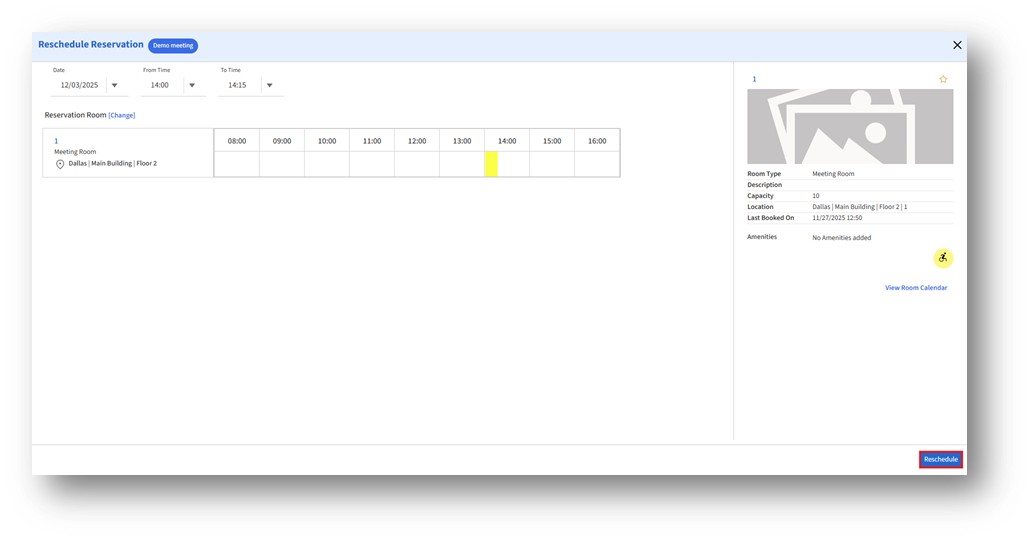
3. Update Date and Time
On the Reschedule Reservation page:
1. Choose a new Date
2. Set the updated From Time and To Time
These fields define the new meeting schedule.
4. Review Room Availability
The availability timeline displays open and blocked time slots.
a. The highlighted segment shows your newly selected time
b. Ensure there are no conflicts or overlaps
c. You may click [Change] to select a different room, if needed
5. Confirm the Updated Booking
1. Click Reschedule to save your new meeting time.
2. The calendar will update accordingly.
Method 2: Reschedule from the Reservation Details (Right Pane)
You can also reschedule a room reservation by accessing the reservation details.
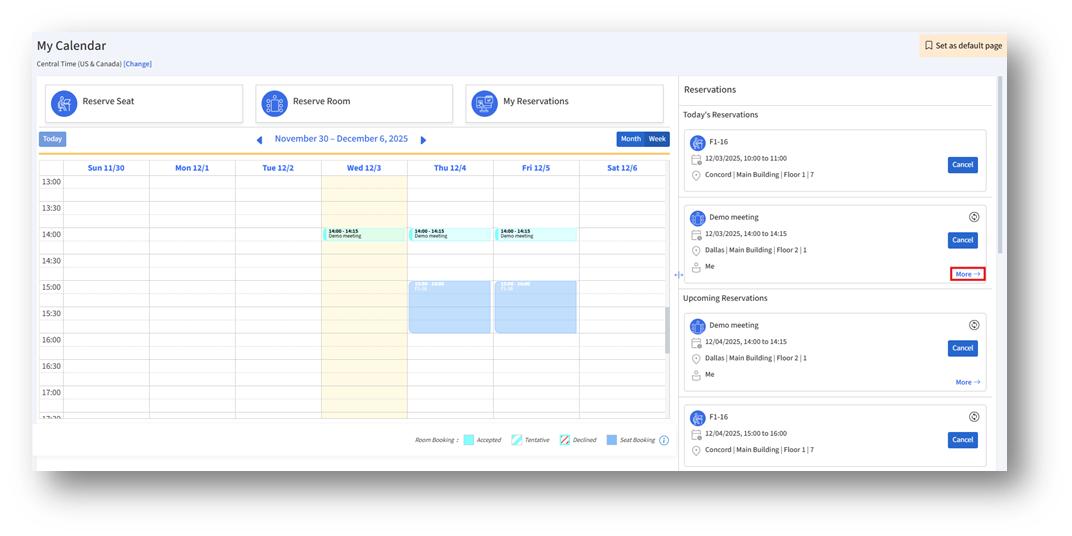
- Click the More Button
In the Reservations panel on the right side of the calendar, locate the reservation and click More.
 2. Open the Reservation Details Page
The reservation details page appears.
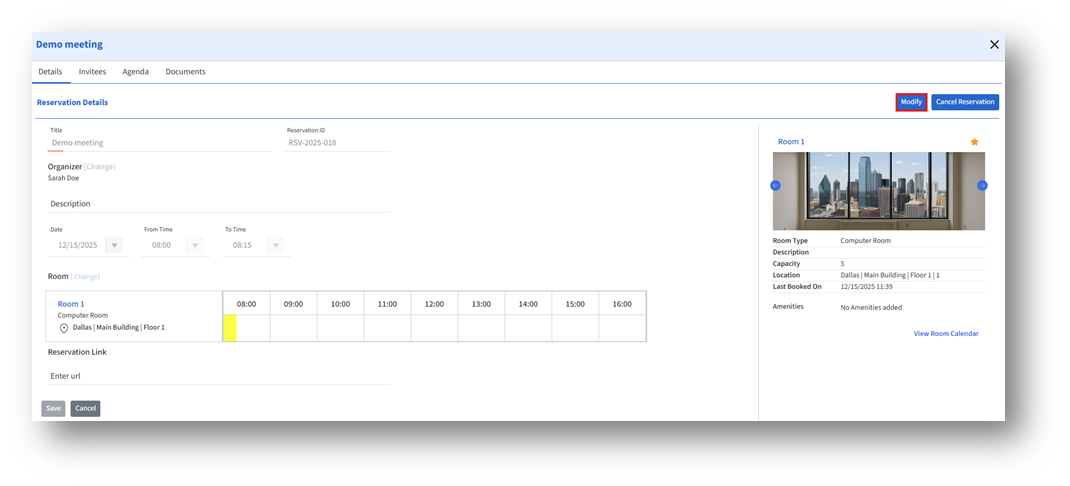 3. Click the Modify Button
Select Modify to switch the reservation into edit mode and enable rescheduling.
4. Adjust the Meeting Time
Update the date and time.
A. The timeline shows the room's availability so you can verify the new slot is free.
B. Click Save to finalize the updated booking.