
The Move Project page is designed to streamline and manage employee relocation activities within the organization. It enables admins to create move projects, define execution timing, add and import employees, set move details, and track move progress.
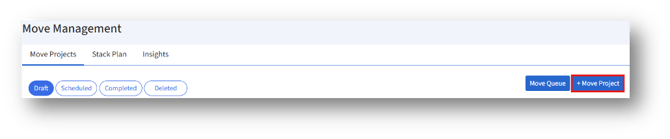
Click the “+Move Project” button to open the “Move Project”
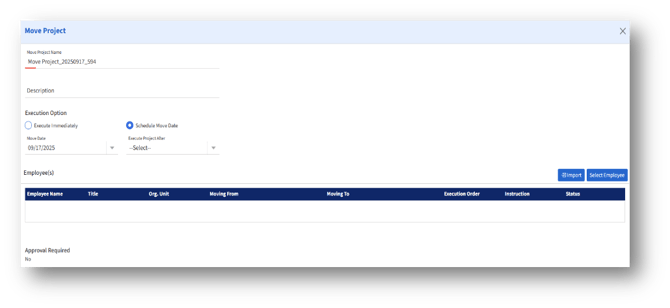
1. Project Information Section
a. Move Project Name – Displays a system-generated, unique name for the project.
b. Description – Field where users can add additional details about the project.
2. Execution Option
This section allows the user to define when and how the move project will be executed:
a. Execute Immediately
If selected, the project will be executed as soon as it is finalized, with no scheduling required.
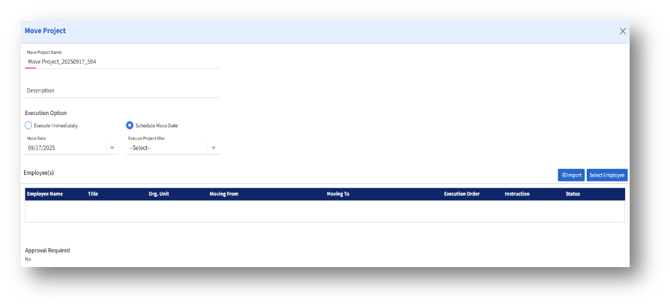
If selected, the user can plan the move for a specific future date.
a. Move Date – Field for selecting the date.
b. Execute Project After – A dropdown field that allows execution only after certain conditions/events. This provides flexibility in coordinating with other projects or dependencies.
3. Import
The Import Data page is a guided interface for uploading bulk employee data for a move project.
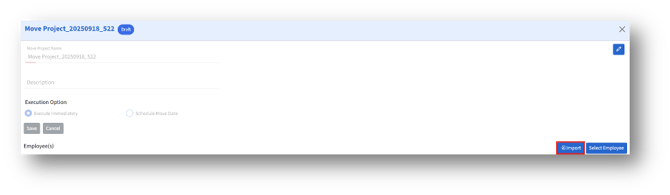
3a. Click the Import button to navigate to the Import Data
3b. The importing process is broken into steps:
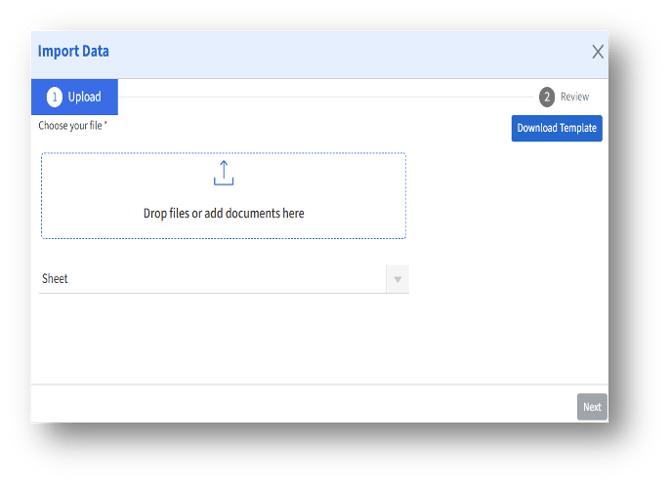
- Upload – The current step where the user chooses and uploads a file.
- Review – The next step is where the uploaded data can be reviewed before finalizing the import.
Download Template Button
Download Template
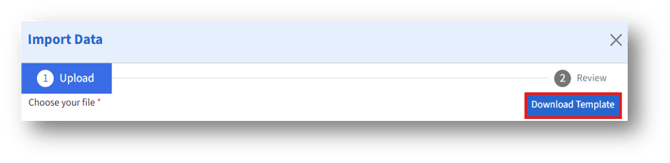
a.Provides a system-generated template file in Excel format.
b.The admin can enter the required fields and save them.
File Upload Section
Choose your file* – The “Drop files or add documents here” drag-and-drop area where users can either drag files directly or click to browse and select from their system.
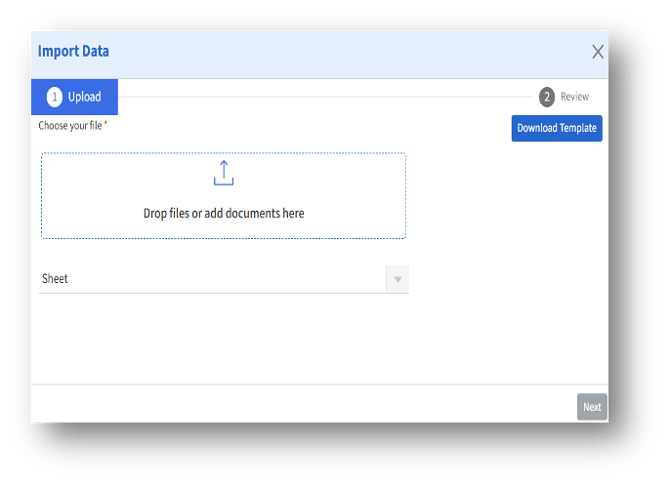
Sheet Selection
Sheet Dropdown
Once the Excel file is uploaded, this dropdown automatically selects the data type.
Navigation Buttons
Next
After uploading a file, click the “Next” button to move into the next step: Review.
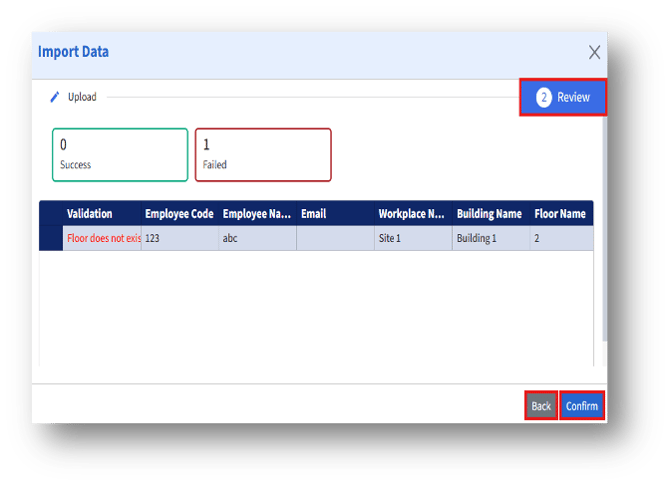
Review
A. If there are any errors in the file, they will be displayed as errors under Validation, as shown above.
B. Clicking the “Back” button returns the user to the Import page, where they can upload the correct file and then click the Next button to proceed to the Review page.
C. Then, click the “Confirm” button to import the data.
4.Select Employee
Enables selection of employees from the directory for inclusion in the project.
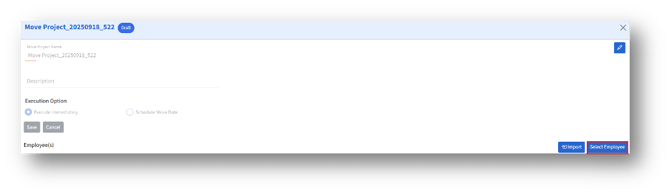
Click the “Select Employee” button to navigate to the “Move Project”
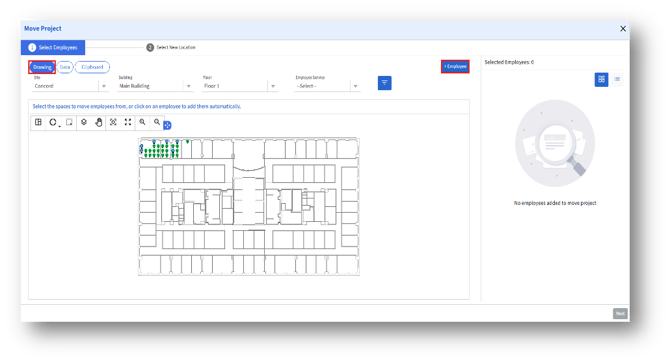
A. How can I add an employee from the Move Project page?
Clicking the “+Employee” button navigates to the “Employee” page, where admins can add new employees. This option appears when the admin enables the “Enable option to add employees through Move Management” option in Settings.
B. How can I move the project?
The Move project is a two-step process:
-
- Select Employees
- Select New Location
Step 1: Select Employees
The "Select Employees" step is the first stage in the Move Project workflow. This step enables users to identify and select employees who need to be relocated from their current workplace to a new one.
A. Selection Views
Employees can be selected in two different modes:
a .Drawing View – Allows admins to interact with the floor plan layout.
b. Data View – A tabular format for employee data selection.
c. Clipboard – Allows admins to select from the employee copied to the clipboard.
The user can toggle between these views using the Drawing / Data/Clipboard buttons at the top.
Drawing View
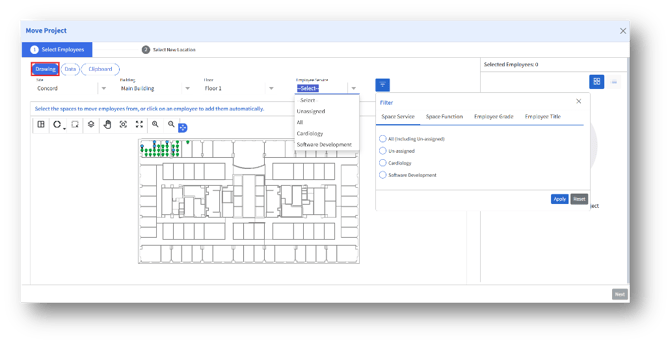
Filters
To narrow down employee selection, there are various available filters:
a. Workplace/Site
b. Building
c. Floor
d. Employee Service: This dropdown allows filtering employees by department or grouping.
e. Filter Panel: Provides more granular filtering criteria with tabs such as:
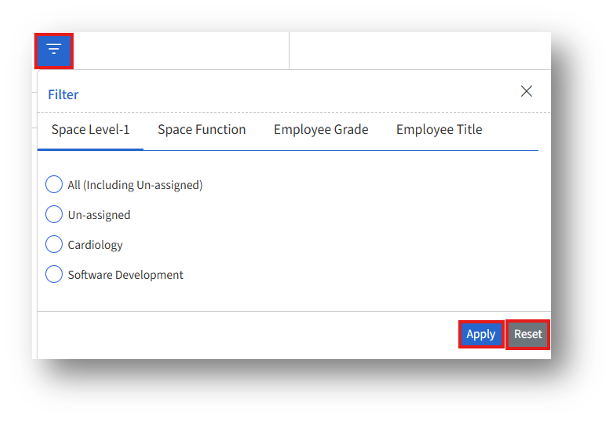
Interactive Floor Plan
The central part of the screen shows the floor layout:
1. Each seat/space is represented on the drawing.
2. Occupied seats are indicated, showing employees seated there.
3. The admin can place the employee in two ways:
a. The employee created via Move will appear on the left panel.
b. Also, the admin can add an employee from the drawing by clicking on the seated employee.
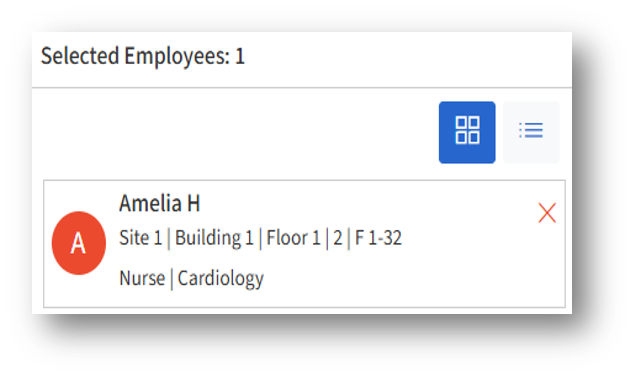
Selected Employees Section
In the top-right corner, a section labeled “Selected Employees” displays the selected employees.
 Progression to Next Step
Once employees are selected, the user can click the “Next” button (in the bottom-right corner) to proceed to Step 2: Select New Location, where the selected employees will be assigned to their new seats.
Data View
In the Data view, the employee list is displayed in a structured table format. Users can switch back to the Drawing view if they prefer a floor-plan-based visual selection.
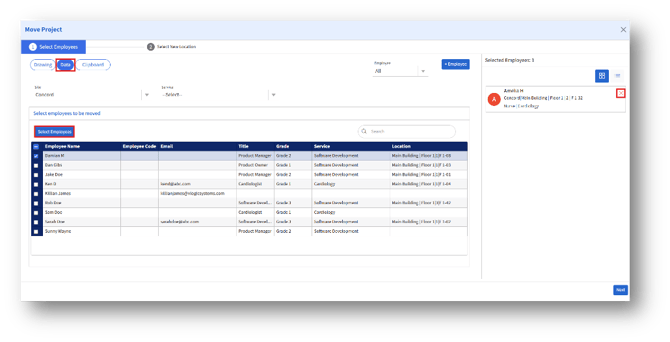
Filters and Search
Filters help narrow down the list of employees:
a. Workplace
b. Level
c. Employee
A search box is provided above the employee table to find specific employees by name or other attributes quickly.
Employee Data Table
1. The central section displays a list of employee details in a tabular format.
2. Each row includes a checkbox to select employees individually.
Select Employees Button
The "Select Employees" button allows users to confirm the highlighted or checked employees in the list.

Selected Employees Panel
On the right-hand side, there is a dedicated panel titled Selected Employees that dynamically displays the employees chosen for the move:
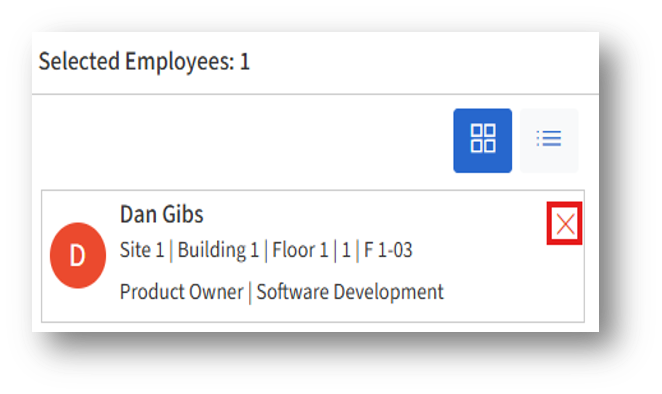
a. List/Grid view toggle for how selected employees are displayed.
b. A delete (X) option to remove an employee from the selection list.
Progression to Next Step
Once employees are selected, the Next button (bottom-right corner) becomes active.
Clicking it moves the process forward to Step 2: Select New Location, where the system will prompt users to assign the selected employees to new seats or spaces.
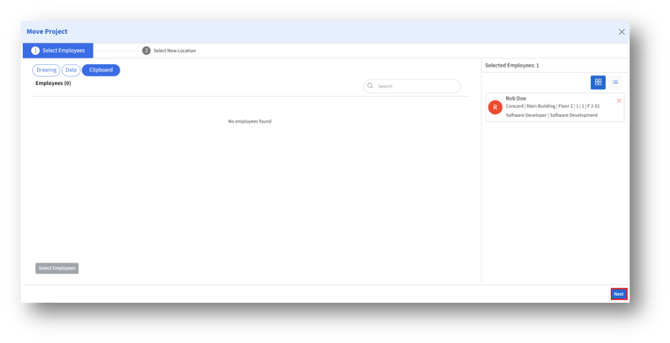
Clipboard view
In the Clipboard view, the admin can see the user(s) who have already been copied to the clipboard.
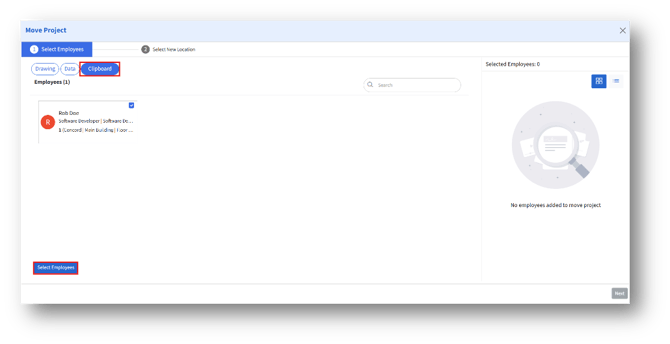
a. Select the employee and click the “Select Employees” button to add them to the move project.
b. The selected employee will be displayed on the right-hand side panel titled “Selected Employees.”
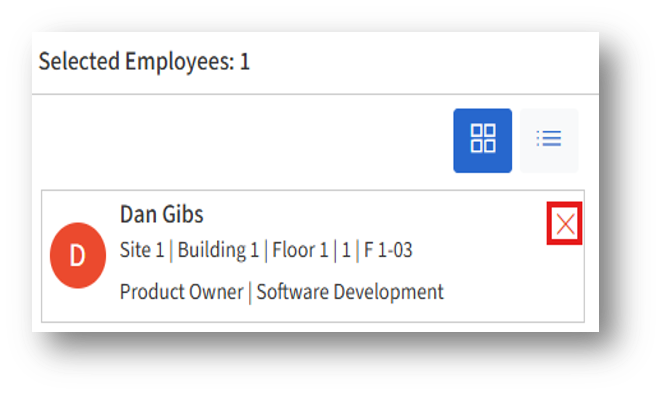
c. Click the Delete (X) option to remove an employee from the selection list.
Progression to Next Step
Once employees are selected, the Next button (bottom-right corner) becomes active.
Step 2: Select New Location (Drawing View)
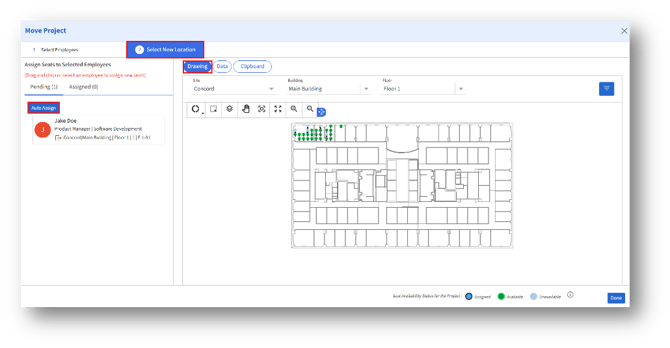
The Select Employee process begins with choosing employees in Step 1, followed by seat assignment in Step 2. Employees can either be auto-assigned or manually assigned by interacting with the drawing view.
A. Assign Seats to Selected Employees
The left section of the screen displays employees waiting for seat assignment.
Two tabs:
a. Pending – shows employees who still need a seat assignment.
b. Assigned – shows employees already placed in new seats.
B. Options available:
1. Auto Assign button – the system automatically assigns the employee to an available seat based on predefined rules.
2. Manual Assignment – the user can drag and drop the employee onto a new seat in the drawing or click a seat to assign.
C. Drawing View (Seat Assignment Map)
The central panel shows the floor plan of the workplace:
a. Navigation controls: Distribution map, De hatch, Layers, Pan, Zoom window, Zoom extends, Zoom in and out.
b. Seat Availability Status: At the bottom, the legend indicates the status of seats across the project.

D. Filters for Seat Selection
a. On the right side, a Filter panel provides options to refine seat availability:
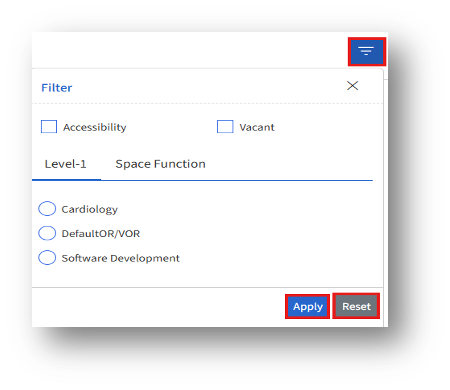
b. Apply or Reset options to confirm or clear filters.
E. Finalization
Once all pending employees are assigned to new seats:
a. The list under the Assigned tab will populate with employee details and new seat numbers.
b. The process is completed by clicking the Done button (bottom-right corner).
F. Data View
This view provides a data-grid (table) format for seat selection rather than a visual floor plan.
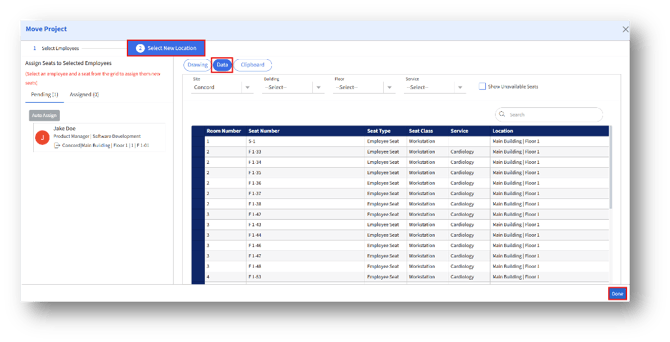
G. Assign Seats to Selected Employees
H. Filtering & Searching
Filters are available at the top to refine seats by:
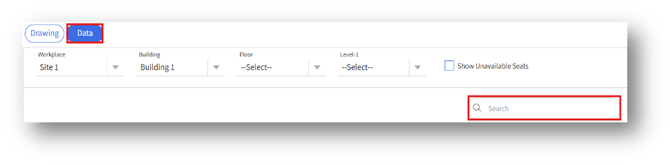
a. Workplace
b. Building
c. Floor
d. Level
A. Show Unavailable Seats allows visibility into both occupied and vacant options.
B. A search bar provides a quick lookup of seat numbers or locations.
I. Assignment Process
To assign:-
- Select the pending employee from the Pending tab.
- Choose a seat from the data grid by clicking the appropriate row.
- The employee will move from the Pending tab to the Assigned tab.
J. Finalization
a. After all employees are assigned to new seats, click the Done button (bottom-right corner).
b. This completes the Select Employee process and finalizes the seat assignments for the Move Project.
K. Clipboard View
This view displays seats pasted under the Clipboard.
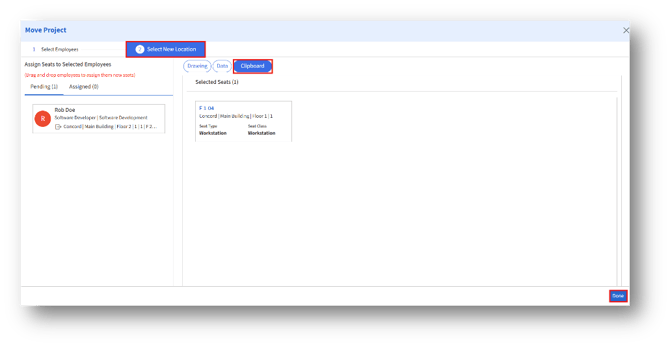
a. The admin can drag and drop the employee from the left panel to the desired seat under the “Selected Seats” section and click the “Done” button.
b. Then, the admin will reach the Move Project Draft page, and edit the fields by clicking the Edit button.
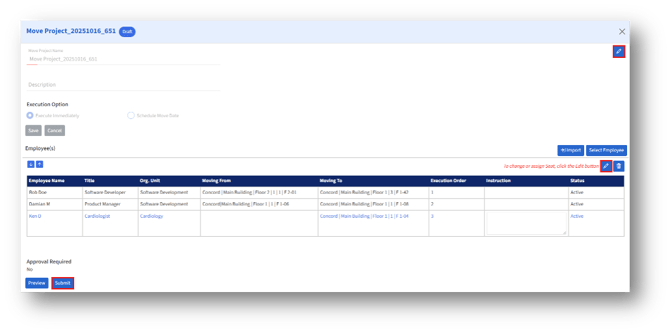
5. Employee(s)
a. This area lists employees included and their move details.
b. The admin can change or assign a new seat by clicking the Edit button.
6. Approval
Approval Required – Indicates whether this move project requires approval before execution.
It is set to “No,” meaning the project does not require additional authorization.
7. Preview
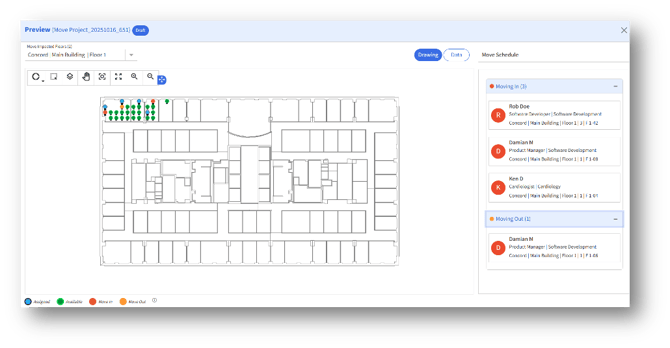
Click the Preview button to view the move execution preview.
 8. Submit
After confirming the details, click the “Submit” button to execute the move project.