
To import a document, click the “Import” button under the Uploaded section in the Files/Folders tab.
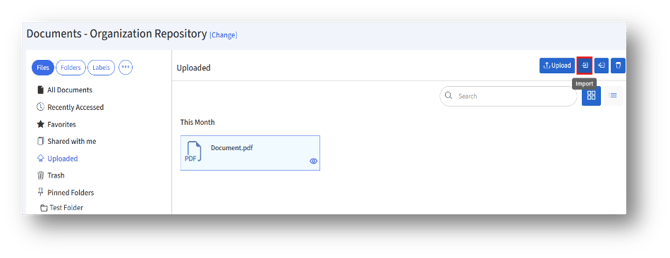
a. Clicking the Import button will navigate to the “Import Data”
b.The importing process is broken into steps:
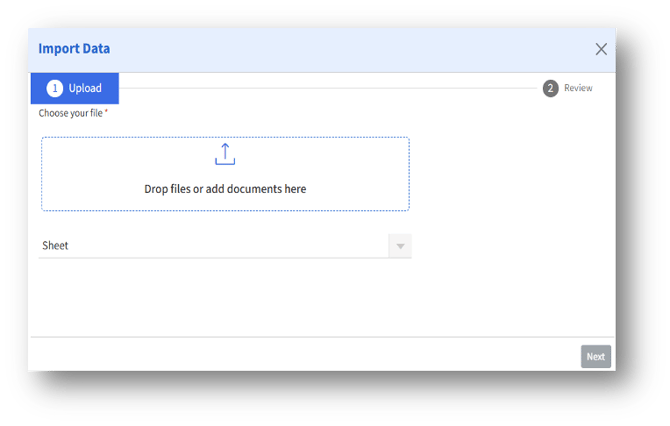
- Upload – The current step where the user chooses and uploads a file.
- Review – The next step is where the uploaded data can be reviewed before finalizing the import.
a. File Upload Section
Choose your file* – The “Drop files or add documents here” drag-and-drop area where the admin can either drag files directly or click to browse and select from their system. The admin can make the changes in the previously exported file and upload it here.
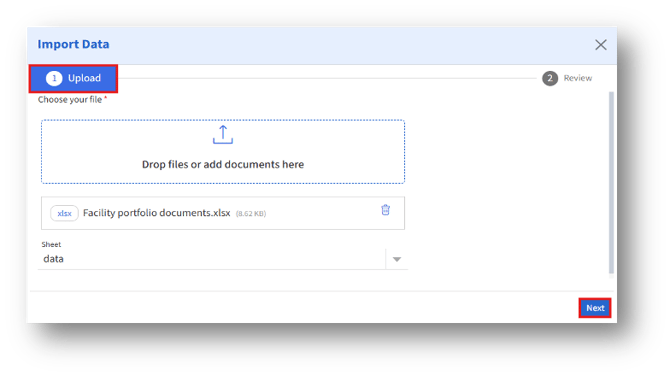
b. Sheet Selection
Sheet Dropdown
Once the Excel file is uploaded, this dropdown automatically selects the data type.
c. Navigation Buttons
Next
After uploading a file, click the “Next” button to move into the next step: Review.
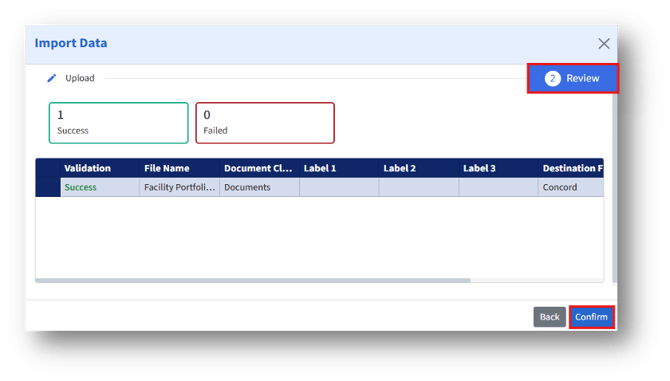
If there are any errors in the file, they will be displayed as errors under Validation, as shown above. Clicking the “Back” button returns the user to the Import page, where they can upload the correct file and then click the Next button to proceed to the Review page. Then, click the “Confirm” button to import the data. Click the Close (X icon) at the top right of the page to close the Import Data page.