
Navigate: Reports and Insights → Data View →Spaces.
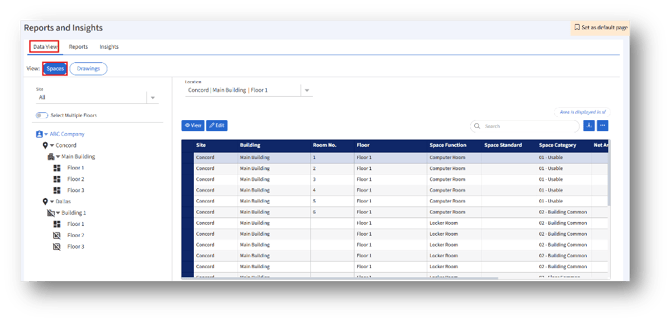
The Data View helps analyze space utilization efficiently, and the admin can easily navigate across multiple sites and floors.
- View Selection
a. Options:
Spaces: Displays details of rooms and space functions.
Drawings: Displays drawing-related information.
b. Select the preferred view by clicking the respective button.
2. Filters
Site
A dropdown menu to select the desired site.
Select Multiple Floors
A toggle switch that allows viewing multiple floors simultaneously.
Location
Dropdown field to select a specific location hierarchy in the format: Site | Building | Floor
3. Location Tree Panel (Left Pane)
Displays a hierarchical structure of:
Company → Site → Building → Floor
The admin can expand or collapse nodes to navigate through different locations.
4. Action Buttons
View: Displays data in a read-only mode.
Edit: Allows editing or managing space details.
5. Search and Export
Search Box:
Enables quick search for rooms, functions, or other attributes within the table.
Download:
Allows exporting the displayed data into a downloadable format.
6.Data Table
Displays detailed information for the selected location.
7. Additional Controls
More Options Menu (⋯): Provides additional data actions or settings (based on access rights).