
You can cancel any scheduled room reservation directly from the My Calendar or from the reservation details panel. Follow the steps below:
Method 1: Cancel from the Calendar
- Select Your Scheduled Room Reservation
A. In Calendar view, click the room reservation you want to cancel.
B. The reservation details will open on the right side of the screen.
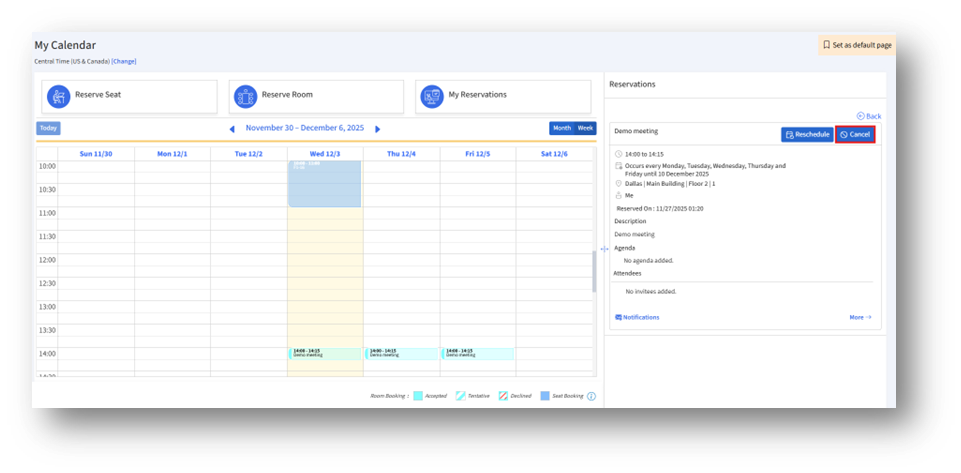 2. Click the Cancel Button
Select Cancel to open the cancellation window.
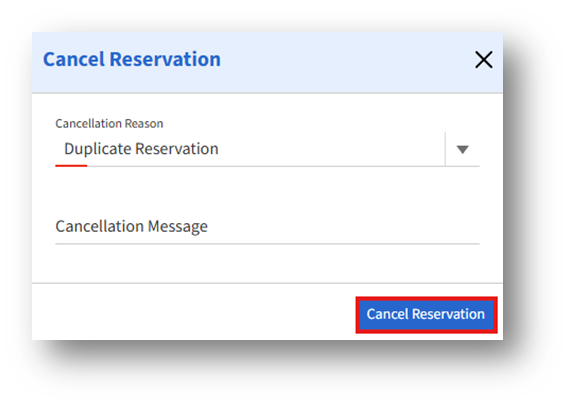
3. Review the Cancel Reservation Page
a. The Cancel Reservation page appears.
b. Choose a Cancellation Reason from the dropdown list.
c. Enter a Cancellation Message explaining the cancellation, if needed.
d. Click Cancel Reservation to finalize and remove the booking.
Method 2: Cancel from the Right Pane Using “More”
You can also cancel the reservation through the details panel:
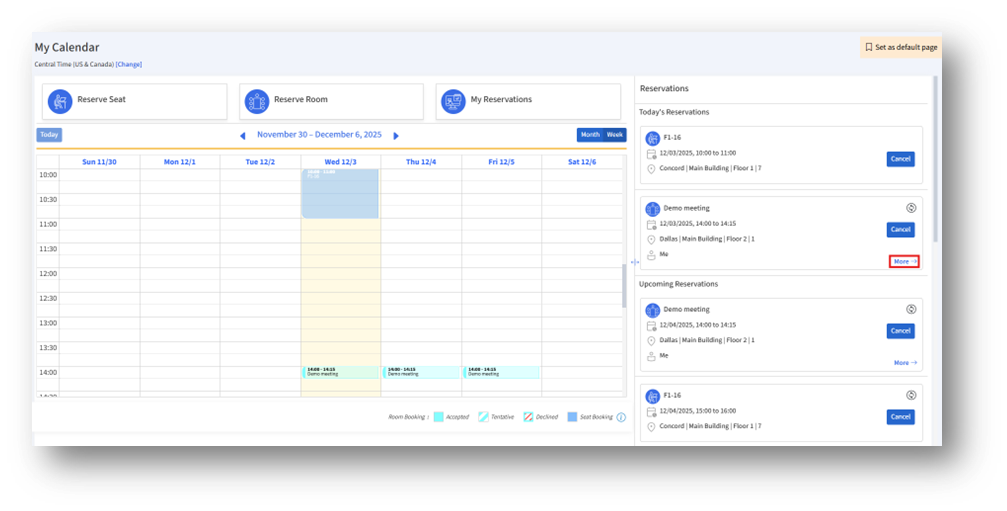
- Open the Reservation Details
In the Reservations section on the right side of the Calendar, locate your room reservation.
2. Click the More Button
Select More, as shown in the screenshot.
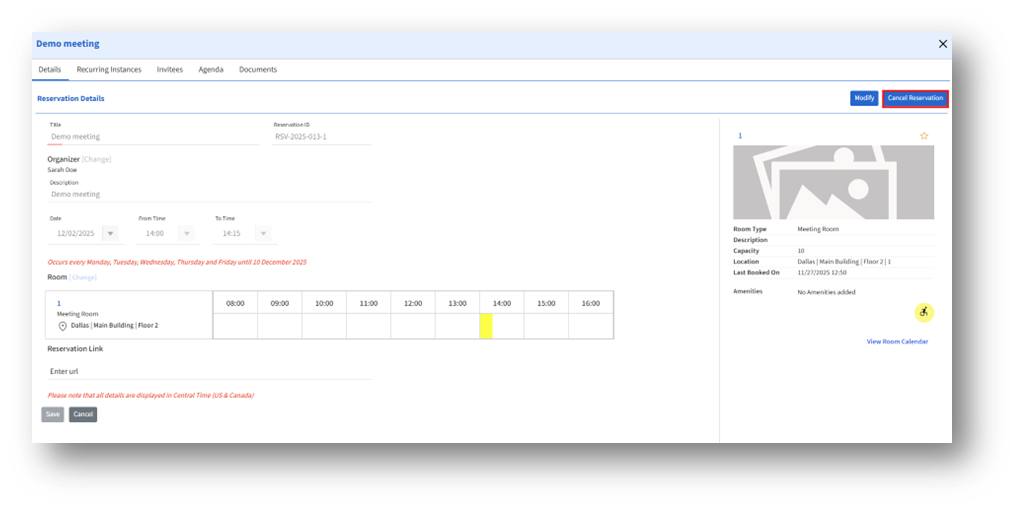 3. Open the Reservation Details Page
The full reservation page appears, showing options such as Modify and Cancel Reservation.
4. Click Cancel Reservation
This opens the cancellation page.
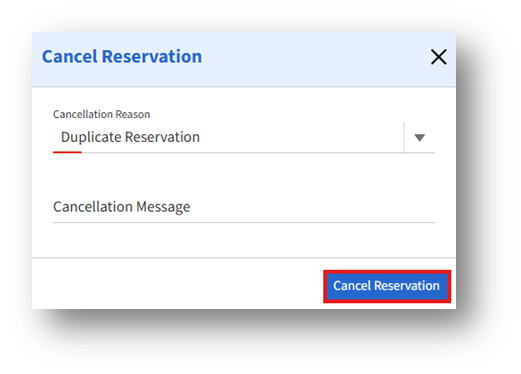
5. Choose Reason & Confirm
Select a Cancellation Reason, add a message if needed, and click Cancel Reservation to complete the process.