
Navigate: System Settings → Documents → General → Employee Groups

1. Clicking the “Add” button opens the “Add Employee Group” page.
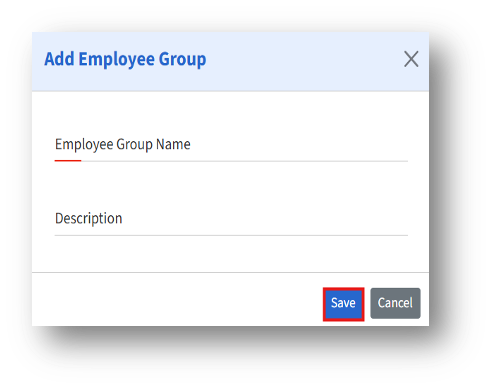
2. Enter the details and click Save to create a new employee group.
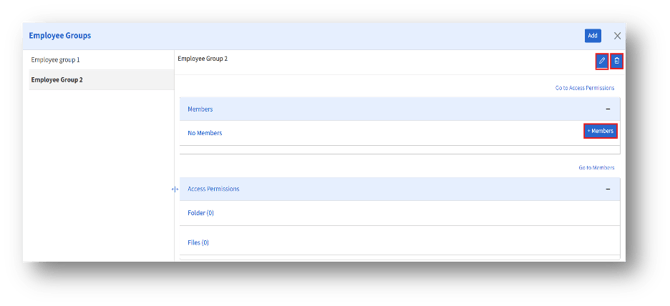
3. The admin can edit or delete the employee group they created.
4. To add members to a group, select a group name and click the “+Members” button.
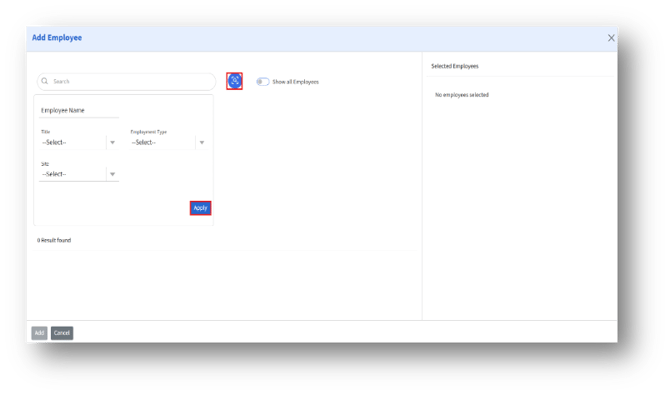
5. Clicking the “+Members” button opens the “Add Employee” group.
6. The admin can search for an employee or enable the “Show all Employees” toggle to list the employees.
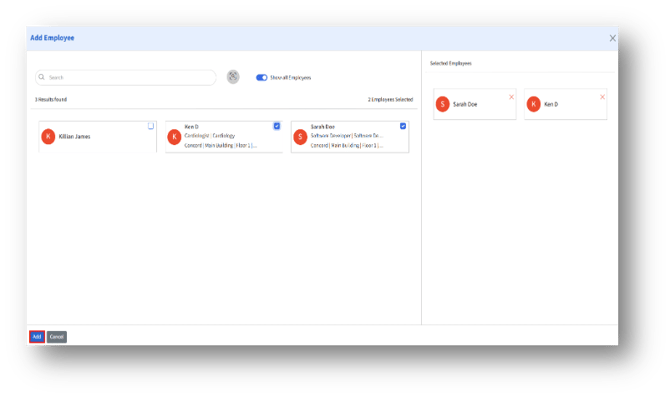
7. Select the employee by clicking their checkboxes.
8. The selected employees will be listed under the “Selected Employees” tab in the right pane.
9. After selecting the employees, click the “Add” button.