
1. Under Space → To add seats under Site/Building → Select location → Click “+Seats” button
2. At the top, you can choose the site, building, and floor you want to view.
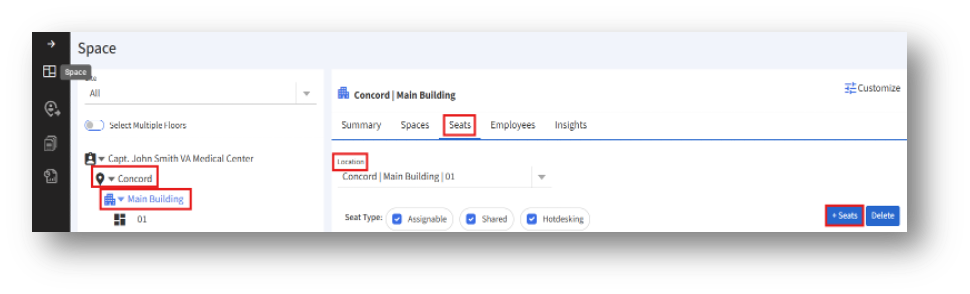
3. To add seats under a floor, select the floor and click the “+Seats” button.
4. Clicking the “+Seats” button navigates to the “Add Seat”
5. The “Add Seat” page appears:
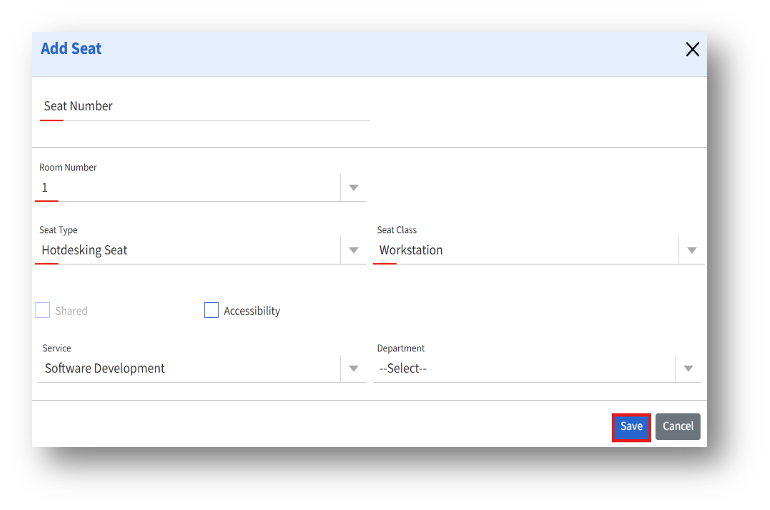
7. Room number – Select the room number from the drop-down menu.
8. Seat type – Type of seat (e.g., Workstation, Hotdesking).
9. Seat class – Select the category of the seat from the drop-down menu.
10.Shared? – Select the checkbox if the seat is assigned to multiple users. This field gets activated only when the admin selects the Seat Type as Workstation.
11. Accessibility – Select the checkbox if the space is designed to be usable by people with disabilities.
12. Organizational units up to level 5
13. After adding the details, click the “Save” button to create a seat.
14. To place a seat, the admin must open the drawing by selecting “View Drawing” for the corresponding floor where the seat needs to be placed.