
Navigate: System Settings →Organization → Calendar→ Calendars.

Step -1
a. To add a new calendar, click the “Add” button on the top right side of the Calendars page.
b. Then, the “Add Calendar” page will appear.
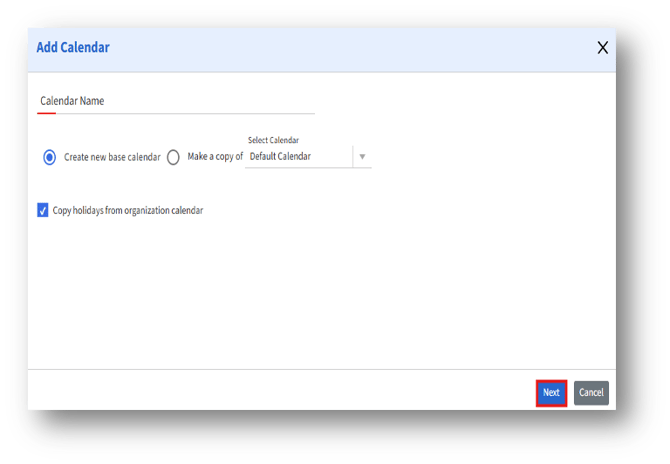
Enter the following details:
|
Field Name
|
Description |
|
Calendar Name* |
Enter a unique name for the calendar. |
|
Create New Base Calendar |
Select this option to create a brand-new calendar without copying existing settings. |
|
Make a Copy of Select Calendar |
Choose this option if you want to copy settings from an existing calendar. When making a copy, select an existing calendar from the dropdown list to duplicate its settings. |
|
Copy Holidays from Organization Calendar |
Check this box to include holidays defined at the organizational level. |
c. Click the “Next” to proceed to configure the calendar page.
Step -2
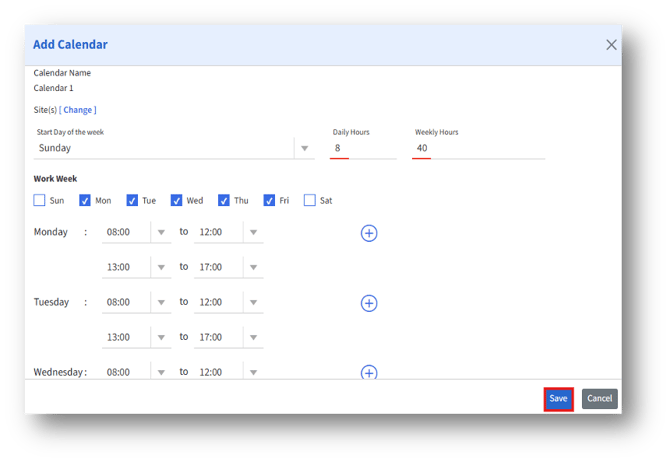
|
Field Name
|
Description |
| Calendar Name
|
Displays the calendar name defined in Step 1. |
|
Site(s) |
Click [Change] to display the sites linked to the calendar and select an associated site. |
|
Start Day of the Week |
Select which day should be considered the start of the workweek (e.g., Sunday or Monday). |
|
Daily Hours/Weekly Hours |
Select the workday timings set for each day/week. |
|
Work Week |
Displays the days of the week (Sunday to Saturday) with editable work hours for each day. |