
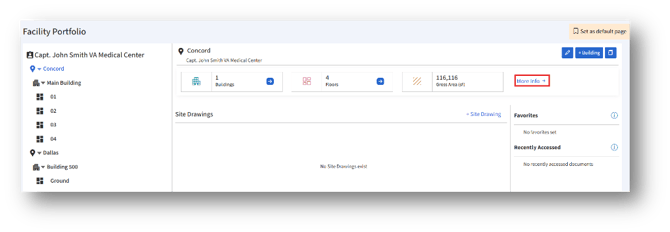
1. To add a drawing from “More Info” page, click the “More info→” button.
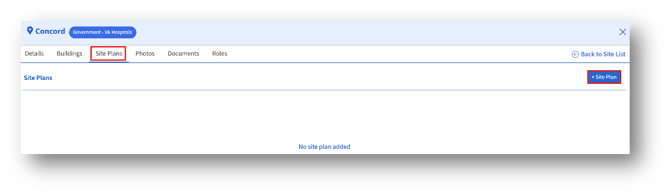
2. Then, navigate to the “+Workplace/Site Plans” tab.
Follow the steps below to successfully add a building drawing:
1. Open the Upload Drawing Page
1a. Select the site where the drawing can be uploaded.
1b. Click the “+Site/Workplace Plan” button to upload a new drawing.
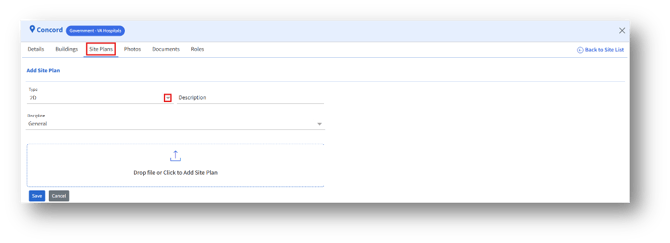
1c. The “Add Site/Workplace Plan” section will appear.
2. Select the Drawing Type
2a. In the “Type” dropdown menu, click the arrow to open the list of available drawing types.
2b. Choose from the available options either 2D or 3D (depending on the nature of the building drawing you are uploading).
3. Enter a Description
3a. In the “Description" field, provide a clear and concise description of the drawing.
3b. Adding a description helps in identifying and retrieving the drawing quickly.
4. Select the Discipline
4a. In the “Discipline” dropdown, select the discipline related to the drawing.
4b. By default, it is set to General.
5. Upload the Drawing File
5a. Click inside the “Drop file or Click to Add Site/Workplace Plan” box.
5b.You can either:
1. Click to browse your computer and select the DWG drawing file, or
2. Drag and drop the file directly into the box.
6. Confirm and Upload
6a. Once the file is added, verify the details.
6b. If correct, click the “Upload” button in the bottom-right corner.
6c. The drawing will be saved in the system and linked to the respective building/project record.
7. Completion
7a. After upload, you should be able to view the drawing in the drawings list under the selected site/building.
7b. You may also edit or replace the uploaded drawing later if required.