
Note: It is possible to create a user directly using add user feature. This user will not have few features like Room Reservations. To directly create a user, go to Settings (left bottom gear icon) → Accounts → Users
Create the User
- Sign into the application as a user with Administrator privileges.
- Navigate to the Employees module from the navigation menu.
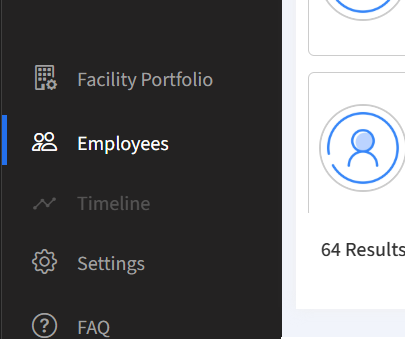
- Click the Add Employee button.
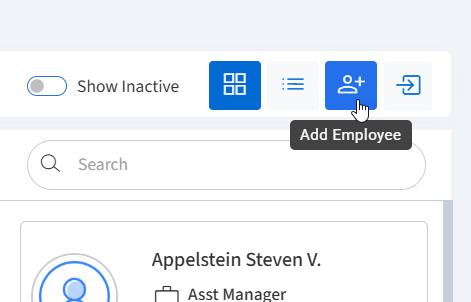
- Fill out the information. First and last name and email are required.
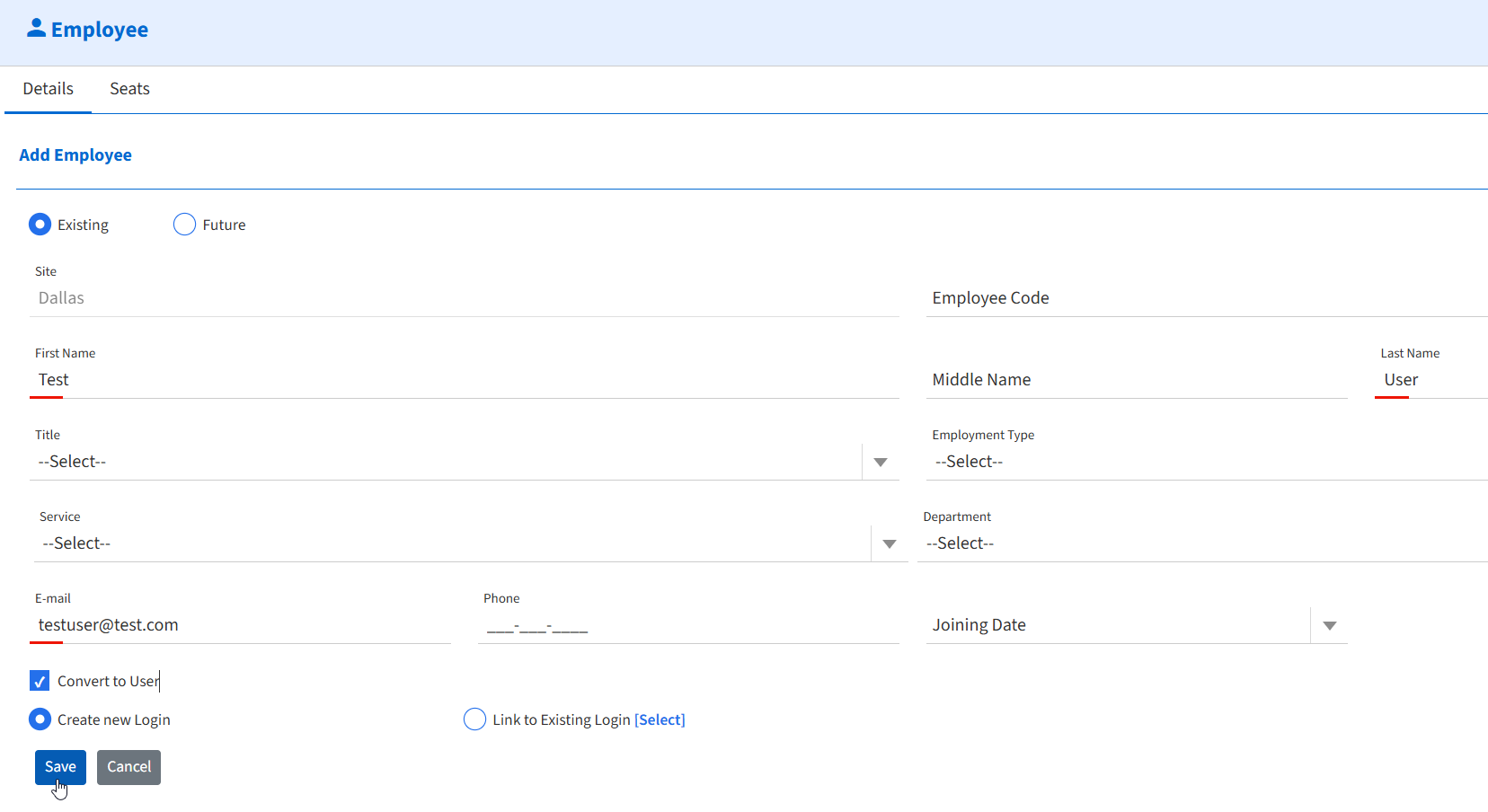
- Select Convert to User and Create new Login. Then click Save
Update the User's Permissions (if necessary)
- Click the Settings icon in the navigation Menu. Then select Accounts then Users.
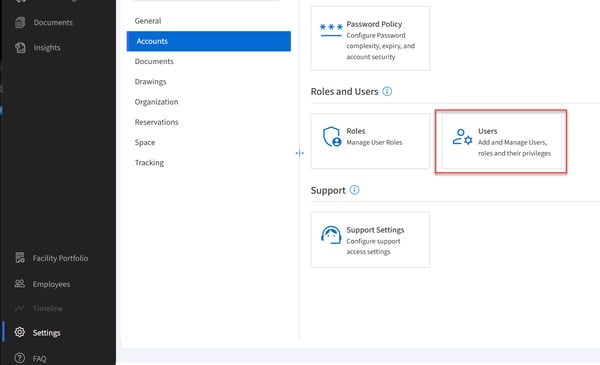
- Locate the user and double click on their row.
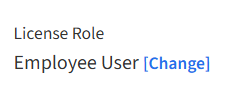
- Under License Role, click the Change button
- Select the necessary License Role from the dropdown menu. Select Modules.
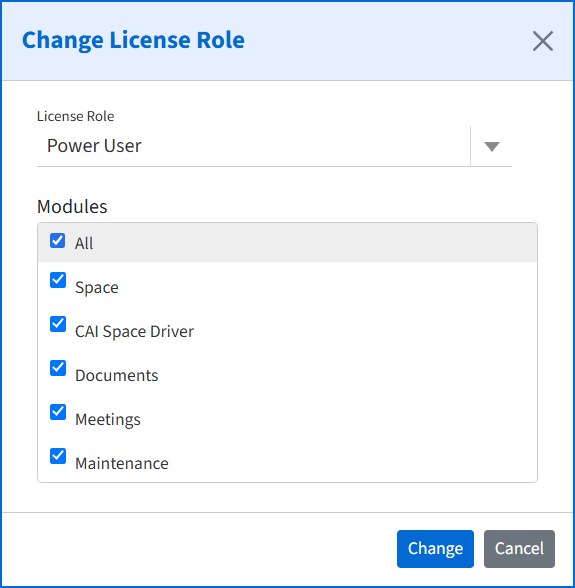
- Click Change to save.